
Subjects ▲ ▼
About ▲ ▼
What Is It? ▲ ▼
Families are groupings of items/products that are used, for example, to underpin Specials/Promotions, Discounts, Member Campaigns, Mix n Match and Vouchers.
What To Consider? ▲ ▼
- The appropriate Clerk Security Group permissions are required to access Families in Back Office.
Notes ...
Once Vouchers have been deleted, they cannot be restored without doing a restore, so always ensure that backups have been made before invoking this feature.
When Is It Used? ▲ ▼
Used extensively throughout the Swiftpos software and are also used when Venues wish to comply with the legal age of serving alcoholic beverages to patrons, or in Filtered Searches in Touch POS. They are also used in the filtering of reports.
An item/product can be assigned to multiple Families.
How To? ▲ ▼
Screens ▲ ▼
Families Screen ▲ ▼
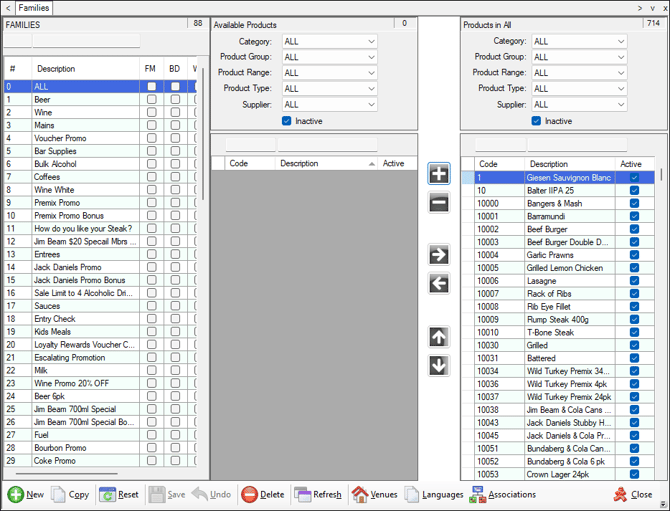
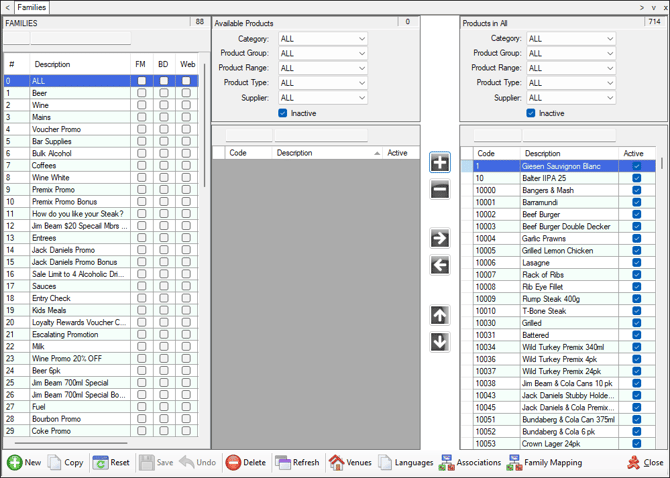
To access, select the Families option in the Products menu.
Sections ▲ ▼
FAMILIES Section ▲ ▼
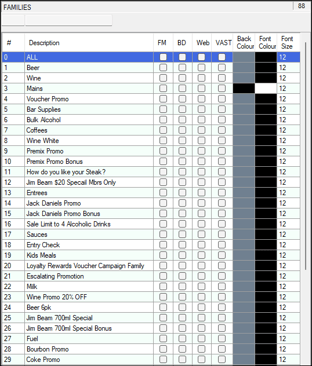
Lists the currently available Families. At the top of the section, Find fields are also provided to facilitate the locating of a specific row in the grid section.
- # - Displays the Family ID. This number is automatically generated at the time of creation.
- Description - Displays/Enter the description of the Family.
- BD - Select to include the selected Family in a Barrel Promotion draw.
Notes ...
- Cigarettes should not be included in any promotions as these cannot be sold in relation to Loyalty reward programs.
- Web - Select to include the selected Family of items/products to be available in the Web Store.
Notes ...
For instructional PLUs/Products (eg. Rare, Medium Rare, Medium or Well Done) to be visible in the Web Store, they will need to also be assigned to the selected Family. That is, in the example of 'Steak', both the 'Steak' product and the instructional PLUs/Products need to be assigned to the Family 'Mains'.
- VAST - Select to ensure that when any items/products, assigned to the Family with this feature selected, are sold in Touch POS, a VAST sales data file will be generated and written to the Update/Sales File Path with a suffix of _VAST.CSV. This feature was originally designed to support the integration of VAST Turnstiles. Refer HERE for more information.
- Back/Font Colour - Select to display a colour picker popup to select the colour that will be used as the default Background/Font colour for POS keys when using the Family Method in Post Event Linking or when selecting a Family as part of a Free Product(s) Voucher Action.
- Font Size - Select to determine the Font size for the POS keys of the items/products will be displayed in when using the Family Method in Post Event Linking or when selecting a Family as part of a Free Product(s) Voucher Action.
Available Products Section ▲ ▼
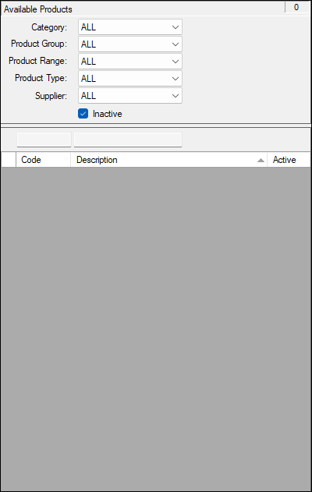
Lists the items/products that are currently NOT in the selected Family. Use the filters in the top of the sections to limit the number of rows displayed in the grid section. Find fields are also provided to facilitate the locating of a specific row in the grid section.
- Code - Displays the Product Codes of the items/products.
- Description - Displays the Product descriptions of the items/products.
- Active - Displays a checkbox either checked or unchecked indicating the item's/product's Active status.
Buttons Section ▲ ▼

- Add - Select to add the selected item/product to the selected Family.
- Minus - Select to remove the selected item/product from the selected Family.
- Right Arrow - Select to add all items/products listed in the Available Products section to the Products in Family section.
- Left Arrow - Select to remove all items/products listed in the Products in Family section to the Available Products section.
- Up Arrow - Select to move the selected item/product in the Products in Family section up a row.
- Down Arrow - Select to move the selected item/product in the Products in Family section Down a row.
Products in Family Section ▲ ▼
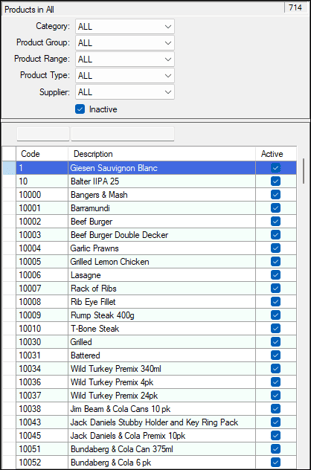
Lists the items/products that are currently in the selected Family. Use the filters in the top of the sections to limit the number of rows displayed in the grid section. Find fields are also provided to facilitate the locating of a specific row in the grid section.
- Code - Displays the Product Code.
- Description - Displays the Product Description.
- Active - Displays a checkbox either checked or unchecked indicating the item's/product's Active status.
Footer Section ▲ ▼

- New - Select to add a new Family.
- Copy - Select to copy the selected Family.
- Reset - Resets the filters at the top of the screen.
- Save - Select to save changes.
- Undo - Select to undo changes made.
- Delete - Select to delete the selected Families.
Notes ...
A warning will be displayed if the selected Family is currently associated with an existing Mix n Match rule.
- Refresh - Select to refresh the screen. This will ensure the most up to date data is returned.
- Venues - Select to open the screen to enable the selection of Venues the selected Family is to be active in. By default, a newly created Family will be active in ALL Venues.
- Languages - Select to open the Alternate Languages screen to translate the selected Families' description to other languages.
- Associations - Select to open the Family Association screen and display the current associations the selected Family has with specific Swiftpos software elements.
- Family Mapping - Select to open the Family Mappings screen.
- Close - Select to exit.
Venue Selection Screen ▲ ▼
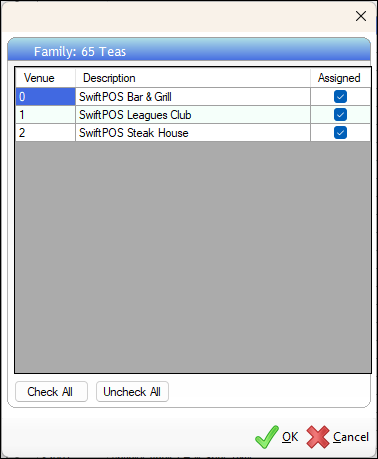
To access, refer HERE.
End of article ▲