
This provides information regarding the EFT47 - Oolio Pay (Wpay) peripheral in Touch.
Refer HERE for Support information
Subjects ▲ ▼
About ▲ ▼
What Is Required? ▲ ▼
- Swiftpos v10.78.7+
- .Net 4.6.2
-
C++ 2015 redistributable
What Is Supported? ▲ ▼
- Surcharging
- Tipping
What To Consider? ▲ ▼
- Sites must have a current Software Enhancement Licence to use this feature.
- If a printer is connected, then ensure an actual printer is selected. Do NOT use the <<Default Printer>> option because the device cannot see it.
-
Surcharging - Configure the surcharge rate through the payment provider. Touch POS records the surcharge amount returned through the Oolio Pay (Wpay) integration using the configured PLU/product and Media.
Card Surcharge PLU and Surcharge Media do not set the surcharge rate.
- Set Card Surcharge PLU to a dedicated surcharge PLU/product active in every applicable Location with the required tax and reporting configuration.
- Set Surcharge Media to the media that will record the additional payment amount.
- If EFT Card Media Links are configured, a matching card prefix or card type can override the Card Surcharge PLU and Surcharge Media configured on the Touch POS peripheral.
- Review Merchant fees on the EFTPOS Finalise (#2-30) POS Key to confirm that the intended surcharge method is being used.
- Run a test and confirm the EFTPOS amount, Touch POS sale total, surcharge product line, media values and receipt agree.
Refer HERE for additional information.
When Is It Used? ▲ ▼
EFT47 - Oolio Pay (Wpay) is recommended for all EFTPOS devices using Oolio Pay (Wpay) devices.
Screens ▲ ▼
EFTPOS Settings Screen ▲ ▼
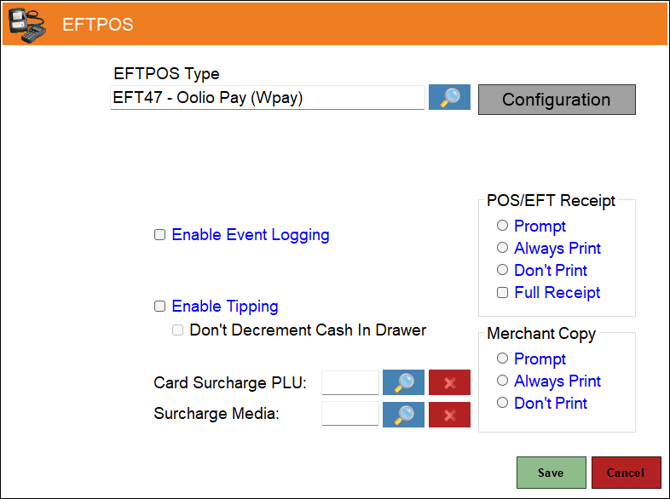
- EFTPOS Type - Select from the drop-down list the EFT47 - Oolio Pay (Wpay) option. Refer HERE for more information.
- Configuration - Select to open the Oolio Pay (Wpay) Settings screen.
- POS/EFT Receipt - Select from one of the Print options available. Also, if a full receipt option is required, select the Full Receipt option. This option is used to control whether the customer's/cardholder's receipt generated by the PIN Pad needs to be printed at the end of the payment being taken.
- Prompt – Select to show the transaction result and prompt to confirm the printing of the customer's/cardholder's receipt.
- Always Print – Select to just print the customer's/cardholder's receipt automatically.
- Don’t Print – Select to never print the customer's/cardholder's receipt.
- Full Receipt - Select to the customer's/cardholder's full receipt.
Notes ...
The customer's/cardholder's copy is always added to the Touch Tax Invoice/Receipt for an order/sale. So if a Tax Invoice is being printed/re-printed at the end of an order/sale, it’ll include the customer's/cardholder's PIN Pad receipt within it.
- Enable Event Logging - Select to enable. It is recommended that this is enabled when testing or when troubleshooting an issue.
- Enable Tipping - Select to enable.
- Don't Decrement Cash In Drawer - Select to ensure that Cash received as a Tip is held in a Tip jar or some other Tip vessel and is NOT added to the Cash Drawer. If unselected, it is assumed that the Cash received as a Tip is added to the Cash Drawer until distribution at a later date. Refer HERE for more information.
- Merchant Copy - Select from one of the Print options available. This option is used to control whether the merchant receipt generated by the PIN Pad needs to be printed at the end of the payment process. This is not stored/written back into a Touch order/sale, so it is only available end of the payment process.
-
- Prompt – Select to show the transaction result and prompt to confirm the printing of the merchant's copy.
- Always Print – Select to print the merchant's receipt automatically.
- Don’t Print – Select to never print the merchant's receipt.
-
- Card Surcharge PLU - Displays/Select the PLU to be assigned to the returned surcharge amount.
Notes ...
Surcharges are configured through the device, payment provider or the acquiring bank as is appropriate. Also, when EFT Card Media Links are configured, a matching card prefix or card type can override the Card Surcharge PLU configured here.
- Surcharge Media - Display/Select the Media to be assigned to the returned surcharge amount.
Notes ...
When EFT Card Media Links are configured, a matching card prefix or card type can override the Surcharge Media configured here.
Oolio Pay (Wpay) Settings Screen ▲ ▼
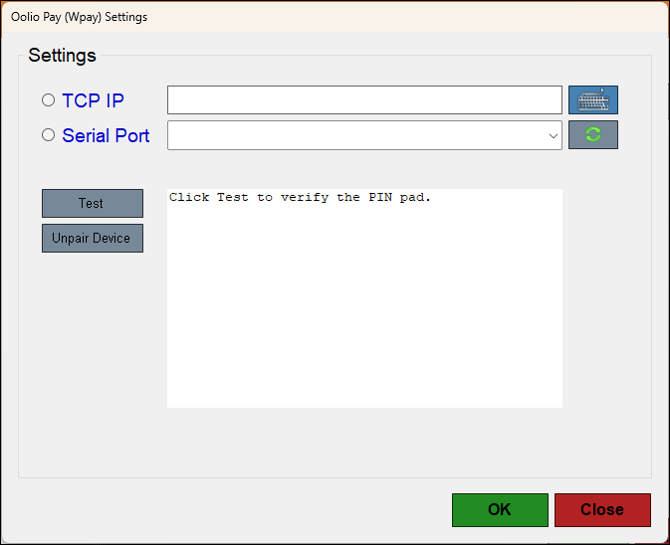
- Select either one of the following and select/specify the appropriate details:
- TCP IP - The TCP IP is collected from the device. This can be done as follows:
-
Swipe down from the top of the device and press internet option, connect to Wi-Fi.
-
Select the connected Wi-Fi, scroll down to IP address and note the IP address.
-
Enter the IP address noted from the device.
-
Select Test to test.
-
- Serial Port
- TCP IP - The TCP IP is collected from the device. This can be done as follows:
- Test - Select to test the device.
- Unpair Device - Select to unpair the EFTPOS device.
- OK - Select to save changes and exit the screen.
- Cancel - Select to exit the screen without saving the changes.
Troubleshooting ▲ ▼
End of article ▲