
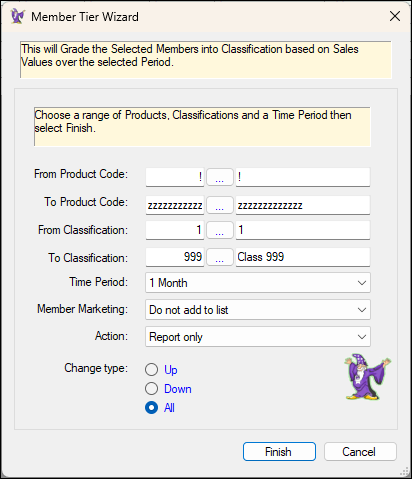
Used to re-classify Customer/Members based on their spending over a selected Time Period. The wizard calculates the Customer's/Member's total value of purchases over the Time Period and then evaluates this against the settings for each Classification to determine into which Classification they should fall. For example:
-
If the Customer/Member's total value of purchases falls outside (below or above) their Classification's Min to Maintain value their Classification will be re-evaluated, by determining in which Classification their total value of purchases falls based on the Tier Min/Max Levels values of each Classification.
Notes ...
Each time a Customer/Member changes level, a Tier Change Date is set and used to potentially exclude the Customer/Member from any calculations. For example:
Tier Min Period = 7 (days)
Current Tier change date = 10/06/2026
Date wizard is run = 15/06/2026
Because this Customer/Member has not been in the current classification for 7 days they will be excluded from any re-evaluation.
Also noteworthy are:
- The Classification's Tier Min/Max Levels specify the value range a Customer/Member needs to spend to qualify for that Classification.
- The Classification's Min to Maintain value indicates the required $ spend to keep a Customer/Member in that Classification, it can be set to any value and if not set will be given a default value of 0 (zero).
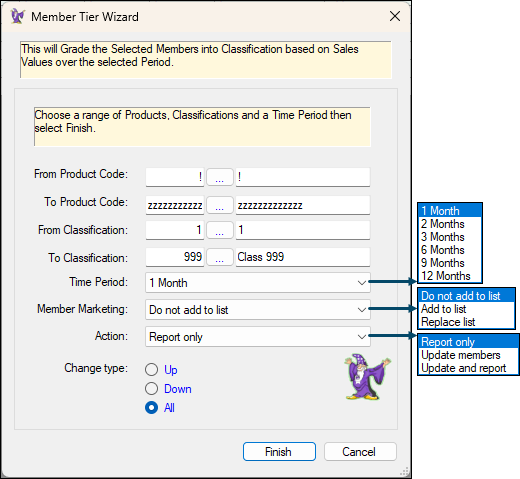
- From/To Product - Select to open the Search Products screen to select the Products in the From/To Product range.
- From/To Classification - Select to open the Search Membership Classifications screen to select the Classifications in the From/To Classification range.
- Time Period - Select from the drop-down list.
Notes ...
The Time Period selected will determine based on the total sales by a Customer/Member within that period, which Classification they will be assigned to, given the Classification's Min to Maintain value.
- Member Marketing - Select from the drop-down list one of the following:
- Add to list - Select to add the Customers/Members that will be re-Classified, to the existing Member Marketing list, when the Wizard is run.
- Replace List - Select to replace the existing Member Marketing list, with the Customers/Members that will be re-Classified, when the Wizard is run.
- Action - Select from the drop-down list one of the following:
- Report Only - Select to only report on those Customers/Members that will be re-Classified, when the Wizard is run.
- Update members - Select to only update those Customers/Members that will be re-Classified, when the Wizard is run.
- Update and report - Select to update and report those Customers/Members that will be re-Classified, when the Wizard is run.
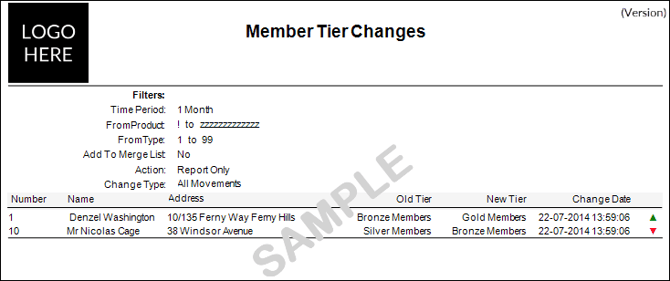
- Change Type - Select either Up, Down or All. For example, if Up is selected then only those Customer/Members that move up a tier will be reported/updated when the Wizard is run. See an example of the Member Tier Changes report below (produced by the Wizard with Change Type All selected).
- Finish - Select to run the Wizard.
- Cancel - Select to exit without running the Wizard.
Example Of Report
End of article ▲