
This outlines the information and the steps that are needed to familiarise oneself with the Multi Membership interface, prior to and during it's implementation.
Subjects ▲ ▼
About ▲ ▼
- Terms & Concepts
- What Is It?
- What Is Not Supported?
- What Is Required?
- What Is Supported?
- What To Consider?
- When Is It Used?
Terms & Concepts? ▲ ▼
Link To Interface ▲ ▼
Refers to the additional interfaces that are linked together to form the Mutli Membership interfacing. They are also interrogated as part of the Member lookup and linked together using the selected Member's attribute. For example, Member Number, Alternate ID/Card ID, or Mobile No. Data returned from linked interfaces are combined and displayed in Touch POS.
Order Of Interfaces ▲ ▼
The order in which 3rd party membership applications are interrogated is controlled by how they are configured in the NetPOS Multi Membership Interface screen, and not by a Touch POS Key. For example, if a Venue requires two different lookup flows, such as:
MG (Max Gaming) > Swiftpos > MiClub
MiClub > Swiftpos > MG (Max Gaming)
Then two separate Multi Membership Interface instances should be configured in NetPOS, one for each of the above.
Primary Membership App ▲ ▼
This is the main interface used for the Member lookup. It should generally be the Venue's primary source of Member data and should always be the one that holds the loyalty points of Members. Loyalty Points accruals/redemptions attributed to a Member will be applied to the Member's account in the Primary Membership App.
What Is It? ▲ ▼
The Multi Membership Interface allows Touch POS, POS API and related NetPOS Member lookups to interact with more than one 3rd party membership application using a single Member lookup. It is designed for Venues where Member's data, points, wallets, ePurse balances and/or account balances exist across multiple systems, for example:
-
MG (Max Gaming) as the primary Member/Points application.
-
Swiftpos Back Office providing points or ePurse accounts and acting as the bridging interface.
- MiClub providing wallets, or another 3rd party membership application.
The single Member lookup returns the combined Member's details with data from the configured interfaces, so Touch POS can charge, redeem, or process account payments against the relevant account/interface combination.
What Is Not Supported? ▲ ▼
- The following POS Keys are NOT supported:
-
Account Charge (#90)
-
Account Payment (#200)
-
Offline Account Charge (#195)
-
What Is Required? ▲ ▼
- Swiftpos V10.79+
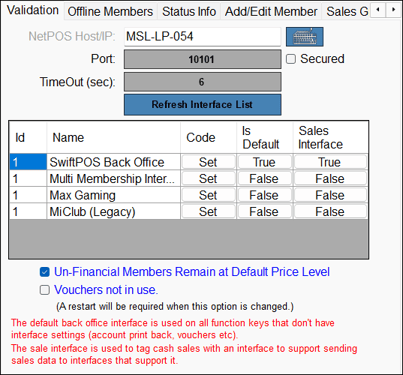
- A NetPOS registration will be needed for the Multi Membership Interface and the interfaces that are required in order to link with 3rd party membership applications. Refer HERE for more information. For example:
- A Venue's required interface sequence and linking must be tested/validated before going live. Refer HERE for more information.
What Is Supported? ▲ ▼
- The linking of up to 3 membership applications including Swiftpos Back Office.
- Besides Swiftpos Back Office, the only other NetPOS membership interfaces that can be linked using this feature are:
What To Consider? ▲ ▼
- All linked 3rd party membership applications must be able to be linked using a reliable common lookup value. For example, Member Number or Alternate/Card ID.
- Not all linked 3rd party membership applications return the same fields.
- Loyalty points accruals are only applied to the Primary Membership App. For example, an interface may allow lookup by Alternate/Card ID but not return the value in a linked lookup.
- A Multi Membership Interface configuration that works for one lookup order, may not work for another.
- Split charging across multiple interfaces is supported only where the linked To interface supports that type of behaviour.
When Is It Used? ▲ ▼
Used when a Venue wants to interface with more than one 3rd party membership application simultaneously in Touch POS when using the Customer (#102), Charge/Redemption (#151) and Payment/Top-Up (#152) POS Keys. For example, when the Customer (#102) POS Key is configured to use the Multi Membership Interface, then a single Member lookup in Touch POS will result in each linked interface being interrogated, and the data from each is returned to Touch POS.
For example, a Venue may have three membership sources: MG (Max Gaming), MiClub and Swiftpos, with MG (Max Gaming) being the primary source for all membership data.
Examples ▲ ▼
-
Configuration Examples:
- MG (Gaming) + Swiftpos + MiClub
- In this scenario, MG (Max Gaming) is the primary membership application. The POS validates the MG (Max Gaming) Member and then allows charges/payments/points accruals/redemptions to be processed against the:
- MG (Max Gaming) points account.
- Swiftpos ePurse accounts.
- MiClub wallets, such as prize, club, or house wallets.
- In this scenario, MG (Max Gaming) is the primary membership application. The POS validates the MG (Max Gaming) Member and then allows charges/payments/points accruals/redemptions to be processed against the:
- MG (Gaming) + Swiftpos + MiClub
-
-
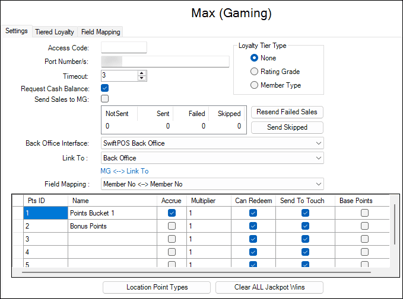
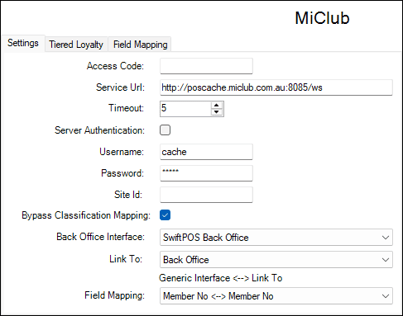
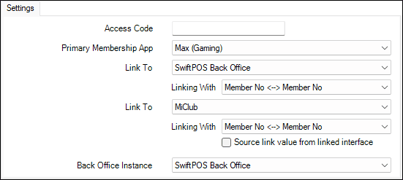
- The configurations to support the above are as follows:
- NetPOS
- Max (Gaming)
- MiClub
- Multi Member Interface
- Max (Gaming)
- Touch POS
- NetPOS
- The configurations to support the above are as follows:
- MiClub + Swiftpos
-
In this scenario, MiClub is the primary membership application. The POS validates the MiClub Member, then allows use of:
-
MiClub wallets.
-
Swiftpos points.
-
- The configurations to support the above are as follows:
- NetPOS
- MiClub
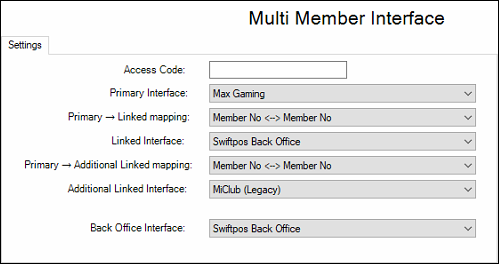
- Multi Member Interface
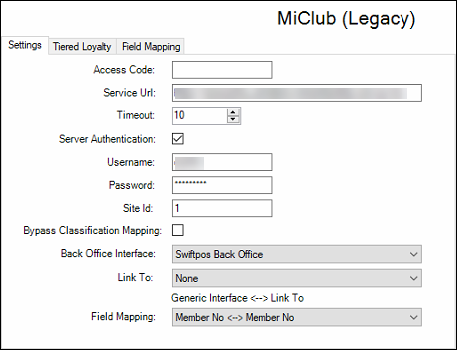
- MiClub
- Touch POS
- NetPOS
-
-
How To? ▲ ▼
How Does It Work? ▲ ▼
- Member Lookup
When a Member is looked up using the Multi Membership Interface:
- The Primary Membership App is interrogated first.
- The Link To interfaces are interrogated using the linking as configured HERE.
- The Member's data from the successful interrogations are combined and returned to the POS. In Touch POS, when the Customer (#102) POS Key is selected, it will display the returned data.
- Member Charge/Redemption
- In Touch POS:
- Charge prompts will group accounts by interface.
- The Charge/Redemption (#151) POS Key supports charges/redemptions against Member accounts when configured to use the Multi Membership Interface.
- In Touch POS:
Notes ...
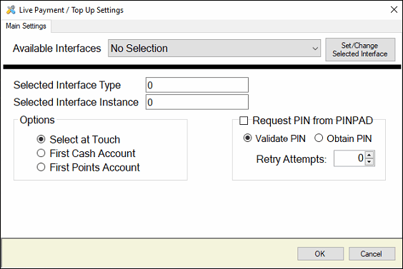
If no specific interface is selected (0 and 0) on the Charge/Redemption (#151) POS Key, all returned accounts will be shown. If however, the POS Key is configured to a specific interface, then the accounts returned will be limited to that interface.
- Member Payment/Top-up
- In Touch POS:
- Payment prompts will group accounts by interface.
- The Payment/Top-Up (#152) POS Key supports payments/top-ups against Member accounts when configured to use the Multi Membership Interface.
- In Touch POS:
Notes ...
If no specific interface is selected (0 and 0) on the Payment/Top-Up (#152) POS Key, all returned accounts will be shown. If, however, the POS Key is configured to a specific interface, then the accounts returned will be limited to that interface.
- Member Search
A Member search is only supported when the Primary Membership App supports that search method. Searches that are supported when available in the Primary Membership App are:- All Records
- First Name
- Last Name/Surname
- Member Number
- Alternate ID
- Phone
- Email (where supported)
Notes ...
The above searches apply to Swiftpos Back Office and MiClub. MG (Max Gaming) and IGT do not support these, so searching behaviour depends on the selected Primary Membership App.
- Points Accrual
- Points accrued are applied to the Primary Membership App only.
- Refund/reversals of points accrued are also applied to the Primary Membership App only.
- Points Redemption
- Points redeemed are processed against the Charge/Redemption (#151) POS Key's configured interface.
- Receipts
Receipts can show returned linked accounts when those account balances are configured in the receipt setup.
How To GET STARTED? ▲ ▼
Do as follows:
- Review About and ensure the steps outlined HERE are addressed.
- Configure NetPOS?
- Configure Touch POS?
- Test Before Going Live
Configure NetPOS ▲ ▼
- Ensure the appropriate NetPOS registration has been obtained from Swiftpos to ensure the Multi Membership Interface and the interfaces required to link to are also included.
- Import the NetPOS registration.
- Configure the NetPOS settings for the 3rd party membership applications being linked to.
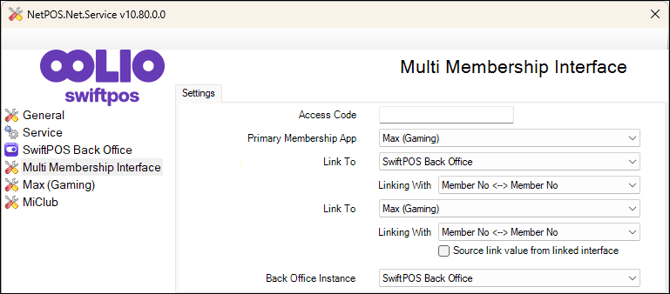
- Configure the Multi Membership Interface setting by accessing the NetPOS Menu and navigating to the Multi Membership Interface screen. Once it is displayed, configure it as is appropriate.
- Restart NetPOS.
- Refer HERE for examples of configurations.
How To Configure Touch POS? ▲ ▼
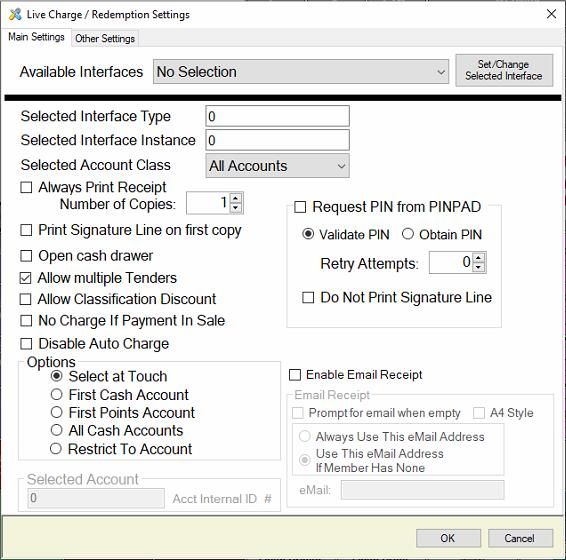
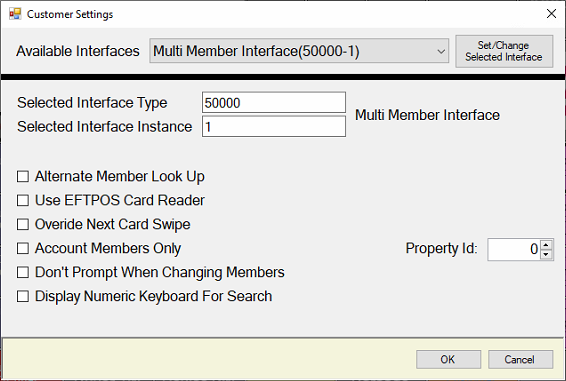
- Ensure the following POS Keys are added to the appropriate Keyboard Layout using the Designer, and that they are configured with the appropriate interfaces selected. Refer to HERE for more information:
- Send a full update to Touch POS.
- Refer HERE for examples of configurations.
How To Test Before Go-live? ▲ ▼
Ensure the following are tested before implementing this in a live environment:
-
Back Office Linking
- If Swiftpos Back Office is a Link To interface, test lookup and charging by Member Number.
- If Swiftpos Back Office is linked by Alternate ID, confirm charges/payments post to the correct Back Office Member, not a newly created or incorrect Member.
-
Failure tests
- Attempt a charge/payment when one Link To interface is offline.
- Attempt a multi-interface charge where one account/interface fails.
- Confirm the sale remains recoverable and does not finalise incorrectly.
- Confirm successful and failed interface balances remain correct.
- Confirm Touch POS balance owing remains correct after a failed charge/payment.
-
Interface Availability
- Primary Membership App online, all Link To interfaces online.
- Primary Membership App offline.
- First Link To interface Member not found.
- Second Linked To interface Member not found.
- Confirm all expected accounts are returned when all interfaces are online and Members exist.
-
Member Account Displays
- Confirm accounts are grouped by interface when the Charge/Redemption (#151) POS Key is selected in Touch POS.
- Confirm all accounts from all interfaces are displayed in Touch POS when the Charge/Redemption (#151) POS Key is configured for all interfaces.
-
- Confirm accounts are grouped by interface when the Payment/Top-Up (#152) POS Key is selected in Touch POS.
- Confirm all accounts from all interfaces are displayed in Touch POS when the Payment/Top-Up (#152) POS Key is configured for all interfaces.
-
Member Lookup
-
Lookup by Member number.
-
Lookup by Alternate ID.
-
Lookup by card swipe/card mask.
-
Lookup by barcode.
-
Lookup by keypad.
-
- Member Search
If supported by the Primary Membership App, test Member search by:
- Member number
- Alternate ID
- First name
- Surname/last name
- Phone
-
Receipt and Reporting
- Confirm receipt displays the linked account balances configured in the receipt setup.
- Confirm points accrual/redemption values appear correctly on receipts.
- Confirm the Search Transactions screen and relevant reports show the expected loyalty/points/account outcomes.
-
Transactions
- Points accruals are applied to the Member's account in the Primary Membership App.
- Refund/reversal of points accrued are applied to the Member's account in the Primary Membership App.
- Points redemptions work for each Link To interface where applicable.
- Refund of points redemptions work for each Link To interface where applicable.
- ePurse/wallet/account charges work for each Link To interface where applicable.
- Account payments work for each Link To interface where applicable.
- Refund account payments work for each Link To interface where applicable.
- Multi-tender/split charges work for each Link To interface where supported.
- Refund of multi-tender/split charges work for each Link To interface where supported.
Screens ▲ ▼
Multi Membership Interface Settings Screen ▲ ▼
To access, refer HERE. Used to configure the settings required to implement the Multi Membership interface.
Tabs ▲ ▼
Settings Tab ▲ ▼
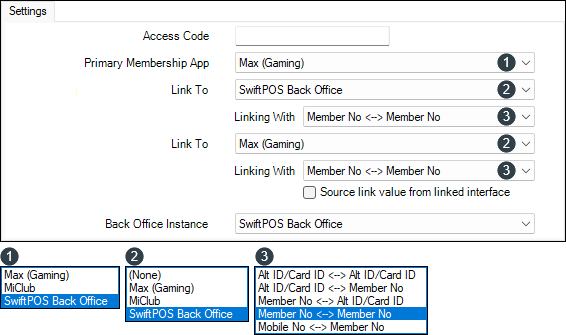
- Access Code - Default is blank. Displays/Enter the Access Code that must match the same Access Code configured at the Touch POS device. This is not mandatory but, does provide an additional level of security.
- Primary Membership App - Displays/Select from the drop-down list the application to interface with, that is considered the primary source of membership data. The application that holds membership loyalty points must always be selected here. Otherwise, select the membership application that holds all Members and their membership details.
- Link To (First) - Displays/Select from the drop-down list the application to interface with. Generally, it is recommended that Swiftpos Back Office be selected here. That is, because Swiftpos Back Office provides the option of linking Members using the Member's Alternate ID/Card ID.
- Linking With - Displays/Select from the drop-down list the option that best depicts how Members will be linked between the Primary Membership App interface and the Link To (First) interface selected here.
- Link To (Second) - Displays/Select from the drop-down list the next membership application to interface with.
- Linking With - Displays/Select from the drop-down list the option that best depicts how Members will be linked between the first Link To interface (First) the Link To (Second) interface.
- Source link value from linked interface - Select to ensure a value returned by the above linking can be sourced and used.
- Linking With - Displays/Select from the drop-down list the option that best depicts how Members will be linked between the first Link To interface (First) the Link To (Second) interface.
Notes ...
The Source link value from linked interface option in combination with the Mobile No <-> Member No Linking With option enables linking between interfaces to use a Member's mobile number. For example:
-
A Member is returned by the Max (Gaming) interface.
- The Member returned is then used to lookup the Member in Swiftpos and return their account.
- With the Source link value from linked interface option is selected, it is then possible to use the Member's mobile number returned by Swiftpos to link to the ned interface. For example, (MiClub).
- Back Office Interface - Displays/Select from the drop-down list the Back Office instance that the 3rd party membership applications selected above are going to be interfacing with.
Notes ...
This is only required when a Venue is running multiple instances of Back Office.
End of article ▲