
This outlines the How To Configure Keyboards For Multi Location Venues.
Subjects? ▲ ▼
About ▲ ▼
What Is Required? ▲ ▼
- A Keyboard must already exist with at least Layouts configured that can be set as HOME Layouts for the different Locations. For example, for a Venue with two Locations, a Bar and a Restaurant. A Drinks Layout would need to exist for the Bar and a Food Layout for the Restaurant.
When Is It Used? ▲ ▼
Used when a Venue that has multiple Locations. For example, Bar and Restaurant. It is recommended to share Keyboard Layouts and hence minimise the maintenance of Keyboards and Layouts.
How To? ▲ ▼
How To Configure Keyboards For Multi Location Venues? ▲ ▼
To achieve this do as follows:
- Add a new Keyboard and name it after the Venue suffixed with the name of a Location. For example, Bar And Grill Tavern - Bar. Refer HERE for more information.
- Add and configure a Layout and it's POS Keys as is required for the Bar. For example, create a Drinks Layout that will be used by the Touch terminal located in the Bar.
- Set the Drinks Layout as the HOME Layout. Refer HERE for more information.
- Also, Add and configure a Layout and it's POS Keys as is required for the Restaurant. For example, create a Food Layout that will be used by the Touch terminal located in the Restaurant.
- Add, configure and Link any other Layouts and their POS Keys as is required by the Venue. For example, create a Management Layout that will be used by the Touch terminal located in the Restaurant.
- Save the changes.
- Copy the Keyboard to create a Keyboard for the Restaurant. Refer HERE for more information.
- Save the changes.
- The Keyboard Tree View may look something like this:
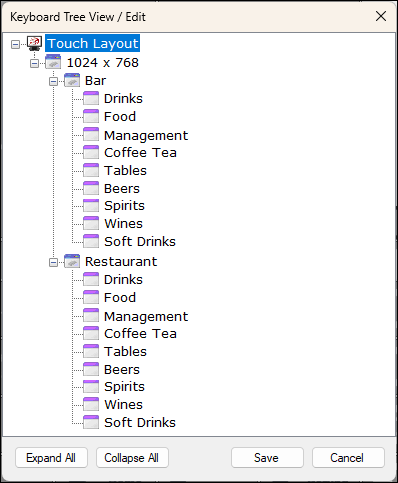
- Send a Full Update to the Touch terminals in the Bar and Restaurant.
- Ensure the Keyboard selected for each Touch terminal located in the Bar and Restaurant are configured correctly. That is, the Touch terminals in the Bar have the Bar And Grill Tavern - Bar keyboard selected, and the Touch terminals in the Restaurant have the Bar And Grill Tavern - Restaurant keyboard selected. Refer HERE for more information.
- Test and ensure that all Keyboards and POS Keys are working as expected and the Touch operators can navigate to all Layouts easily and quickly.
Notes ...
Going forward, any changes required to the Keyboard/Layouts can be done by:
- Changing ONLY the Bar Keyboard and it's Layouts and POS Keys to the new requirements.
- Deleting the Restaurant Keyboard. Refer HERE for more information.
- Copy the Bar Keyboard and rename the copied version to Restaurant and set it's Food Layout as the HOME Layout.
End of article ▲