
This outlines the How To Delete A Keyboard.
Subjects? ▲ ▼
About ▲ ▼
What Is Required? ▲ ▼
- A Keyboard must already exist.
When Is It Used? ▲ ▼
Used when a Keyboard is no longer being used, nor scheduled for use, and is required to be removed.
How To? ▲ ▼
How To Delete A Keyboard? ▲ ▼
In Back Office, do as follows:
-
Select the Keyboards menu option in the Touch Settings menu.
- Select the Keyboards menu in the Toolbar.
- Select the Open Keyboard option from the Keyboard menu to open the Touch Keyboards screen.
- Select the Keyboard to be deleted from the list of available Keyboards, to open it.
- Select the Remove Keyboard option.
- At the prompt to confirm deletion of the Keyboard select Yes to proceed with the deletion.
Notes ...
If the Keyboard selected for deletion is used in a Scheduler, then a prompt will be displayed confirming that, and instructing that the same Keyboard first be removed from the Schedule in order for it to be deleted. For example: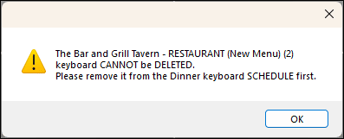
End of article ▲