
Subjects ▲ ▼
About ▲ ▼
When Is It Used? ▲ ▼
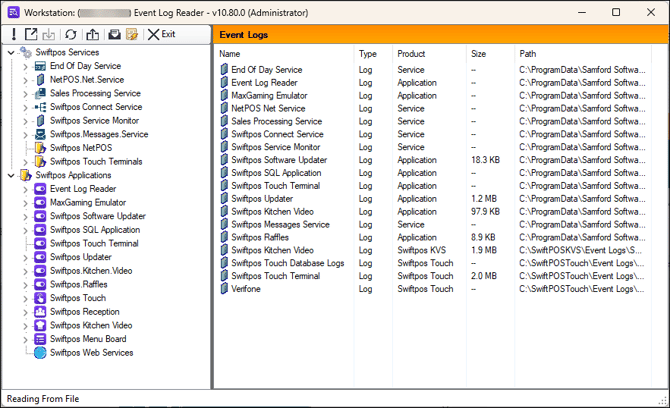
Used to provide logging information with the purpose of assisting in troubleshooting and resolving software related issues. It can be opened from any application.
How To? ▲ ▼
- Archive Old Log Files?
- Email Log Files By Date?
- Import A Log File?
- Retrieve Touch Logs From Swiftpos Connect?
- View An Emailed Log file?
How To Archive Old Log Files? ▲ ▼
To Archive Log files follow the steps below:
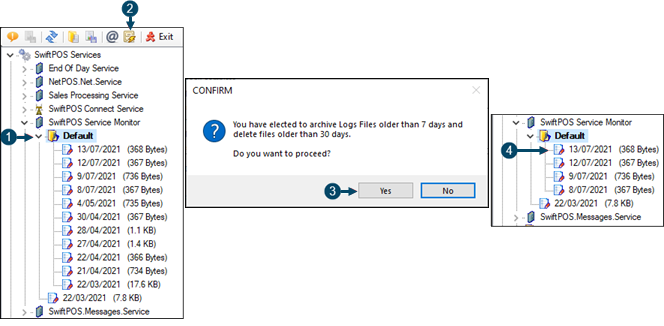
- Expand a file and select the Default entry.
- Select the Archive Old Log Files option in the toolbar.
- Select Yes in the prompt.
- The log files remaining in the Event Log Reader after the Archiving has completed will NOT be older than 7 days.
How To Email Log Files By Date? ▲ ▼
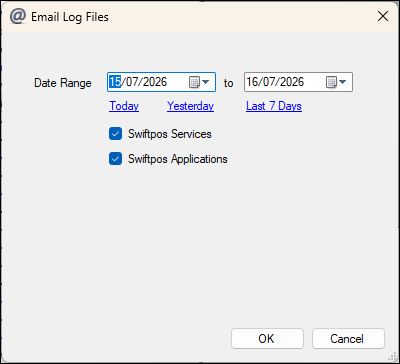
- To email a group of log files at the same time select the "@" icon and select a date range and Products that to email. An email service is not required to be set up to email logs files.
How To Import A Log File? ▲ ▼
A Log file received from a 3rd party can be viewed in the Event Log Reader. Simply drag the file (from it's current location) and drop the file onto the Event Log Reader screen and it will get added to the menu.
How To Retrieve Touch Logs From Swiftpos Connect? ▲ ▼
From Swiftpos Connect:
-
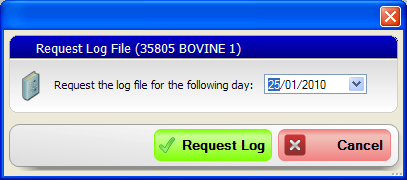
Right select on an online terminal and select Request Log File.
-
Specify the date of the log file you wish to retrieve and select Request Log.
-
Shortly after the newly requested log file via the Event Log Reader labelled Swiftpos Connect -> Touch Terminals-> Terminal #-> Dated Log File. This same section also displays Terminal Based Reports.
How To View An Emailed Log file? ▲ ▼
-
From an email application, drag and drop the log file into the Event Log Reader screen.
-
This will create a new tree menu called Miscellaneous that will display the emailed log file as today's dated file.
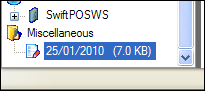
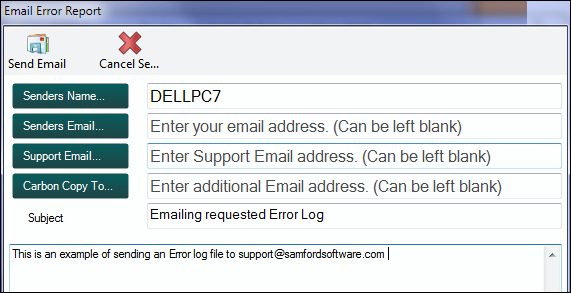
All the Swiftpos Services that are running on the computer are designed to create a Service Log. Any of these logs can be opened by highlighting the particular log for that day. Right Select a file then email that log file to your Reseller or it will automatically get emailed to support@swiftpos.com.au.
Screens ▲ ▼
Event Log Reader Screen ▲ ▼
To access, select:
- The Event Logs option int the Tools menu of the Back Office Main Menu, OR
- Select the Open Event Log Reader menu item from the Basic Tools menu in Touch.
Used to provide logging information with the purpose of assisting in troubleshooting and resolving software related issues. It can be opened from any application.

- Read Logs From Folder
- Open Log File
- Read From Database
- Refresh - Select to refresh the Event Log Reader.
- Export Grid to Excel
- Email Log Files by Date
- Archive Old Log Files
- Exit
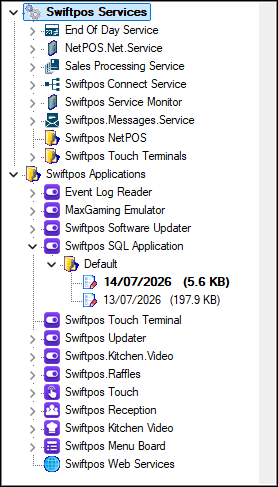
Used to locate and access a specific log file.
Log File Actions
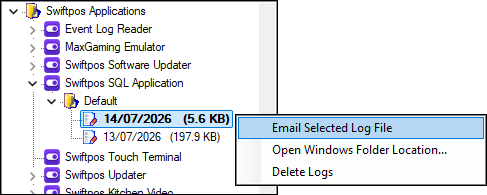
Right click on any Log file to access the following actions:
- Email Selected Log File - Select to email the selected Log File. Complete the subsequent email prompts.
- Open Windows Folder Location - Select to open up the folder where all the log files are stored. From here you can delete all the log files. The next time the Swiftpos applications and Services are started new Log files will be generated.
- Delete Logs - Select to delete all the log files for this particular service.
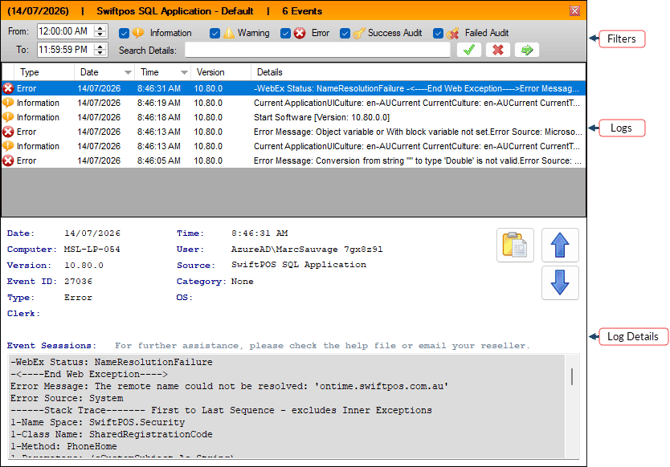
Used to filter logs and then select a log entry to view the details.
End of article ▲