
Subjects ▲ ▼
About ▲ ▼
What To Consider? ▲ ▼
- Access to reset Account balances can be configured via Clerk Security Groups under Accounts HERE.
When Is It Used? ▲ ▼
Used to configure the different types of Accounts. This is similar to Member Classifications but with a few different features.
How To? ▲ ▼
Screens ▲ ▼
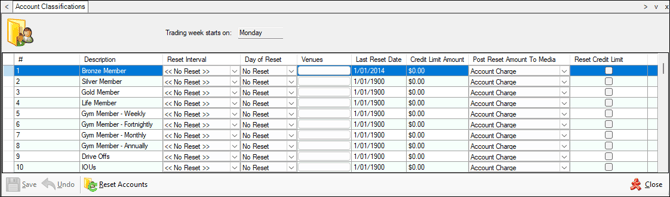
Account Classifications Screen ▲ ▼
To access, select the Account Classification option in the Accounts menu in Back Office.
Sections ▲ ▼
Header Section ▲ ▼

- Trading week starts on - Displays the weekday that is designated as the start of the trading week. This setting is configured HERE.
Grid Section ▲ ▼
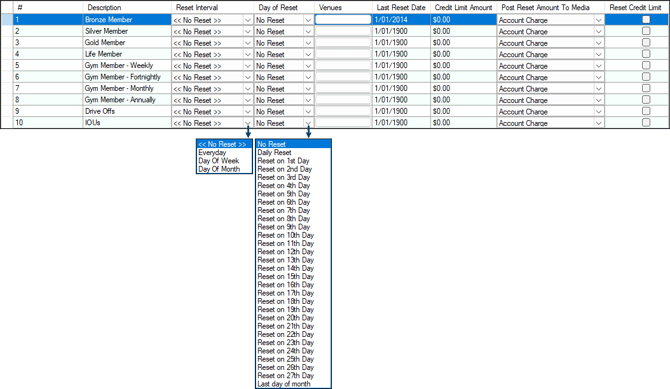
Lists the Account Classifications currently configured, along with their:
- # - 1 to 999 Classifications can be defined.
Notes ...
Classification 99 is reserved for BANNED Customers/Members banned from a Venue. Refer HERE for more information.
- Description - Displays/Enter the Description.
- Reset Interval - Select from the drop-down list a reset interval, that will determine when Accounts assigned to the selected Classifications will have their balances reset to zero. Once selected, then all Accounts assigned to the selected Classifications will have their balance reset if the Reset Account Balances option is selected in the End of Day Options screen and the End of Day service is running. Sales transactions recorded against Accounts assigned to the selected Classification will remain, and SOH will be correctly adjusted for a stocktake.
Notes ...
A Reset Interval must be selected to manually reset Account balances.
- Day of Reset - Select from the drop-down list the day required. The options available are No Reset, Daily Reset, Reset on 1st to 27th day and Last day of month.
Notes ...
A Reset Interval must be selected to manually reset Account balances.
- Venues - Select to open the Venues screen to select the Venues to which access will be granted when patrons, assigned to the selected Classification, transact in Touch POS and/or Reception. The same patrons will NOT be granted access at those Venues that have not been selected. The default is all Venues. Account Classifications that have been assigned to individual Venues will use the Venue's Contact Info for Statements. Refer HERE for more information relating to security.
- Last Reset Date - Displays/Set the last date a reset occurred. Any manual changes to this date are logged and can be reported on using the Database Activity (ADM002) and Database Audit (ADM001) reports.
- Credit Limit Amount - Displays/Enter the maximum value of the Account Allowance that can be given within the Reset Interval selected.
- Post Reset Amount to Media - Select from the drop-down list a Media to post the allowance amounts utilised by a patron.
- Reset Credit Limit - Select to ensure the resetting Account Credit Limits are reset to the Credit Limit Amount set.
Footer Section ▲ ▼

- Save - Select to save changes.
- Undo - Select to undo changes made.
- Reset Accounts - Select to manually trigger a reset of the balances of all Accounts assigned to the Classification currently selected in the grid. It is recommended that, from a data security perspective, the Classification needs to have a Reset Interval option selected to ensure the Account balances are not accidentally reset. Select the reset interval from the Reset Interval drop-down list. Select this option to reset the Account balances manually, then ensure the << No Reset >> option is selected from the Reset Interval drop-down list to ensure the End of Day process does not reset the Account balances.
- Close - Select to exit.
End of article ▲