
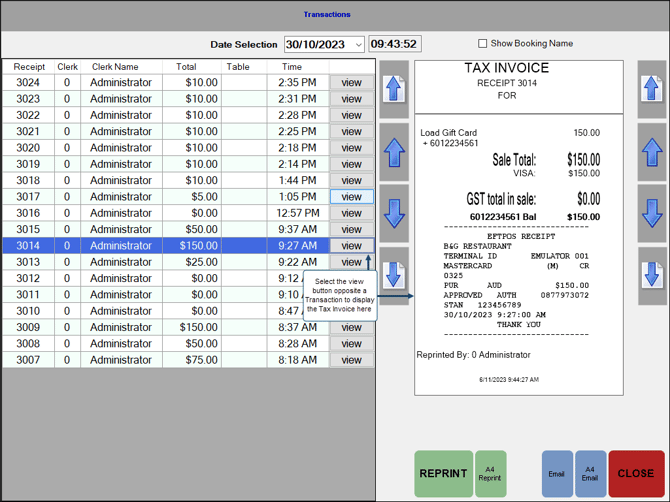
To access, select either the Reverse Transaction (#516), Review Transactions (#10), Reopen Closed Table (#114) or Kitchen Print (15) POS Key (configured with the Print From Closed Sales option selected) in Touch.
Enables Clerks/Staff to review up to 7 days' worth of Transactions in Touch and also reprint them if necessary.
Header Section ▲ ▼
- Date Selection - Displays/Select from the drop down calendar the date from which Transactions will be displayed. Defaults to the today's date.
- Time - Displays/Enter the time from which Transactions will be displayed. Defaults to the current time.
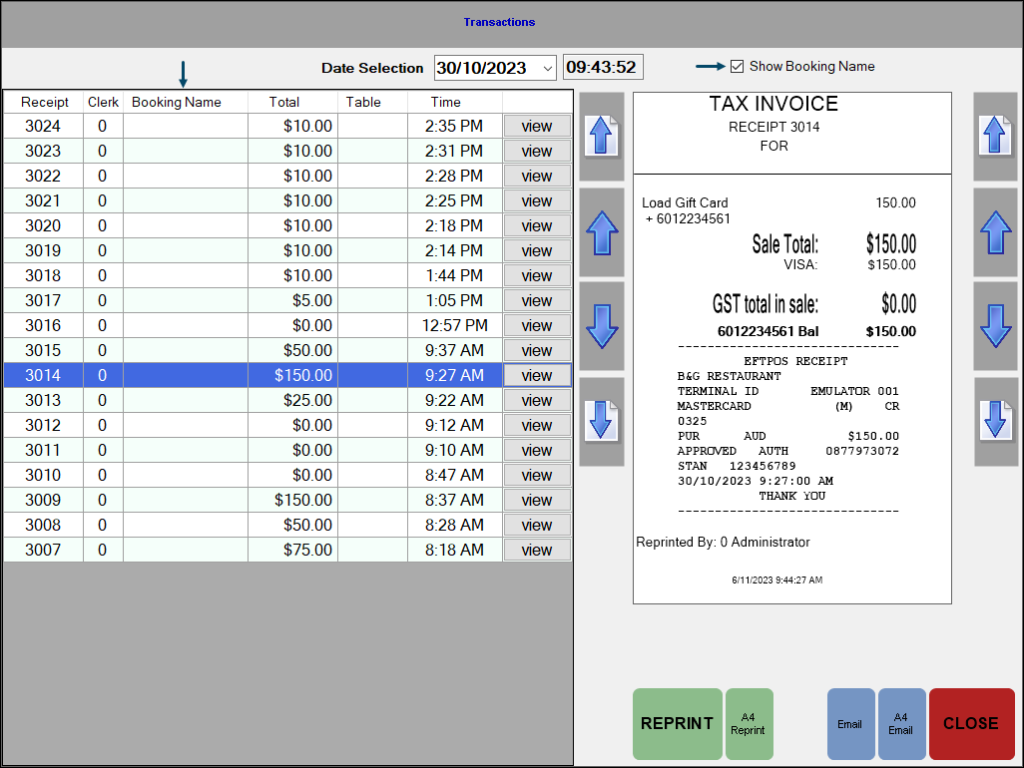
- Show Booking Name - Select to display the Booking Name instead of the Clerk Name in the grid.
Grid Section ▲ ▼
- Displays all transactions for the date selection, along with their: Receipt #, Clerk Name, Total, Table, Time and view option.
Tax Invoice ▲ ▼
Displays the Tax Invoice when the view option is selected opposite a selected transaction in the grid.
Navigation Buttons ▲ ▼
- Up/Down Arrows - Select to navigate through the rows/pages of transactions displayed in the grid.
Footer Section ▲ ▼
- REPRINT - Select to reprint a receipt. This option will only be visible when the Kitchen Print (15) POS Key is selected.
- REVERSE - Select to reverse the selected transaction. This option will only be visible when the Reverse Transaction (#516) POS Key is selected.
- A4 Reprint - Select to reprint a receipt in A4 format. This option will only be visible when the Kitchen Print (15) POS Key is selected.
- Reprint Kitchen - Select to reprint a copy of the Kitchen Docket. This option will only be visible when the Kitchen Print (15) POS Key is selected, and it has the Print From Closed Sales option selected.
- Email - Select to email a receipt or alternatively select F10. This will prompt for the entry of an email address. This requires the email settings to be configured in Touch.
- A4 Email - Select to email a receipt in A4 format or alternatively select F9. This will prompt for the entry of an email address. This requires the email settings to be configured in Touch.
- Close - Select to exit.
End of article ▲