
Notes...
It is highly recommended to ensure backups are made of the swiftpos Touch Database and the Settings prior to any changes being made.
To access, refer HERE. Used to access tools relating to Support for Touch
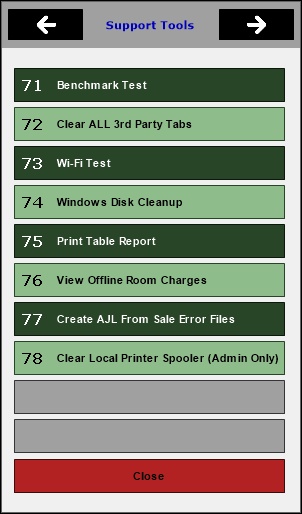
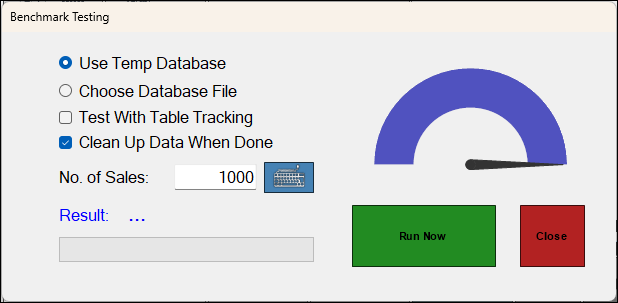
- Benchmark Test - This will give you an idea on the performance of your hardware compared to other existing hardware on the market. You can also monitor server performance as well.
Notes ...
If wireless Swiftpos Touch terminals are being used, there may be a need to test the performance of the network during busy periods to make sure that there are no issues.
- Clear ALL 3rd Party Tabs - Select to ensure all 3rd Party TABs are cleared. This should only be used as a last resort. Currently Clipp is the only 3rd Party Tab system that supports the clearing of TABs. All others will return an Invalid Function. Refer HERE for more information.
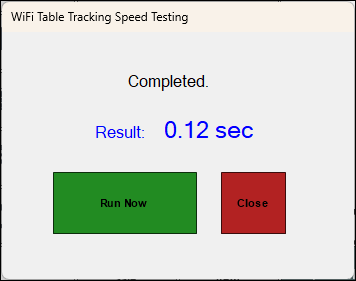
- Wi-Fi Test - Select to open the WiFi Table Tracking Speed Testing screen and perform a speed test.
Notes ...
If wireless Swiftpos Touch terminals are being used, there may be a need to test the performance of the network during busy periods to make sure that there are no issues.
- Windows Disk Cleanup - Select to perform a Windows Disk Clean-up.
- Print Table Report - Prints the Table Report that is saved via the Enable Save of Open Table/Tabs.
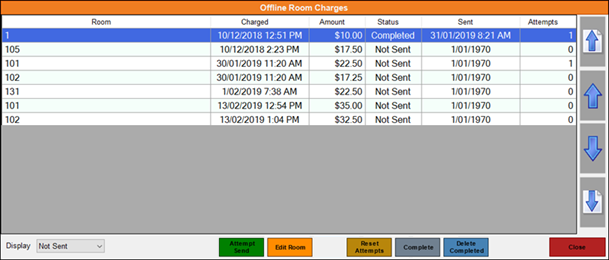
- View Offline Room Charges - Select to open the Offline Room Charges screen to view the current list of room charges that were charged while Touch was offline. Use this screen to send to the Back Office those charges that have not been sent, when the terminal is online again. Offline room charges is indicated by the number displayed in the square brackets [ ] beside the S indicator in the Touch information bar.
|
|
- Create AJL From Sale Error Files - Select to generate a Sales (AJL) file based on a selected Sales error file. This can then be renamed and moved so that it is processed by the Sales Processing service. To use, do as follows:
- Select to enter the Daily Code (This can be obtained by contacting Swiftpos Support).
- Once entered locate and select the Sales file in error. This file would normally be named something similar to: 7-20230830T125902_SaleError.xml.
- Once selected, an AJL file will be generated and saved to the location displayed in the notification prompt (displayed once the generation process has completed).
- The generated AJL file will need to be renamed to ensure the Sales Processing service identifies it and processes it as per normal. The new name would be something along the lines of SWIFTPOS.20231012.AJL.
- It should then be moved to the Sales File Path folder.
End of article ▲