
Subjects ▲ ▼
About ▲ ▼
What Is It? ▲ ▼
Touch Alerts provides Venues with the ability to configure alerts in Touch so that specific actions can be taken when an alert is triggered. Alerts that can be configured are:
- Drawer Limit
- End Of Sale
- Printer Status
- On Startup
- On Shutdown
- PLB Credential Failed
- PLB Export Failed
- Start Of Sale
Actions that can be taken are:
- Banner Message (Kiosk)
- Disable Trading
- Display Message
- Pager
- Service Indicator
What Is Required? ▲ ▼
- Swiftpos v10+
When Is It Used? ▲ ▼
Used when Venues want specific actions to be taken when an alert is triggered. For example, page a manager when a Cash Drawer has exceeded as set maximum limit.
How To? ▲ ▼
Screens ▲ ▼
Action Screen ▲ ▼
The screens displayed here will depend on the action type selected:
- Banner Message (Kiosk) Action
- Disable Trading
- Display Message Action
- Email Action
- Pager Action
- Service Indicator Action
Banner Message (Kiosk) Screen ▲ ▼
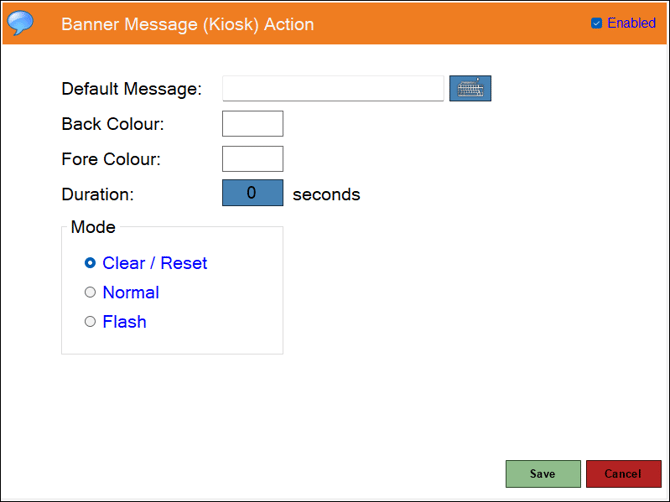
- Default Message - Displays/Enter a message a Kiosk operator will see when the alert is triggered.
- Back Colour - Select to select the background colour for the display of the message.
- Fore Colour - Select to select the text colour for the display of the message.
- Duration - Displays/Enter the time in seconds the message will be displayed for.
- Mode - Select one of the following options:
- Clear / Reset
- Normal
- Flash
Footer Section
- Save - Select to save the changes.
- Cancel - Select to exit without saving.
Disable Trading Screen ▲ ▼
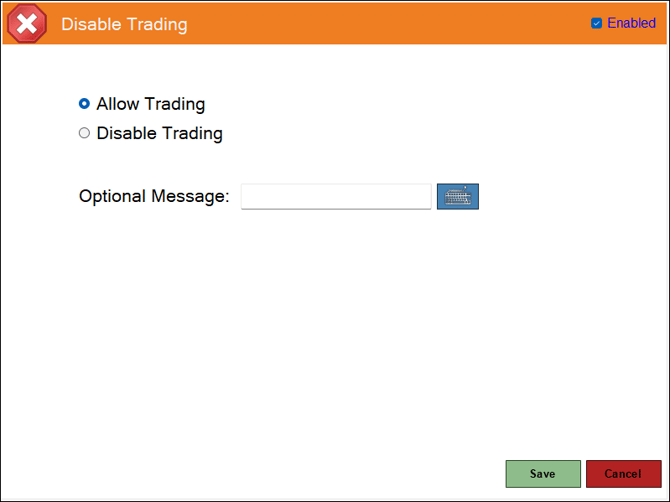
- Allow Trading - Selected by default.
- Disable Trading - Select to ensure trading via the Touch terminal is disabled.
- Optional Message - Displays/Enter a appropriate message if required.
Footer Section
- Save - Select to save the changes.
- Cancel - Select to exit without saving.
Display Message Action Screen ▲ ▼
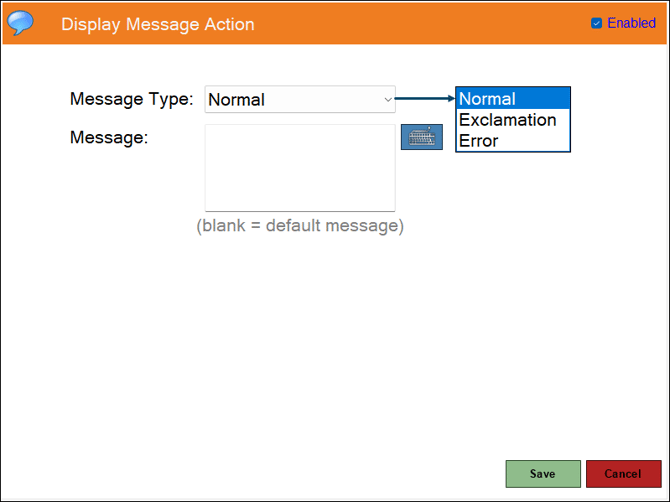
- Message Type - Selected from the drop-down list one of the options listed.
- Message - Displays/Enter an appropriate message.
Footer Section
- Save - Select to save the changes.
- Cancel - Select to exit without saving.
Email Action Screen ▲ ▼
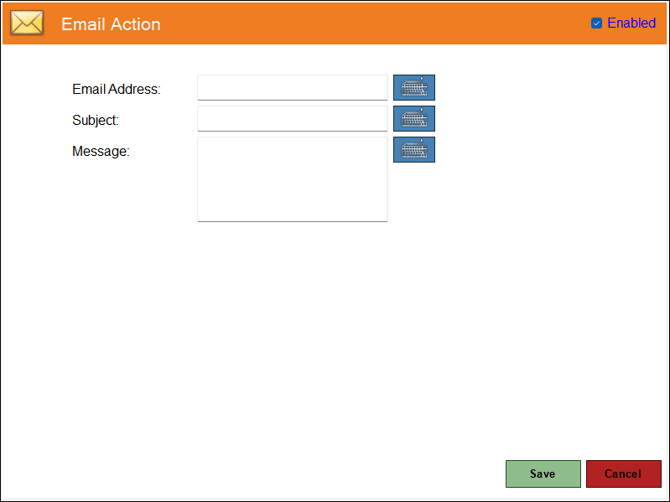
- Email Address - Displays/Enter the email address of the recipient of the email.
- Subject - Displays/Enter the text that will comprise the subject of the email.
- Message - Displays/Enter the text that will comprise the content of the email.
Footer Section
- Save - Select to save the changes.
- Cancel - Select to exit without saving.
Pager Action Screen ▲ ▼
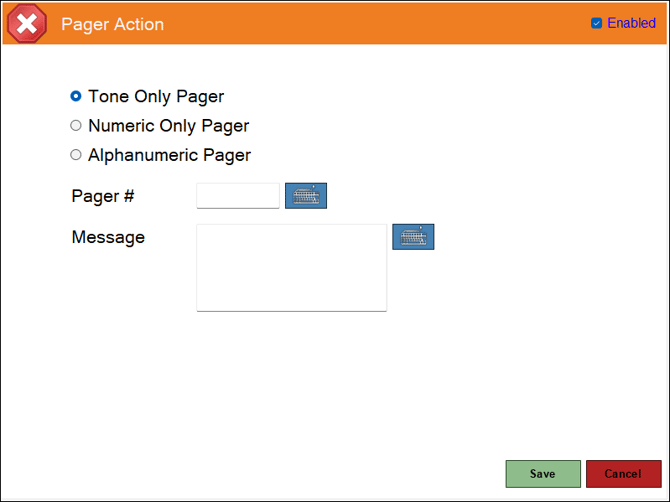
- Select one of the following Pager types:
- Tone Only Pager
- Numeric Only Pager
- Alphanumeric Pager
- Pager # - Displays/Enter the number of the pager.
- Message - Displays/Enter the text that will comprise the message sent to the pager.
Footer Section
- Save - Select to save the changes.
- Cancel - Select to exit without saving.
Service Indicator Action Screen ▲ ▼
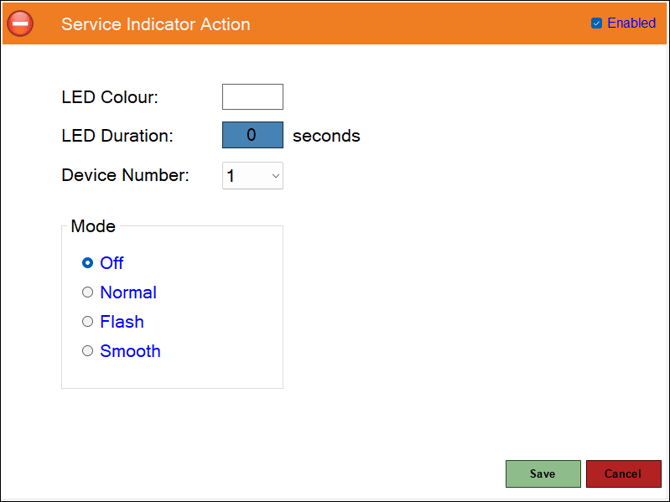
- LED Colour - Select to select the colour for the service indicator.
- LED Duration - Displays/Enter the time in seconds the service indicator will be activated.
- Device Number - Displays/Select from the drop-down list the number representing the service indicator.
- Mode - Select one of the following options:
- Off
- Normal
- Flash
- Smooth
Footer Section
- Save - Select to save the changes.
- Cancel - Select to exit without saving.
Add New Action Screen ▲ ▼
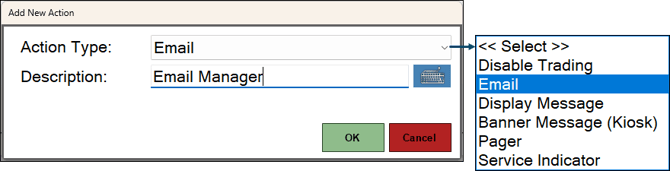
- Action Type - Select from the drop-down list one of the types listed. For example, Email.
- Description - Displays/Enter an appropriate name for the new action. For example, Email Manager.
- OK - Select to save the new Action and open the Action screen.
- Cancel - Select to exit without saving.
Add New Alert Screen ▲ ▼
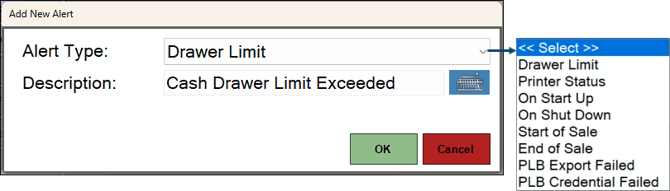
- Alert Type - Select from the drop-down list one of the Types listed. For example, Drawer Limit.
- Description - Displays/Enter an appropriate name for the new alert. For example, Cash Drawer Limit Exceeded.
- OK - Select to save the new Alert and open the Alert screen.
- Cancel - Select to exit without saving.
Alert Screen ▲ ▼
The screens displayed here will depend on the alert type selected:
- Drawer Limit Alert
- On End of Sale Alert
- On Shut Down Alert
- On Start of Sale Alert
- On Start Up Alert
- PLB Credential Failed
- PLB Export Failed
- Printer Status Alert
Drawer Limit Alert Screen ▲ ▼
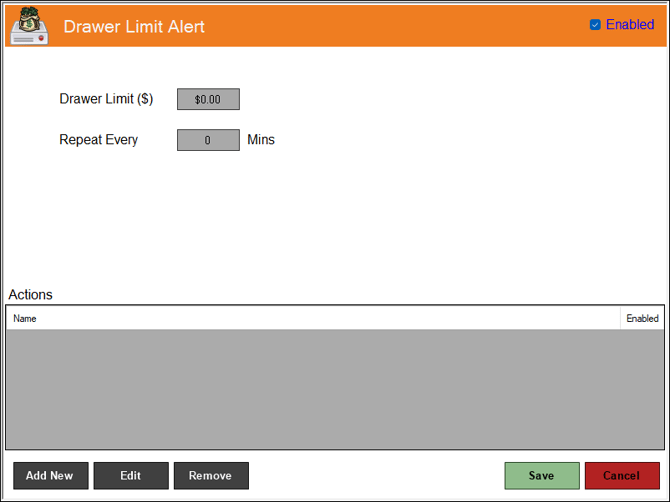
Header Section
- Drawer Limit ($) -
- Repeat Every X Mins -
Actions Section
Refer HERE for more information.
Footer Section
- Add New - Select to open the Add New Action screen to add a new action.
- Edit - Select to open the Action screen to edit the selected action.
- Remove - Select to delete the selected action.
- Save - Select to save the changes.
- Cancel - Select to exit without saving.
On End of Sale Alert Screen ▲ ▼
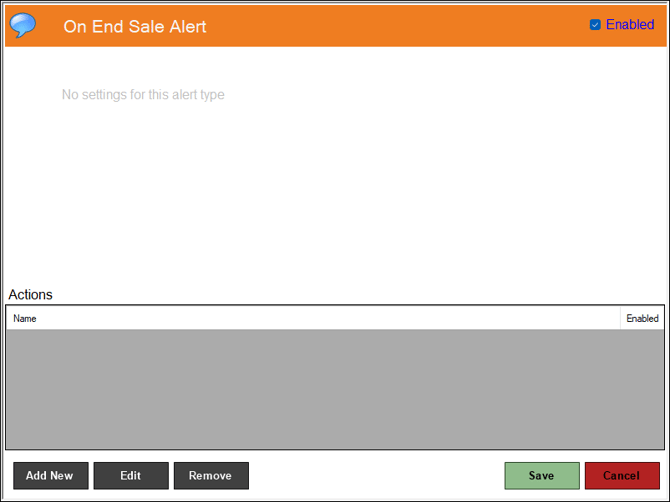
Header Section
No settings are required for this alert type.
Actions Section
Refer HERE for more information.
Footer Section
- Add New - Select to open the Add New Action screen to add a new action.
- Edit - Select to open the Action screen to edit the selected action.
- Remove - Select to delete the selected action.
- Save - Select to save the changes.
- Cancel - Select to exit without saving.
On Shut Down Alert Screen ▲ ▼
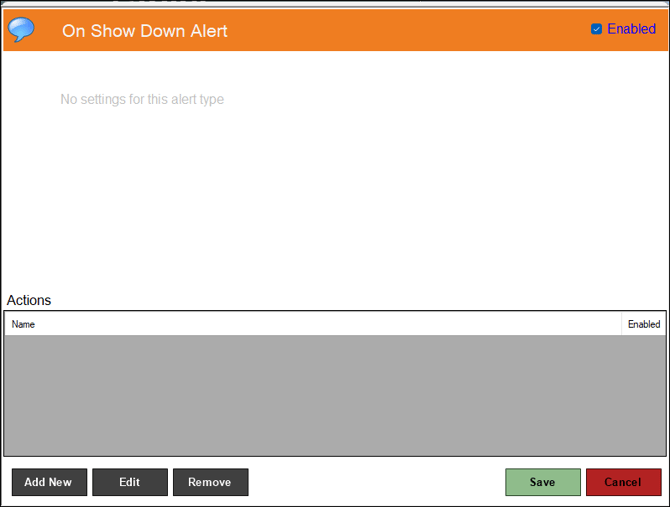
Header Section
No settings are required for this alert type.
Actions Section
Refer HERE for more information.
Footer Section
- Add New - Select to open the Add New Action screen to add a new action.
- Edit - Select to open the Action screen to edit the selected action.
- Remove - Select to delete the selected action.
- Save - Select to save the changes.
- Cancel - Select to exit without saving.
On Start of Sale Alert Screen ▲ ▼
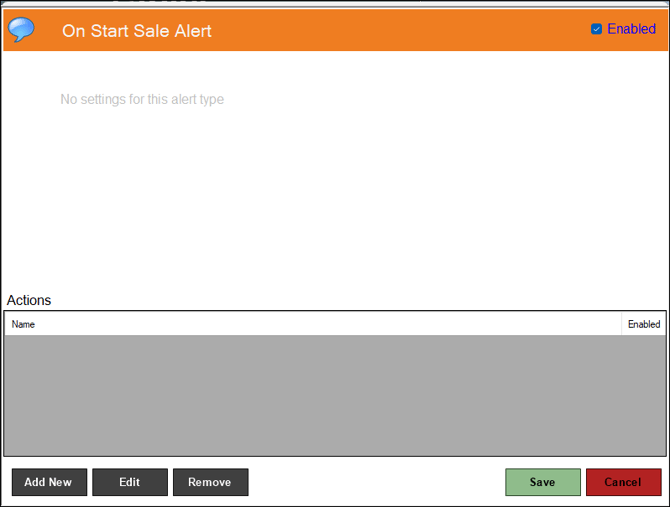
Header Section
No settings are required for this alert type.
Actions Section
Refer HERE for more information.
Footer Section
- Add New - Select to open the Add New Action screen to add a new action.
- Edit - Select to open the Action screen to edit the selected action.
- Remove - Select to delete the selected action.
- Save - Select to save the changes.
- Cancel - Select to exit without saving.
On Start Up Alert Screen ▲ ▼
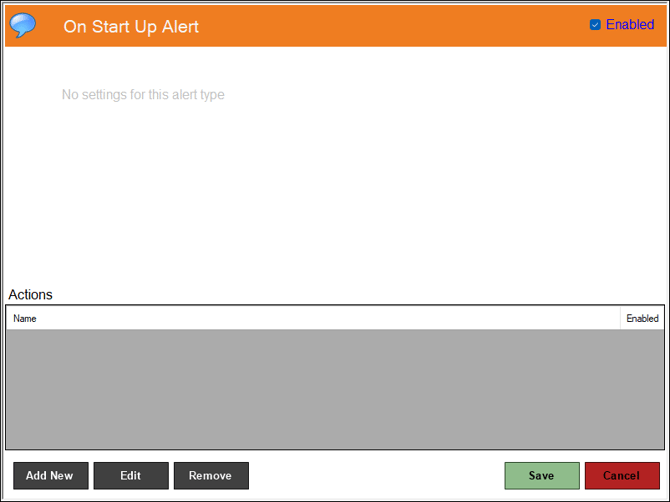
Header Section
No settings are required for this alert type.
Actions Section
Refer HERE for more information.
Footer Section
- Add New - Select to open the Add New Action screen to add a new action.
- Edit - Select to open the Action screen to edit the selected action.
- Remove - Select to delete the selected action.
- Save - Select to save the changes.
- Cancel - Select to exit without saving.
PLB Credential Failed Alert Screen ▲ ▼
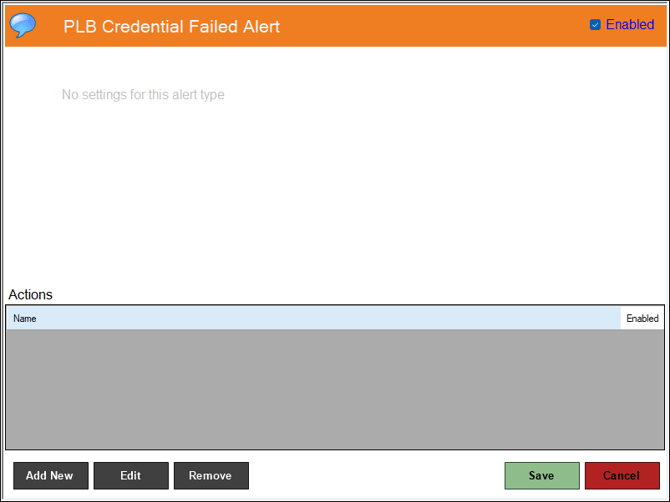
Header Section
No settings are required for this alert type.
Actions Section
Refer HERE for more information.
Footer Section
- Add New - Select to open the Add New Action screen to add a new action.
- Edit - Select to open the Action screen to edit the selected action.
- Remove - Select to delete the selected action.
- Save - Select to save the changes.
- Cancel - Select to exit without saving.
PLB Export Failed Alert Screen ▲ ▼
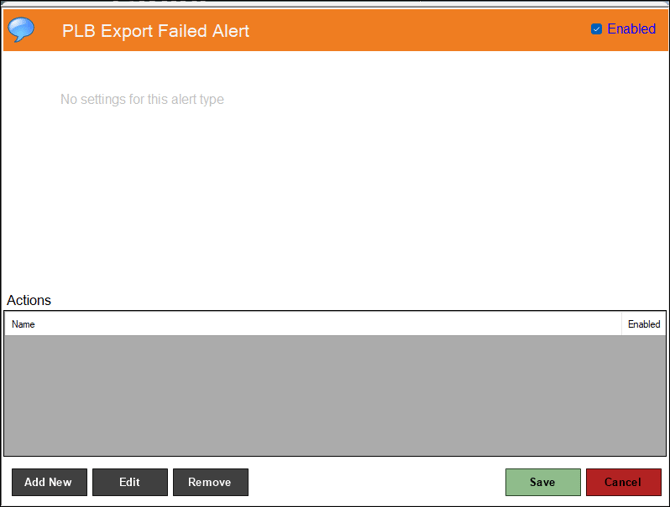
Header Section
No settings are required for this alert type.
Actions Section
Refer HERE for more information.
Footer Section
- Add New - Select to open the Add New Action screen to add a new action.
- Edit - Select to open the Action screen to edit the selected action.
- Remove - Select to delete the selected action.
- Save - Select to save the changes.
- Cancel - Select to exit without saving.
Printer Status Alert Screen ▲ ▼
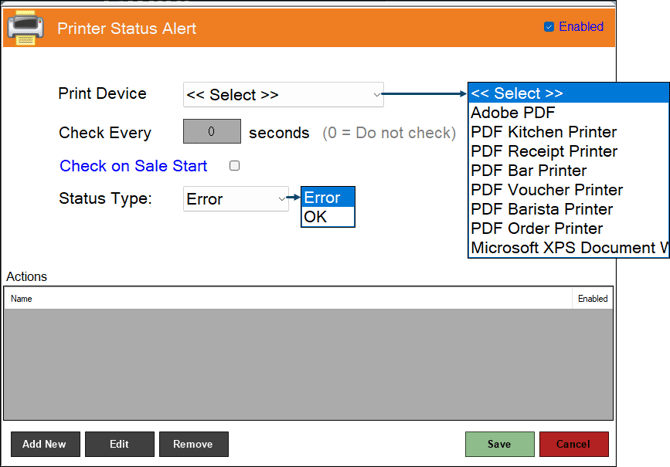
Header Section
- Printer Device -
- Check Every X seconds -
- Check on Sale Start -
- Status Type -
Actions Section
Refer HERE for more information.
Footer Section
- Add New - Select to open the Add New Action screen to add a new action.
- Edit - Select to open the Action screen to edit the selected action.
- Remove - Select to delete the selected action.
- Save - Select to save the changes.
- Cancel - Select to exit without saving.
Touch Alerts Screen ▲ ▼
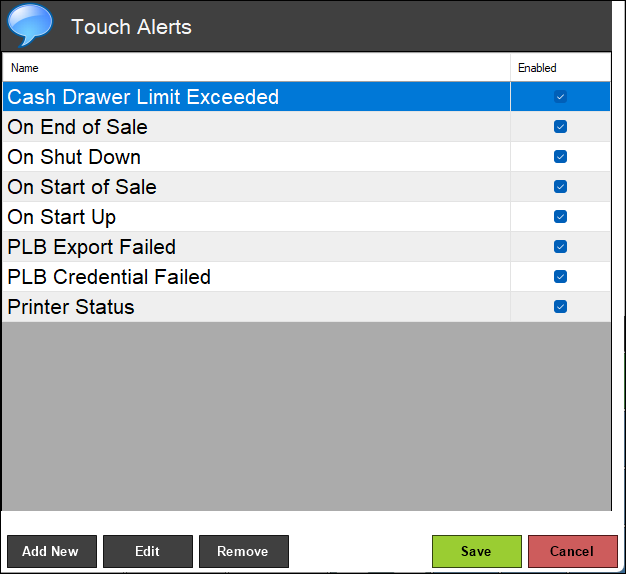
To access, select the Touch Alerts option in the Terminal Settings menu. Used to manage alerts in Touch.
Sections ▲ ▼
Grid Section ▲ ▼
Lists the alerts currently configured along with their Name and Enabled indicator.
Footer Section ▲ ▼
- Add New - Select to open the Add New Alert screen to add a new alert.
- Edit - Select to open the Alert screen to edit the selected alert.
- Remove - Select to delete the selected alert.
- Save - Select to save the changes.
- Cancel - Select to exit without saving.
End of article ▲