
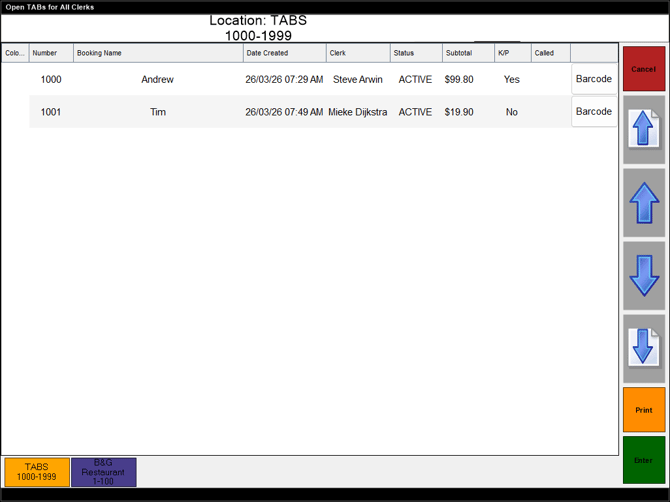
To access, select the Table (#30) POS Key configured for a TAB. Used to view all TABs that are currently open in Touch.
Sections ▲ ▼
Header Section ▲ ▼

Displays the text TABS as the Location and it's range of numbers. The number range is configured HERE.
Grid Section ▲ ▼
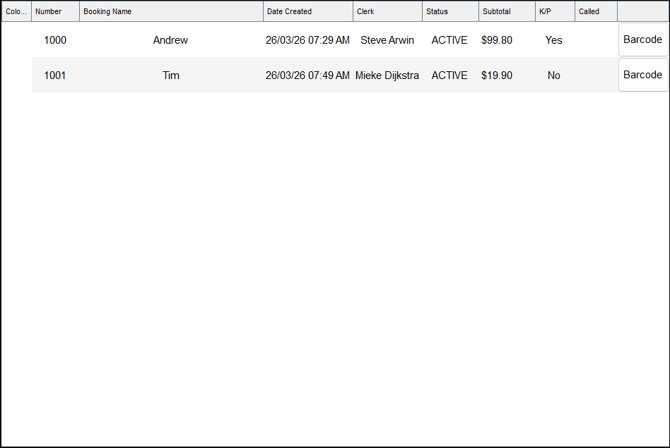
Lists the TABs that are currently open, along with their TAB Number, Booking Name, Date Created, Clerk, Status, Subtotal, Kitchen Print Yes/No, Called status and Barcode.
Notes ...
The Subtotal value displayed will not include any Member Campaign discounts, as these are removed when the TAB is saved, and re applied when the TAB is reloaded into the sales grid.
Toolbar Section ▲ ▼

Displayed down the right-hand side of the grid, the toolbar offers the following:
- Cancel - Select to exit the screen.
- Up/Down Arrows - Select to navigate up/down the list in the grid.
- Print - Select to print.
- Enter - Select to exit the screen and open the selected TAB in the sales grid.
Footer Section ▲ ▼

Displays Locations as options that can be selected to display the list of available TABs/Tables in each Location. Each option is captioned with the Location name and it's number range, with the exception of the TABS option. The number ranges displayed are configured HERE. For example:
- TABS 1000-1999 - Specific to TABs.
- B&G Restaurant 1-100 - Specific to Locations.
End of article ▲