
This provides an overview of the Launch HQ (#124) POS Key in Touch.
Subjects ▲ ▼
About ▲ ▼
What Is Required? ▲ ▼
- Ensure this POS Key is added to the appropriate Keyboard Layout using the Designer. Refer HERE for more information.
- Ensure it is configured as required. Refer HERE for more information.
What To Consider? ▲ ▼
- If required, access to this POS Key can be restricted by the Clerk Security feature.
- Swiftpos HQ is restricted so it may not be possible to navigate to other parts of HQ.
- Touch will retrieve the environment/region. For example, AU, EU, Test, UK, etc.
When Is It Used? ▲ ▼
Used to launch the Swiftpos HQ application in a browser.
How To? ▲ ▼
GET STARTED? ▲ ▼
- Review About and ensure the steps outlined HERE are addressed.
- In Keyboard Designer, ensure the Launch HQ (#124) POS Key has been added to a Layout.
- Ensure it is given an appropriate Caption. For example, Launch HQ.
- Select the More Settings option to display the Settings screen and configure the POS Key as required.
- Once configured, ensure a Full Update is sent to all the Touch terminals that will be using the POS Key. Refer HERE for more information.
Screens ▲ ▼
Settings Screen ▲ ▼
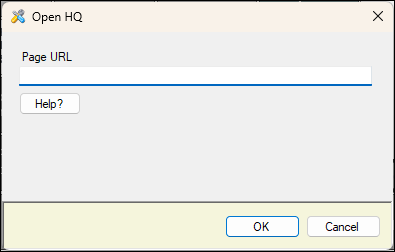
To access, select the More Settings option in Keyboard Designer. Used to configure the settings for this POS Key.
- Page URL- Displays/Enter the URL extension to open a specific menu. For example, enter \action-centre to open the action centre.
Notes ...
There is no URL extension for the Dashboard. If no URL extension is entered, then the HQ Dashboard will be opened by default.
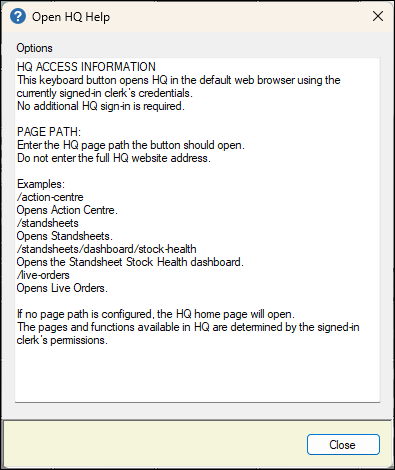
- Help - Select to open the following help information:
End of article ▲