
This provides an overview of the Fuel Open/Close Device (#139) POS Key in Touch.
Subjects ▲ ▼
About ▲ ▼
What Is Required? ▲ ▼
- Swiftpos v10+
- Ensure this POS Key is added to the appropriate Keyboard Layout using the Designer. Refer HERE for more information.
- Venues will need to be registered for the Fuel module for access to this feature.
What To Consider? ▲ ▼
- If required, access to this POS Key can be restricted by the Clerk Security feature.
When Is It Used? ▲ ▼
Used to either open or close a select type of Fuel device. That can be either a Dispenser, Fuelling Point, Tank, Tank Guage or a Forecourt.
How To? ▲ ▼
How To GET STARTED? ▲ ▼
- Review About and ensure the steps outlined HERE are addressed.
- In Keyboard Designer, select the Fuel Open / Close Device (#139) POS Key that has been added to a Layout.
- Ensure it is given an appropriate Caption. For example, Open/Close Device.
- Select the More Settings option to display the Settings screen.
- Once configured, ensure a Full Update is sent to all the Touch terminals that will be using the POS Key. Refer HERE for more information.
Screens ▲ ▼
Settings Screen ▲ ▼
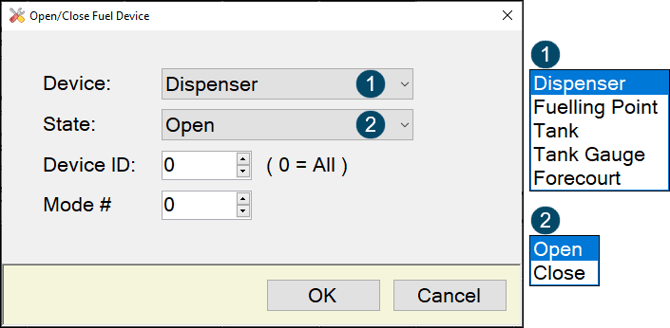
To access, select the More Settings option in Keyboard Designer. Used to configure the settings for the Fuel Open / Close Device (#139) POS Key.
- Device - Select from the drop down list the type of device to be opened/closed.
- State - Select from the drop down list the action to be taken when this POS Key is selected. That is, to either open or close.
- Device ID - Displays/Enter the ID of the device associated with this POS Key. A value of zero denotes all devices.
- Mode # - Displays/Enter the Mode #.
End of article ▲