
This outlines the How To Scan TAB / Table Barcodes in Touch.
Subjects ▲ ▼
About ▲ ▼
When Is It Used? ▲ ▼
Used to scan barcodes in Touch and thereby open a TAB/Table without knowing the TAB/Table number.
How To? ▲ ▼
How To GET STARTED? ▲ ▼
In Touch, do as follows:
- Against the Barcode Scanner peripheral:
- Add a two card masks using the Table/TAB Masking Template. Refer HERE for more information.
- Change the first character T to TAB for the first card mask.
- Change the first character T to TBL for the second card mask.
- For example:
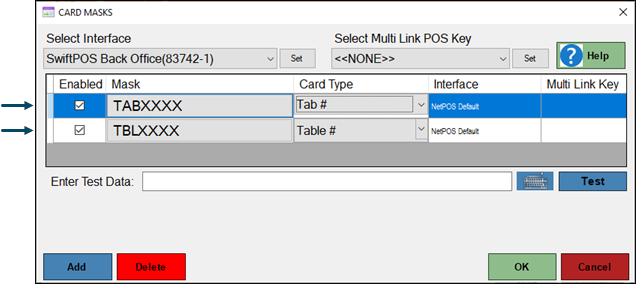
Example of a 4 digit card mask added to scan for TAB/Table barcodes.
- Against the Barcode Scanner peripheral continued ...
- Then select the appropriate Card Type of Tab # and Table # from the drop down list as appropriate for the Card Mask entry being configured.
- Select OK and save the changes.
- In Table Tracking Settings:
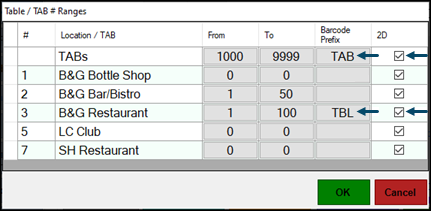
- In the Table Ranges screen:
- Ensure the text TAB is entered in the Barcode Prefix column opposite the TABs entry.
- Ensure the text Table is entered in the Barcode Prefix column opposite the Location's entry.
- Ensure the option is selected in the 2D column opposite the TABs entry and each of the Location entries.
- For example:
- In the Table Ranges screen:
How To Print A TAB / Table Barcodes? ▲ ▼
To print a barcode for a TAB/Table so that it can be scanned later when an order is placed, do as follows in Touch:
- Select the TAB/Table (#30) POS Key to open the TAB/Tables screen listing the currently open TABs/Tables.
- Select the Barcode option on the right of the TAB/Table for which a barcode is to be printed. The following popup will be displayed:
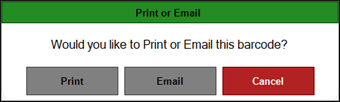
- Select either Print or Email option to print/email the barcode for the selected TAB/Table.
- For example:
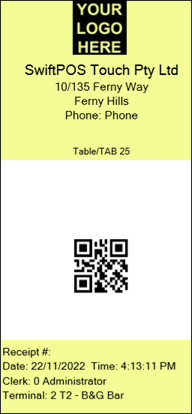
Example of a TAB/Table barcode printed, that can then be scanned in Touch to open the TAB/Table.
Notes ...
In the example above the Table/TAB 25 text is generated using the {Table Number} variable. The non-highlighted area CANNOT be customised.
End of article ▲