
This outlines How To Issue A Vii Gift Card / Voucher using the Issue 3rd Party Gift Card (#241) POS Key. This is can also be referred to as:
- Activate a gift card/voucher
- Load a gift card/voucher
Subjects ▲ ▼
About ▲ ▼
What Is Required? ▲ ▼
- Ensure the Issue 3rd Party Gift Card (#241) POS Key is added to the appropriate Keyboard Layout via the Designer and the More Settings button:
- Ensure it is given an appropriate Caption. For example, Issue A VII Gift Card.
- Ensure it has the appropriate Interface selected.
- Ensure the Enter number first option is selected. This can also be selected, which will mean the prompt for the entry of a gift card/voucher number will be done at the end of the Issue operation.
- Ensure the Preset Amount is set to a value EQUAL TO ZERO. This can also be set to a value GREATER THAN ZERO, which will mean the Amount being loaded onto the gift card/voucher is preset and CANNOT be overridden.
What To Consider? ▲ ▼
- A Vii gift card/voucher can only be issued when:
- The gift card/voucher number entered has NOT expired.
- The gift card/voucher number entered has NOT been cancelled.
How To? ▲ ▼
Firstly, do as follows:
In Touch, do as follows:
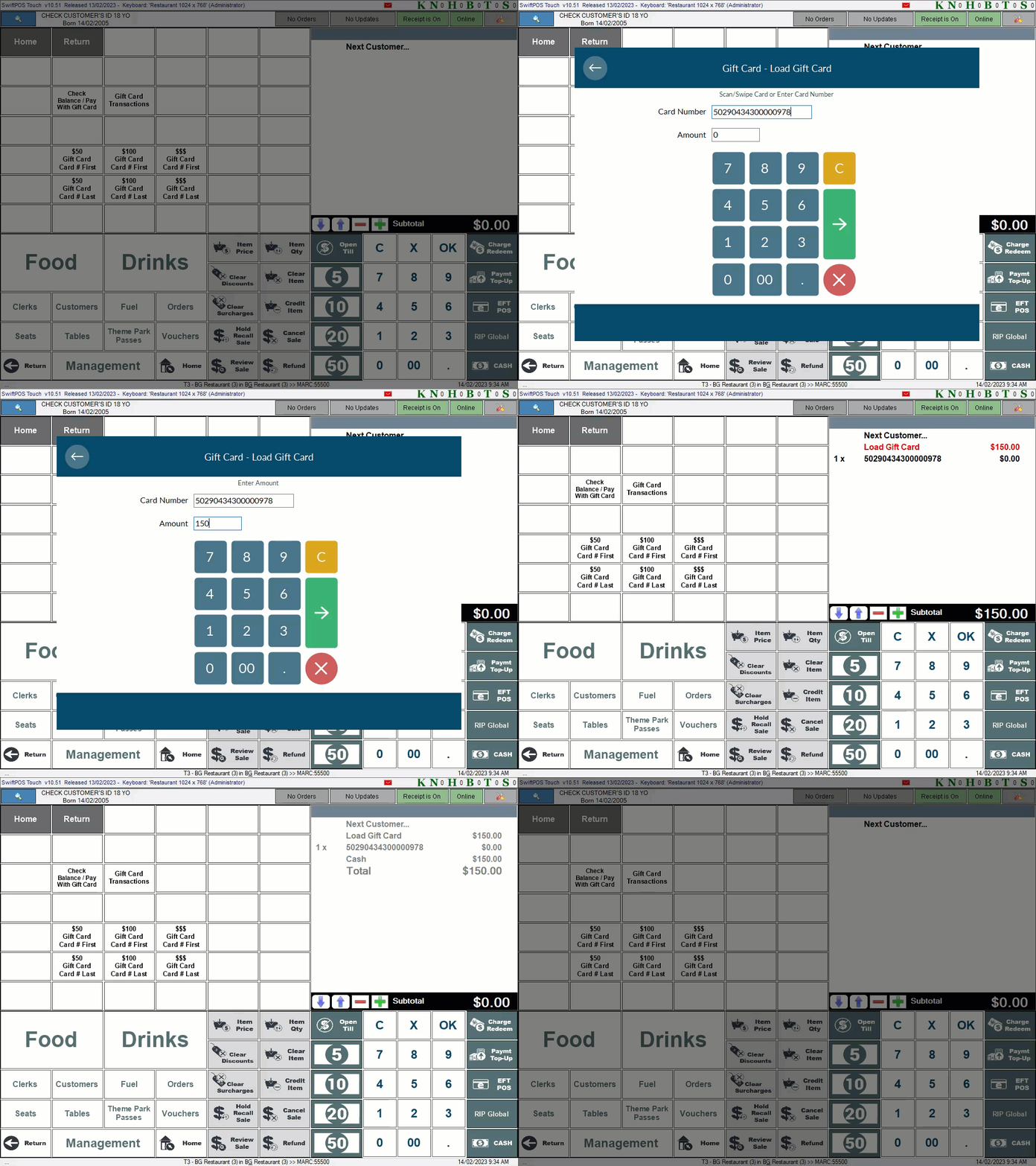
- Select the Issue 3rd Party Gift Card (#241 POS Key in Touch.
- When the Gift Card - Load Gift Card screen is displayed, scan/swipe or enter the gift card's/voucher's number.
- Enter the Amount the customer/patron is wanting to load onto the gift card/voucher with.
- Select the green right arrow.
- A Load Gift Card entry will appear in the sales grid with the Amount (entered above) to be paid.
- Complete the sale.
- The Gift Card - Load Gift Card screen is displayed with a Gift Card Successfully Loaded confirmation message.
- Select OK.
- Check the Gift Card's Balance.
End of article ▲