
This outlines How To Configure Table POS Keys using the Table (#30) POS Key, in Touch.
How To? ▲ ▼
When selecting the Table (#30) POS Key in Touch, depending on it's configuration (as configured in Back Office) it can provide different responses. Refer to the following, to discover how to configure the Table (#30) POS Key as a Table POS Key to:
- Open A New Table By Entering The Table Number?
- Open A New Table Using The Next Available Table Number?
- Search For A Table?
Open A New Table By Entering The Table Number? ▲ ▼
-
In Back Office configure the Table (#30) POS Key as follows:
-
Caption it with text New Table.
-
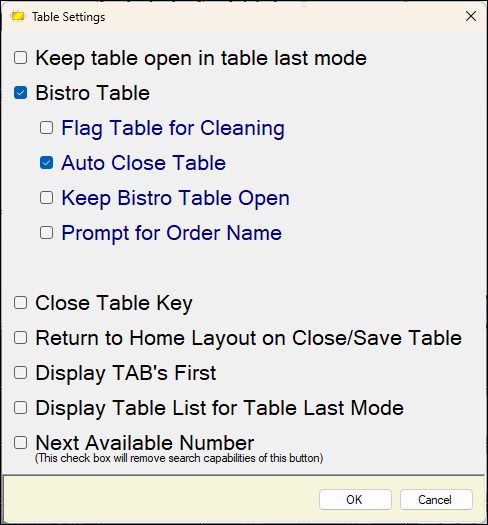
Ensure the following option(s) are selected:
-
Notes ...
The Auto Close Table option is selected to ensure that when the last order for the Table is taken, the Table is closed and will no longer be listed when searched for.
- In Touch,
- Enter the number of the Table the patron will be seated at.
- Select the captioned New Table POS Key.
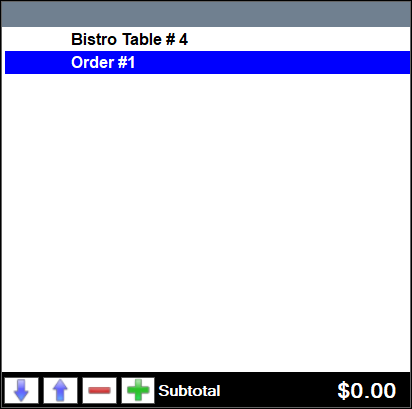
- The Table's first order will appear in the sales grid. For example:
-
In Back Office configure the Table (#30) POS Key as follows:
-
Caption it with text New Table.
-
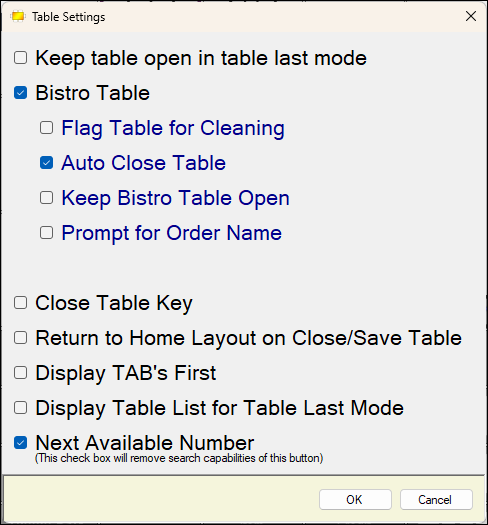
Ensure the following option(s) are selected:
-
Notes ...
The Auto Close Table option is selected to ensure that when the last order for the Table is taken, the Table is closed and will no longer be listed when searched for.
- In Touch,
- Select the captioned New Table POS Key.
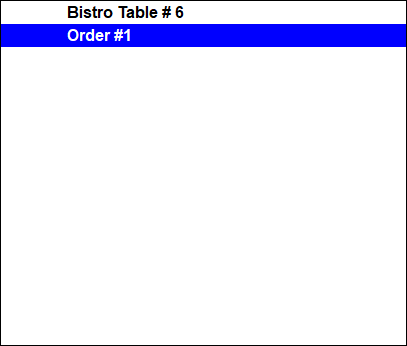
- The Table's first order will appear in the sales grid with the next available Table number displayed. For example:
Search For A Table? ▲ ▼
-
In Back Office configure the Table (#30) POS Key as follows:
-
Caption it with text Search Tables.
-
Ensure the following option(s) are selected:
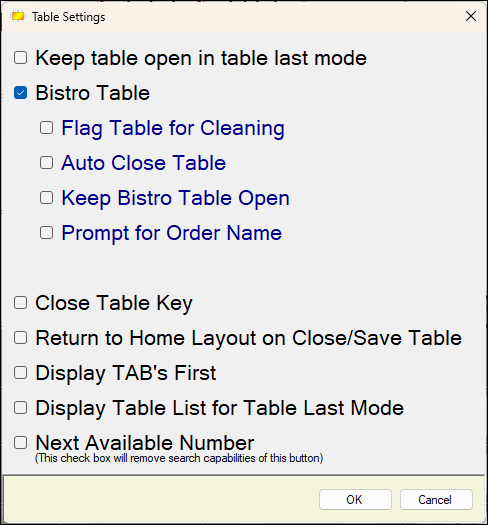
-
- In Touch,
- When the captioned Search Tables POS Key is selected in Touch, the Open Tables for All Clerks screen will be displayed listing all the Tables that are currently still open. That is, they have not had their last order taken.
End of article ▲