
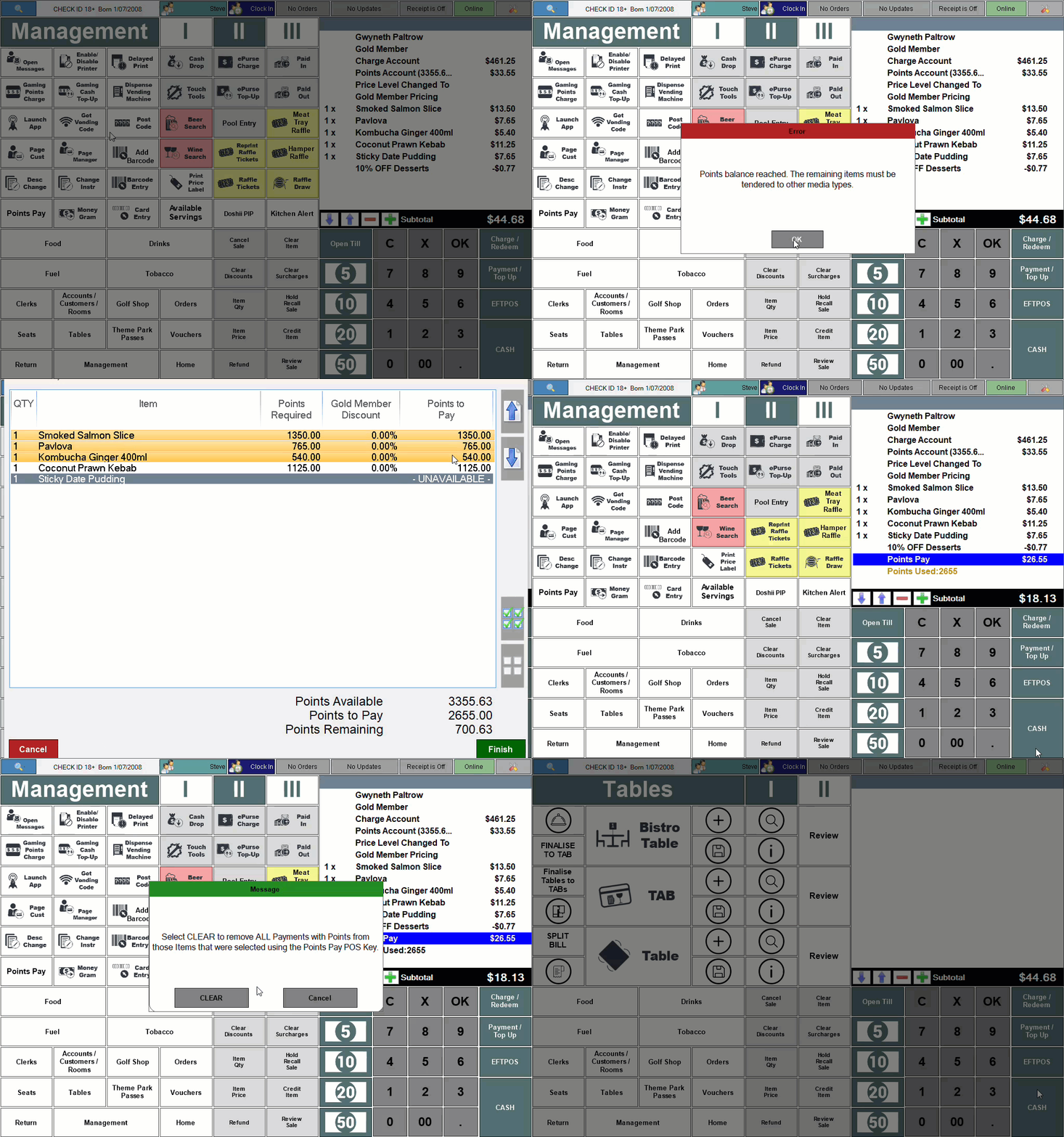
This outlines How To Clear Points Pay Items/Products From An Order/Sale using the Points Pay (#155) POS Key in Touch.
How To? ▲ ▼
In Touch, do as follows:
- Add a Customer/Member that has accrued loyalty points to an order/sale.
- Add items/products to the sales grid.
- Select the Points Pay (#155) POS Key to open the Select Items to Pay with Points screen.
- Select some, NOT all, of the items/products listed to be paid with points.
- Select OK.
- With the Items/products now displayed in the sales grid, along with a Points Pay entry, select the Point Pay Entry.
- Select the Clear Item (#2) POS Key.
- The following prompt will be displayed:
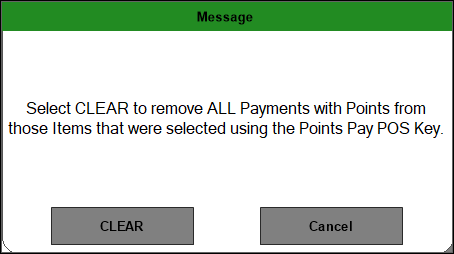
- Select Clear to remove all Points Pay entries in the sales grid and NOT just the one selected.
- Complete the order/sale.
End of article ▲