
This outlines How To Cancel An Order / Sale using the Cancel Sale (#5) POS Key in Touch.
How To? ▲ ▼
In Touch, do as follows:
- Add items/products to the sales grid.
- Select the Cancel Sale (#5) POS Key.
- A prompt will be displayed to confirm the cancellation of the sale.
- Select Yes.
- The value of the cancelled sale will be recorded as a Cancelled Sale transaction in Back Office.
- If there are items/products in the sale that have the Check Available Servings option selected, then the following prompt will be displayed requesting whether the Servings are to be added back given the sale was cancelled.
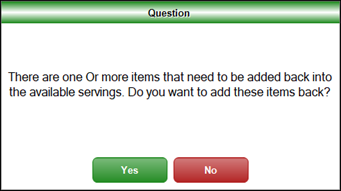
- Select Yes to ensure the cancelled servings are added back to Available Servings count.
End of article ▲