
This outlines the How To Apply An Update in Touch.
How To? ▲ ▼
How To Apply An Update? ▲ ▼
Updates to Touch can be applied as follows:
Automatically ▲ ▼
Updates can be applied automatically. This can be configured as follows:
- In Touch, select the Tools Menu option to display the Basic Tools menu. Refer HERE for more information.
- Select the Terminal Setting menu option to display the Terminal Settings menu.
- Select the Terminal menu option to display the Terminal Settings screen.
- In the Updates section of the Main tab, ensure the Apply Updates after option is selected and a time in seconds is entered. For example, 5 seconds. This will ensure that when any updates are pending, they will automatically be applied after the time set has lapsed.
Manually ▲ ▼
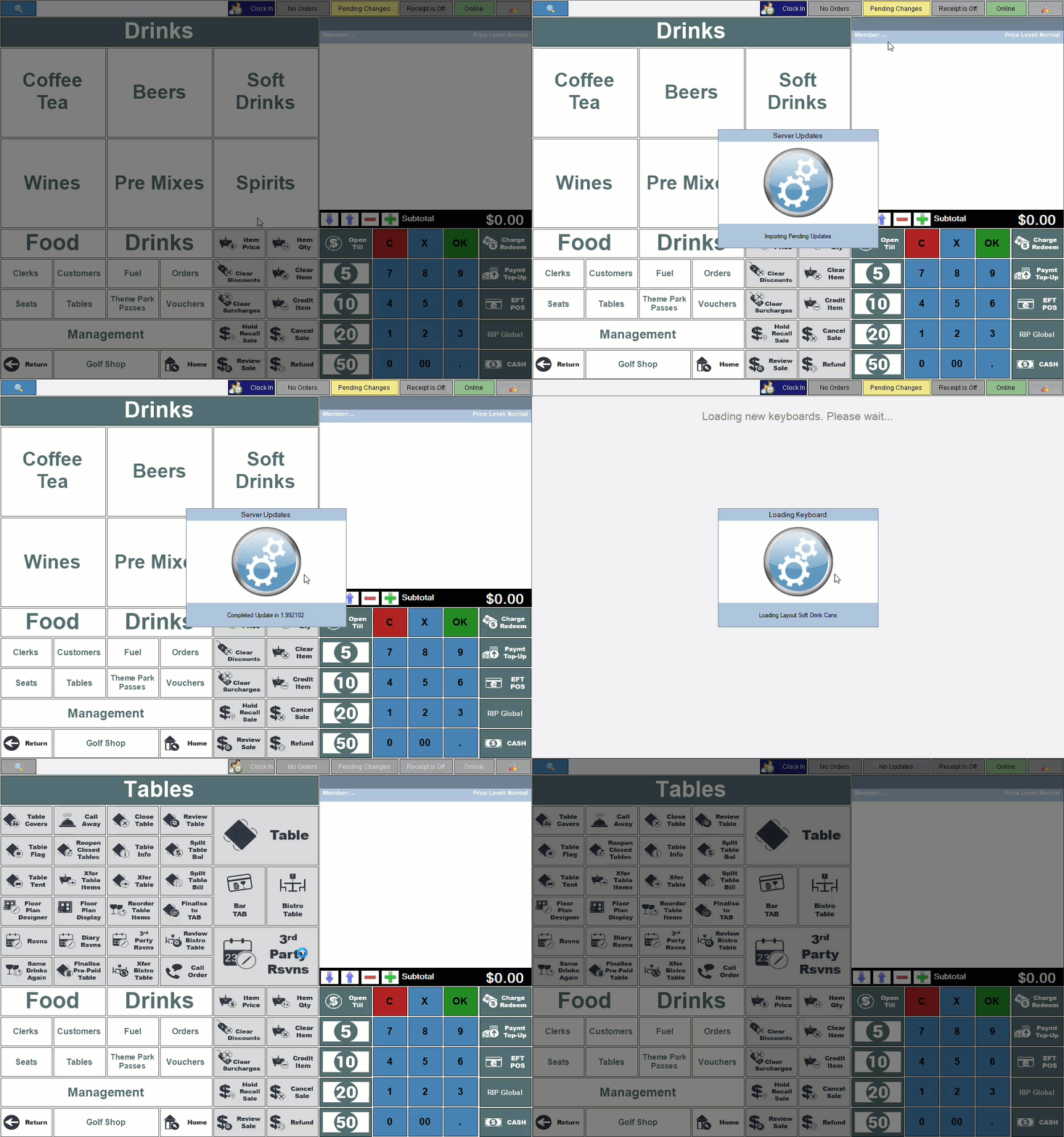
To apply an update manually in Touch, an update will need to be pending in order to be able to be applied. An update is pending when the Update option in the Toolbar displays the text Pending Changes. To apply the update, do as follows:
- Select the Pending Changes option in the Toolbar to display the options available.
- Select the option highlighted. For example, Apply Pending Full Update.
- Updating will commence and when completed the Home layout will be displayed.
End of article ▲