
This outlines How To View Voucher Information using the Voucher Info (#88) POS Key.
How To? ▲ ▼
Firstly, do as follows:
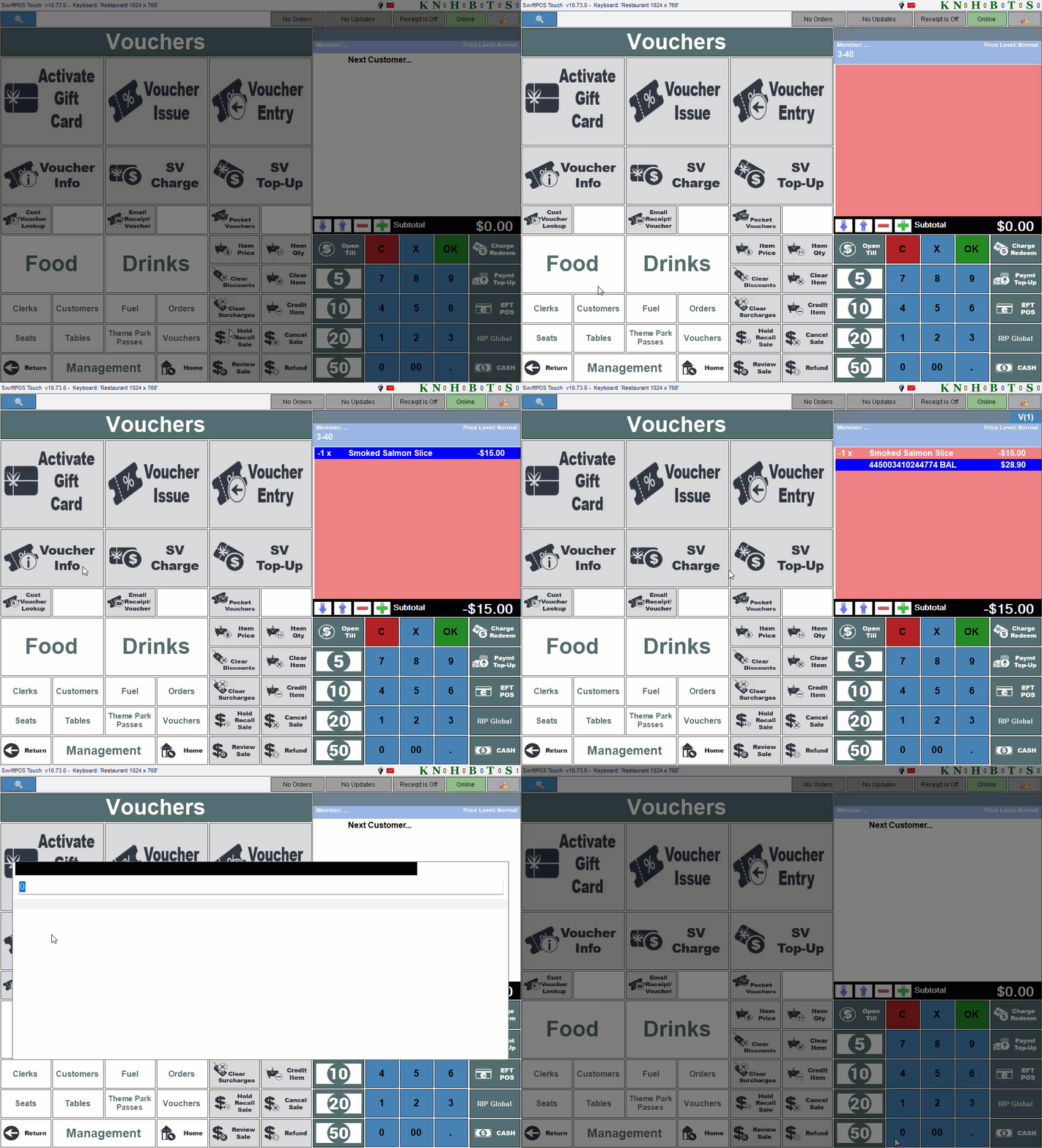
In Touch, do as follows:
- Select the Refund Mode (#1003) POS Key. Refer HERE for more information.
- Add the items/products to be refunded to the sales grid.
- Select the Voucher Info (#88) POS Key and enter/scan the barcode of the patron's gift card/voucher when prompted.
- If successful the Voucher Info screen will be displayed.
- Select the Add to Sale option to add the gift card / voucher to the sales grid.
- Select the Stored Value Charge (#246) POS Key.
- The refund will be finalised.
- The gift card's/voucher's balance will be increased by the amount refunded. This can be checked by selecting the Voucher Info (#88) POS Key again.
End of article ▲