
This provides an overview of the Discount (#6) POS Key. Refer HERE for more information.
Subjects ▲ ▼
About ▲ ▼
What Is It? ▲ ▼
Used to apply discounts to either an Item/Product or to an entire Order/Sale in Touch. Discounts that can be applied can either be a:
One or more Discount POS Keys can be added to a Keyboard Layout to cater for the different Discount types available.
What Is Required? ▲ ▼
- Swiftpos v10+
- Ensure this POS Key is added to the appropriate Keyboard Layout using the Designer. Refer HERE for more information.
What To Consider? ▲ ▼
- If required, access to this POS Key can be restricted by the Clerk Security feature.
When Is It Used? ▲ ▼
Used to apply discounts to either an Item/Product or to an entire Order/Sale in Touch.
How To? ▲ ▼
How To GET STARTED? ▲ ▼
- Review About and ensure the steps outlined HERE are addressed.
- In Keyboard Designer, select the Customer (#102) POS Key that has been added to a Layout.
- Ensure it is given an appropriate Caption. For example, 10% Discount.
- Select the More Settings option to display the Settings screen.
- Configure the POS Key by selecting the options available HERE.
- Once configured, ensure a Full Update is sent to all the Touch terminals that will be using the POS Key. Refer HERE for more information.
Screens ▲ ▼
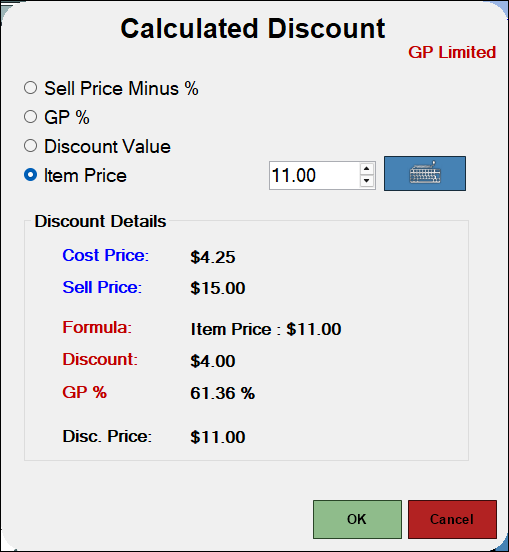
- GP Limited - Displayed when the GP Limited option is selected HERE.
- Sell Price Minus % - Select to enter a value as a percentage of the sell price to be discounted. The value discounted will be determined as follows:
Discounted Price = Sell Price - (Sell Price x Sell Price Minus %) - GP % - Select to enter a value as a percentage of the Gross Profit to be discounted. The value discounted will be determined as follows:
Discounted Price = Sell Price - ((Cost Price / 1 - GP%) + GST) - Discount Value - Select to enter a value as a dollar value to be discounted.
- Item Price - Select to enter a value as the discounted price the item is to be sold at.
- OK - Select to exit and apply the discount.
- Cancel - Select to exit and not apply the discount.
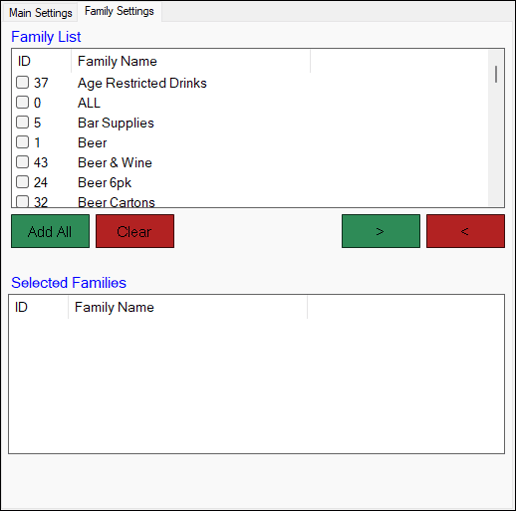
Select the Families of Products that when sold can be charged to a MG (Max Gaming) account.
- Add All - Select to add all the Families listed in the Family List to the Selected Families.
- Clear - Select to remove all the Families from the Selected Families.
- > - Select to add the Family selected in the Family List to the Selected Families.
- < - Select to remove the Family selected in the Selected Families and return it to the Family List.
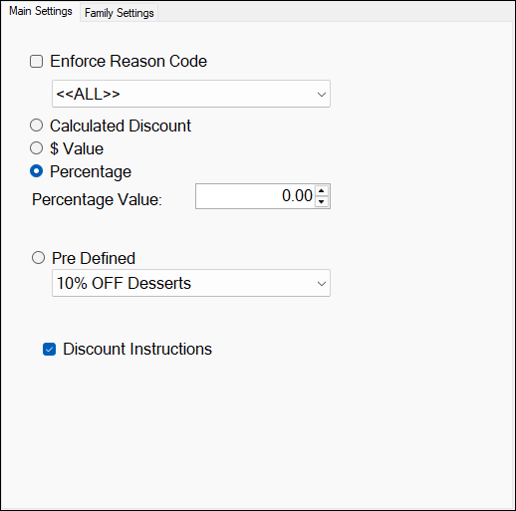
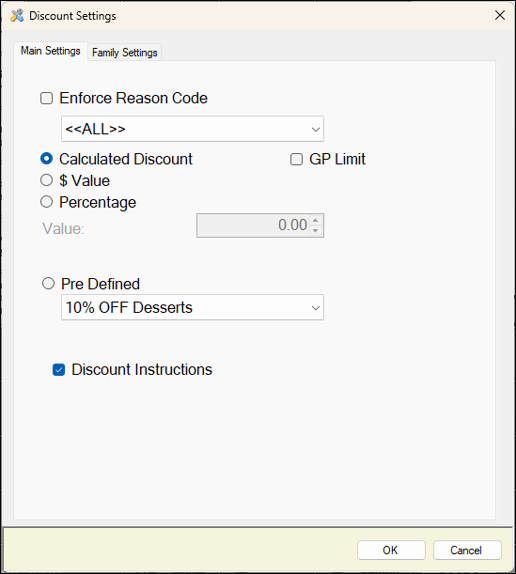
- Enforce Reason Code - Select to force the Touch operator to select/enter a Reason for discounting. Refer HERE for more information.
- Select one of the following discounting options:
- Calculated Discount - Select to ensure that when the Discount POS Key is selected the Discount screen is displayed which allows the Touch operator to calculate the discount applied to the sale item selected. The calculated discount can be based on either the selling price or a gross profit percentage.
- GP Limited - Select to ensure that any discount calculated using one of the options available, cannot result in the item/sale being sold at a loss. If so, the discount will not be applied. At a minimum, selecting this option can result in an item/sale being sold with a Gros Profit of zero dollars.
- $ Value - Select to enter a dollar value that will be applied as a discount to the sale item selected. Setting the value to zero creates an open $ discount key. This will result in a popup being displayed allowing the Touch operator to enter the discount amount.
- Percentage / Percentage Value - Select to enter a percentage value that will be applied as a discount to the sale item selected.
- Pre Defined - Select from the drop-down list of predefined Discounts. Only those Discounts that are enabled will appear in the drop-down list. Also, the Discount will only be applied when a Product is sold that is assigned to the same Family that is selected in the Discount.
- Discount Instructions - Select to ensure that instructions related to the Product that is being discounted, will also be discounted.
End of article ▲