
This outlines the How To Configure Language Translations. Refer HERE for more information.
How To? ▲ ▼
Swiftpos offers Venues the ability to translate text and software elements into alternate languages, thus ensuring that patrons and staff are able to navigate Swiftpos Products in their preferred language. To do this, do as follows:
- In Back Office:
- Wherever a Languages or Multi Languages option is displayed as an option in a screen, select it to open the Alternate Languages screens. For example:
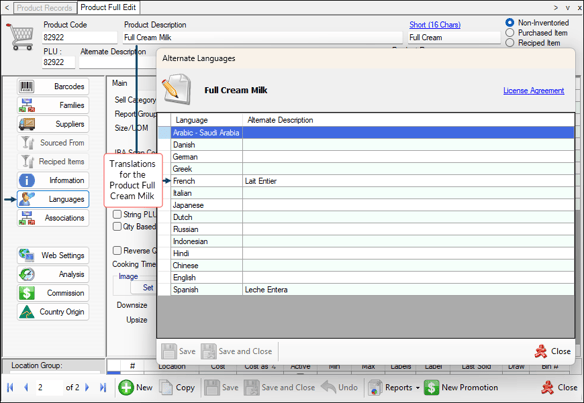
- Once opened, enter the translations against the appropriate languages for the selected software element/text. In the example above, translations were entered for the product Full Cream Milk opposite the French and Spanish entries.
- Select Save and Close to save the changes and exit the screen.
- Now when a Product POS Key assigned to the Full Cream Milk is added to a Keyboard Layout for Touch, the label of the POS Key will change depending on the preferred language selected or of the Touch operator. For example:
- Wherever a Languages or Multi Languages option is displayed as an option in a screen, select it to open the Alternate Languages screens. For example:
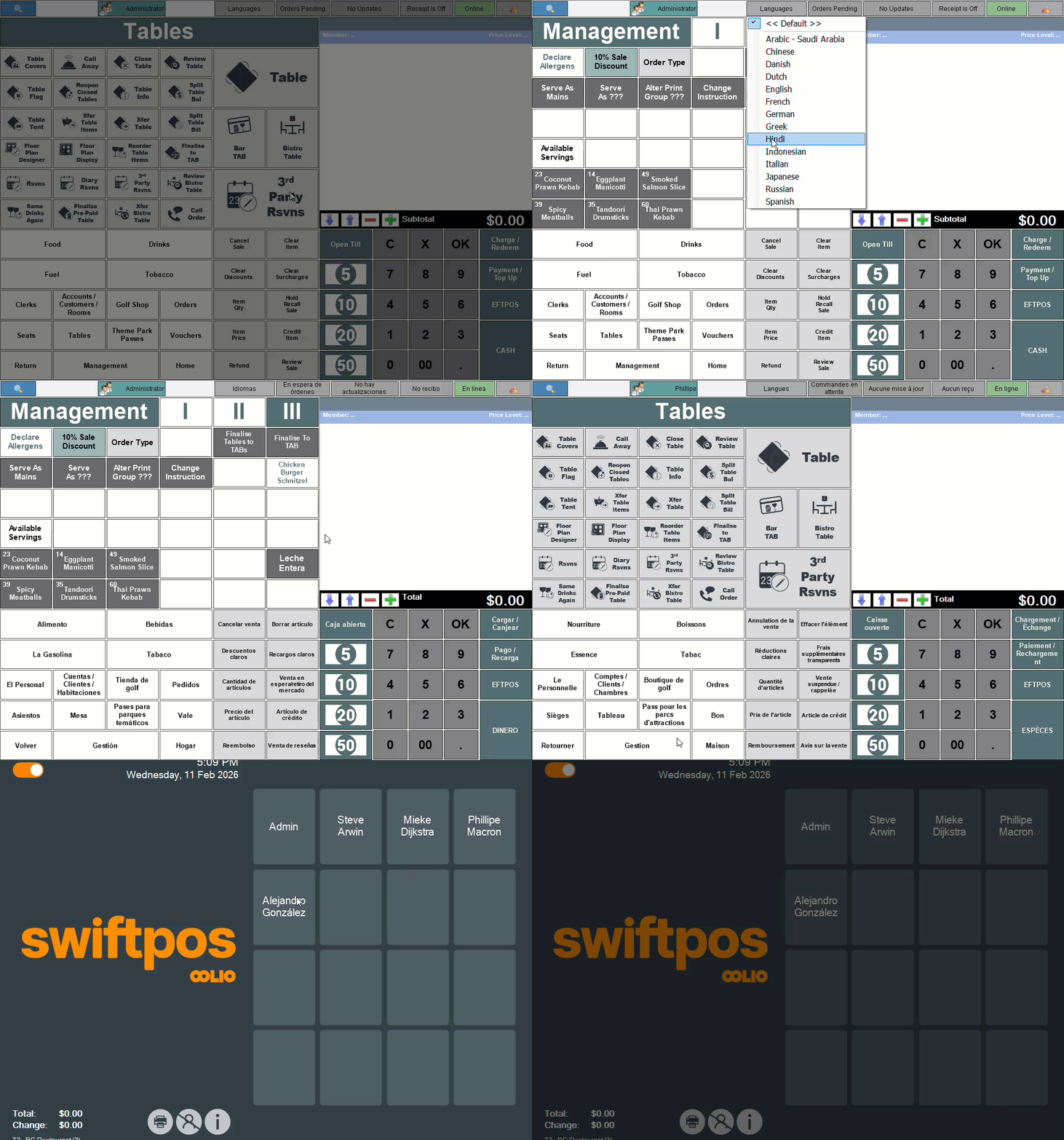
Example of product Full Cream Milk being displayed in Touch in different languages
- In Back Office continued ...
- Translations can be configured in Back Office for the following:
- Categories
- Families
- POS Key Captions
- Price Levels
- Print Groups
- Product Descriptions
- Product Groups
- Product Ingredients
- Product Notes
- Master Groups
- Translations can be configured in Back Office for the following:
Notes ...
For those languages NOT selected in the Language Support screen when updating Swiftpos as per above and then selected in the drop-down list in the Tools menu, Touch will display in English by default.
End of article ▲