
This provides an overview of the Call Away feature available in Swiftpos.
Subjects ▲ ▼
About ▲ ▼
What Is It? ▲ ▼
The Call Away feature is available in Swiftpos Touch and Touchmini and is used to enhance patron experience in Venues that offer Table service. It allows front of house staff to ensure Orders taken at a Table for drinks, entrees, mains, desserts, etc are prepared in a timely manner and served together when appropriate. Commonly, front of house staff will issue a Call Away for say the drinks and entrees, as soon as the Table's Order is taken. This will ensure the bar and kitchen staff are notified and can immediately commence preparing those orders. Later, once the entrees have been consumed, another Call Away can then be issued for the mains and later, again for the desserts.
What Is Required? ▲ ▼
- For Touch:
- Swiftpos v10+
- For Touchmini:
- Swiftpos v10.76.9+
- The authority to access Venue Manager. Refer HERE for more information.
- The authority to access the Touchmini devices that will be issuing Call Aways.
What To Consider? ▲ ▼
- Multiple Call Away POS Keys can be added to a Keyboard Layout and each can be configured to Call Away a specific Print Group. For example, one to Call Away Drinks, another for Entrees, another for Mains, etc.
When Is It Used? ▲ ▼
Used when front of house staff notify kitchen and/or bar staff to commence the preparation of items ordered for a specific Table. For example, orders are taken for a Table that includes drinks, Entrees, Mains and Desserts. Once the order for the Table has been completed, front of house staff can then Call Away Drinks to notify bar staff to prepare the drinks for the table and serve them. Later when appropriate, Call Aways can be issued for the Entrees, Mains and Desserts when time is appropriate.
Examples? ▲ ▼
The following provide examples of Print Groups being displayed/printed in Swiftpos when used in:
KVS
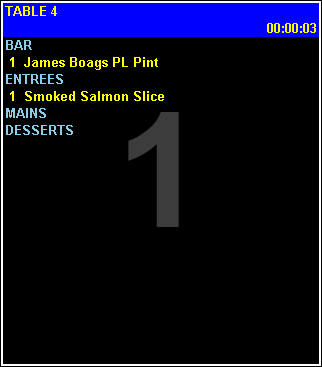
Example of the display of Call Aways issued for the BAR and ENTREES Print Groups in KVS
Touch
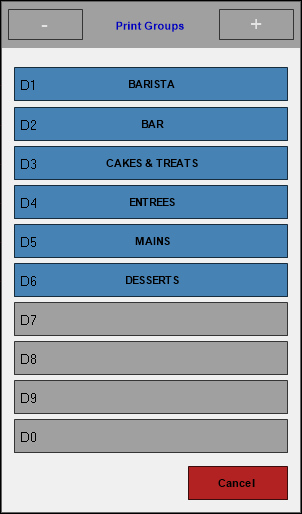
Example of Print Groups displayed in Touch for selections when issuing a Call Away using the Call Away (#41) POS Key
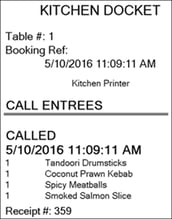
Sample of a kitchen docket printed from the Order Master terminal as a result of a Call Away being issued for Entrees
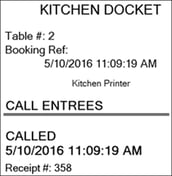 Sample of a kitchen docket printed from the Order Master terminal as a result of a Call Away being issued for Entrees, with the Don't Print Call Away Items option selected
Touchmini
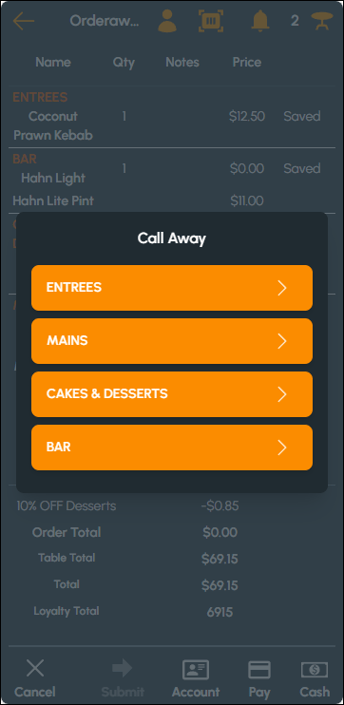
Example of Print Groups displayed in a Call Away prompt in Touchmini for selection when issuing a Call Away selecting the bell icon.
How To? ▲ ▼
How To GET STARTED? ▲ ▼
To implement the Call Away feature in Swiftpos, do as follows:
- Review About and ensure the steps outlined HERE are addressed.
- In Back Office:
- Print Groups will need to be created. Refer HERE for more information.
- Categories will need to exist and the Print Groups created above will need to be associated with the appropriate Categories. Refer HERE for more information.
- Items/Products that can be Called Away, will need to exist, be active and be active in the Location Table service is being offered in. They will also need to be associated with the Category that has the Print Group associated with it.
- Ensure the Call Away (#41) POS Key is added to the appropriate Keyboard Layout using the Designer. Refer HERE for more information.
- Ensure a Full Update is sent to the required Touch terminals that will be making use of the POS Key. Refer HERE for more information.
- In KVS:
- Ensure the Print Groups must be called away option is selected. This will ensure that Items/Products added to a Table Order do not go to KVS when the Table Order is saved but instead will only appear in KVS when their Print Group is Called Away.
- In Touch:
- Ensure one Touch terminal, in the Venue's Table service Location:
- Has the Table Tracking Master option selected and is enabled.
- Has the Orders Master option selected and is enabled.
- Has a Table Range assigned.
- Ensure one Touch terminal, in the Venue's Table service Location:
- In Touchmini:
- Ensure the Table Service option is selected.
- Ensure the Enable Call Away option is selected.
End of article ▲