
This provides an overview of the Surcharge (#80) POS Key.
Subjects ▲ ▼
About ▲ ▼
What Is Required? ▲ ▼
- Swiftpos v10+
- Ensure this POS Key is added to the appropriate Keyboard Layout using the Designer. Refer HERE for more information.
- Ensure a Surcharge is configured in Back Office HERE.
What To Consider? ▲ ▼
- If required, access to this POS Key can be restricted by the Clerk Security feature.
- The description of the Surcharge (Service Charge) displayed in the sales grid can be customised. This can be done by selecting the Surcharge/Service Charge Display option in the Sales settings.
- Surcharges (Service Charges) are applied to all applicable items in an order/sale when:
- The Auto Apply option is not selected.
- Or, if all Surcharges (Service Charges) have been cleared from an order/sale using the Clear All Surcharges (#23) POS Key.
- The Surcharge (Service Charge) is calculated based on the gross value of orders/sales and not the net value (after discounts, etc.). This feature does not offer a reduced Surcharge (Service Charge) on Discounts or Mix n Match promotions.
- To apply a Surcharge (Service Charge) on an order/sale that already has a Surcharge (Service Charge) on it, then first clear all existing charges by selecting the Clear All Surcharges (#23) POS Key. Otherwise, a Surcharge (Service Charge) will be charged on top of the existing charge.
When Is It Used? ▲ ▼
Used to apply a Surcharge (Service Charge) to items/product in an order/sale, or to an entire order/sale in Touch POS.
How To? ▲ ▼
GET STARTED? ▲ ▼
- Review About and ensure the steps outlined HERE are addressed.
- In Keyboard Designer, ensure the Surcharge (#80) POS Key is added to a Layout.
- Ensure it is given an appropriate Caption. For example, 15% Public Holiday Surcharge.
- Select the More Settings option to display the Settings screen and configure the POS Key as required.
- Once configured, ensure a Full Update is sent to all the Touch POS devices that will be using the POS Key. Refer HERE for more information.
Screens ▲ ▼
Settings Screen ▲ ▼
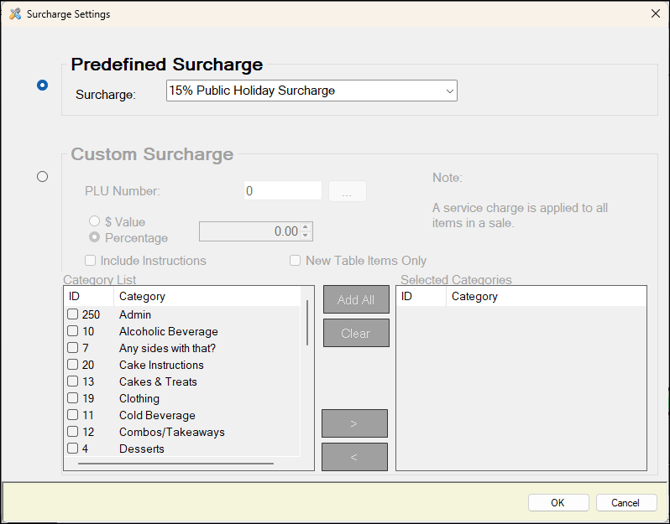
To access, select the More Settings option in Keyboard Designer. Used to configure the settings for this POS Key.
- Predefined Surcharge - Select to enable the drop-down list and select a surcharge. Refer HERE for more information.
- Custom Surcharge - This is a legacy option and is no longer recommended. Use the Predefined Surcharge option instead.
A Custom surcharge is used directly on the POS key and does not use a Back Office Surcharge.Configure the applicable:
- PLU Number.
- $ Value or Percentage.
- Category filter.
- New Table Items Only setting.
A percentage surcharge is calculated from the qualifying lines. A $ Value applies the configured amount once.
End of article ▲