
This provides an overview of the Room Charge Print Back (#147) POS Key.
Subjects ▲ ▼
About ▲ ▼
What Is Required? ▲ ▼
- Swiftpos v10+
- Ensure this POS Key is added to the appropriate Keyboard Layout using the Designer. Refer HERE for more information.
- A NetPOS registration that includes the Front Office Systems 3rd Party Integration application, and the service is running.
What To Consider? ▲ ▼
- If required, access to this POS Key can be restricted by the Clerk Security feature.
When Is It Used? ▲ ▼
Used to launch the Swiftpos HQ application in a browser.
How To? ▲ ▼
GET STARTED? ▲ ▼
- Review About and ensure the steps outlined HERE are addressed.
- In Keyboard Designer, ensure the Room Charge (#59) POS Key has been added to a Layout.
- Ensure it is given an appropriate Caption. For example, Room Charge.
- Select the More Settings option to display the Settings screen and configure the POS Key as required.
- Once configured, ensure a Full Update is sent to all the Touch terminals that will be using the POS Key. Refer HERE for more information.
Screens ▲ ▼
Settings Screen ▲ ▼
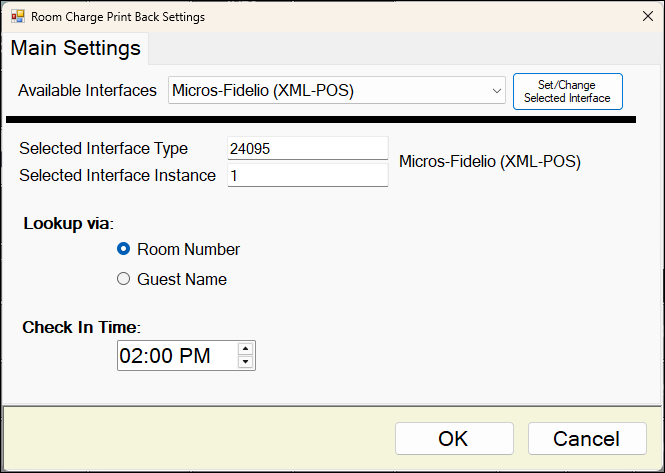
To access, select the More Settings option in Keyboard Designer. Used to configure the settings for this POS Key.
- Available Interfaces - Select from the drop-down list the required Interface.
Notes ...
If no interface is selected, the default used will be the interface which is set as default in NetPOS.
- Set/Change Selected Interface - Select to select the interface selected above and set the Type and Instance.
- Selected Interface Type - Displays the Type selected.
- Selected Interface Instance - Displays the Instance selected.
- Lookup via - Select one of the following:
- Room Number
- Guest Name
- Check In Time - Displays/Set the check-in time.
End of article ▲