

This provides an overview of the Pocket Vouchers (#95) POS Key in Touch.
Subjects ▲ ▼
About ▲ ▼
What Is Required? ▲ ▼
- Swiftpos v10+
- Ensure this POS Key is added to the appropriate Keyboard Layout using the Designer. Refer HERE for more information.
- To scan Pocket Vouchers, ensure a Barcode Scanner exists in the list of Peripherals and is configured with the appropriate Card Masking.
When Is It Used? ▲ ▼
Used by Venues to offer patrons access to Pocket Vouchers, a 3rd party mobile marketing platform which enables mobile phone vouchers to be verified in real-time, driving product trials, foot-traffic and sales. It is normally funded by product Suppliers and tracked by Pocket Vouchers.
SwiftPOS Vouchers is the recommended alternative.
How To? ▲ ▼
How To GET STARTED? ▲ ▼
- Review About and ensure the steps outlined HERE are addressed.
- In Keyboard Designer, select the Pocket Vouchers (#95) POS Key that has been added to a Layout.
- Ensure it is given an appropriate Caption. For example, Pocket Voucher.
- Select the More Settings option to display the Settings screen.
- Once configured, ensure a Full Update is sent to all the Touch terminals that will be using the POS Key. Refer HERE for more information.
Screens ▲ ▼
Settings Screen ▲ ▼
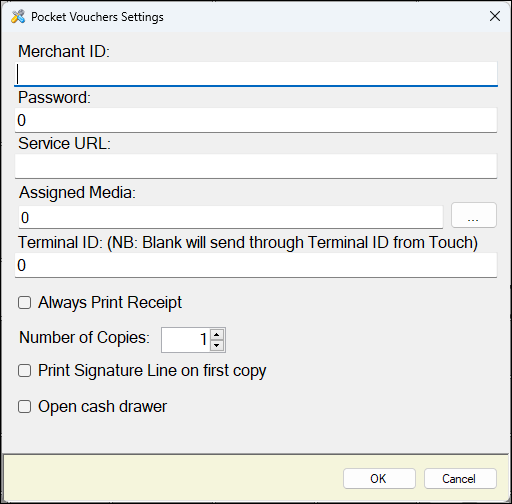
To access, select the More Settings option in Keyboard Designer. Used to configure the settings for the Pocket Vouchers (#95) POS Key.
- Merchant ID - Displays/Enter the ID as provided by Pocket Vouchers.
- Password - Enter the password as provided by Pocket Vouchers.
- Service URL - Displays/Enter the URL https://services.host.pocketvouchers.com/Redemption.svc
- Terminal ID - Leave blank to send the ID of the Touch terminal.
- Assigned Media - Select to open the Finalise screen to select the required Media.
- Always Print Receipt - Select to enable and set the number of copies to be printed.
- Print Signature Line on first copy - Select to print a signature line on the first printed copy of the receipt.
- Open cash drawer - Select to ensure the Cash Drawer is opened when this POS Key is selected at Touch.
- Enforce Reason Code - Select to enforce the Clerk/Staff Member to select/enter a Reason for cancelling the current sale. Refer HERE for more information.
- Don't Prompt For Mapping - Select to ensure prompting for Voucher Mapping is NOT displayed. Prompting will be displayed by default.
- Voucher - Select from the drop-down list of available Vouchers a Voucher to be assigned to this POS Key. This feature can be used to ensure that Clerks/Staff do not issue the wrong Voucher. The selected Voucher is assigned to the POS Key. If the Any option is selected the Clerk/Staff Member will be presented with a list of available Vouchers to choose from.
End of article ▲