

This provides an overview of the Email Receipt/Vouchers (#125) POS Key in Touch.
Subjects ▲ ▼
About ▲ ▼
What Is Required? ▲ ▼
- Swiftpos v10+
- Ensure this POS Key is added to the appropriate Keyboard Layout using the Designer. Refer HERE for more information.
What To Consider? ▲ ▼
- If required, access to this POS Key can be restricted by the Clerk Security feature.
- If required, enforcing Clerks/Staff to provide reasons for the cancellation of the sales can be achieved by ensuring that the Enforce Reason Code option has been selected.
When Is It Used? ▲ ▼
Used to email Receipts and/or Vouchers to a selected email address for the current sale.
How To? ▲ ▼
How To GET STARTED? ▲ ▼
- Review About and ensure the steps outlined HERE are addressed.
- In Keyboard Designer, select the Email Receipt/Vouchers (#125) POS Key that has been added to a Layout.
- Ensure it is given an appropriate Caption. For example, Email Receipt/Voucher.
- Select the More Settings option to display the Settings screen.
- Once configured, ensure a Full Update is sent to all the Touch terminals that will be using the POS Key. Refer HERE for more information.
Screens ▲ ▼
Settings Screen ▲ ▼
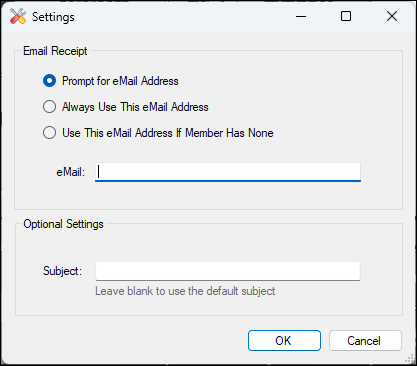
To access, select the More Settings option in Keyboard Designer. Used to configure the settings for the Email Receipt/Vouchers (#125) POS Key.
- Prompt for eMail Address - Select to prompt for the entry of an email address.
- Always Use This eMail Address - Select to ensure the email address entered below is always used.
- Use This eMail Address if Member Has None - Select to ensure the email address entered below is only used if a Customer/Member does not have one.
- eMail - Displays/Enter the email address.
- Subject - Displays/Enter the subject that is to appear in the email sent.
End of article ▲