
This provides an overview of the Print Group Change (#106) POS Key. Refer also to the Alter Print Group (#58) POS Key HERE for more information.
Subjects ▲ ▼
About ▲ ▼
What Is Required? ▲ ▼
- Swiftpos v10+
- Ensure this POS Key is added to the appropriate Keyboard Layout using the Designer. Refer HERE for more information.
What To Consider? ▲ ▼
- If required, access to this POS Key can be restricted by the Clerk Security feature.
When Is It Used? ▲ ▼
Used to change the Print Group of the next item added to the sales grid. For example, to change an item added as an Entree, to be changed and served as a Main instead.
How To? ▲ ▼
How To GET STARTED? ▲ ▼
- Review About and ensure the steps outlined HERE are addressed.
- In Keyboard Designer, select the Print Group Change (#106) POS Key that has been added to a Layout and then select the More Settings option to display the Settings screen.
- Ensure it is given an appropriate Caption. For example, Serve New Item As ...
- Configure the POS Key by selecting the options available HERE.
- Once configured, ensure a Full Update is sent to all the Touch terminals that will be using the POS Key. Refer HERE for more information.
Use The Print Group Change (#106) POS Key? ▲ ▼
- In Touch, select the Print Group Change (#106) POS Key:
- Add an item to the sales grid.
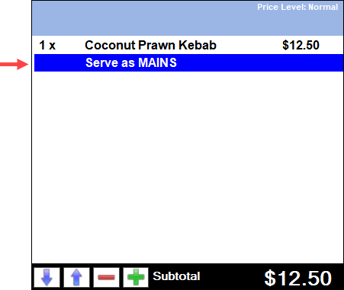
- The text Serve as Print Group name will be added as an instruction to the item added to the sales grid. For example:
Screens ▲ ▼
Settings Screen ▲ ▼
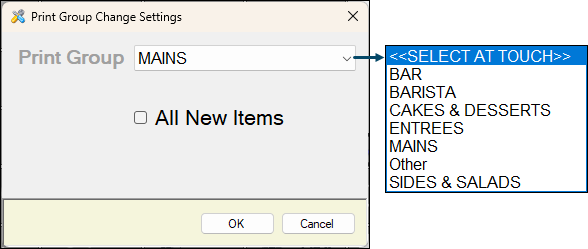
To access, select the More Settings option in Keyboard Designer. Used to configure the settings for the Print Group Change (#106) POS Key.
- Print Group - Select from the drop-down list one of the following:
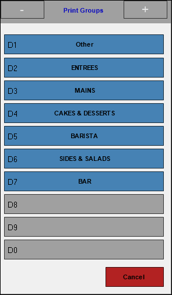
- <<SELECT AT TOUCH>> - Select to ensure the POS Key is configured as a prompt POS Key to prompt Touch operators to select the Print Group from a Print Groups prompt and apply it to the currently selected item in the sales grid.
Notes ...
If this option is selected, then it is recommended to change the caption of the POS Key to reflect that. For example, change the caption of the POS Key to Serve New Item As ...
- Print Group continued ...
- Print Groups Listed - Select to ensure the POS Key is configured as a preset POS Key to always apply the selected Print Group to the currently selected item in the grid.
Notes ...
Selecting one of the Print Groups listed in the drop-down list ensures the POS Key will be configured to always alter the Print Group of the currently selected item in the sales grid to that Print Group. That is, the POS Key, configured this way, can only be used to alter the Print Group to the selected Print Group. Hence, it is therefore recommended to change the caption of the POS Key to reflect that. For example, if the Print Group Mains is selected, then change the caption of the POS Key to Serve New Item As Mains.
- All New Items - Select to ensure that for all new Items added to the sales grid, the Print Group option selected above will be applied to each one of them.
Notes ...
If this option is selected it is recommended to change the caption of the POS Key to reflect that. For example, change it to either Serve All New Items As ... (for a prompt POS Key) or Serve All New Items As Mains (for a preset POS Key).
If this option is NOT selected, which is the default, then the selected Print Group will ONLY be applied to the next item added to the sale.