

IMPORTANT
DO NOT FORGET to select the Save option to ensure all changes are saved.
Subjects ▲ ▼
About ▲ ▼
When Is It Used? ▲ ▼
Used to configure Payments for Orderaway. Refer HERE for more information.
Payment Options ▲ ▼
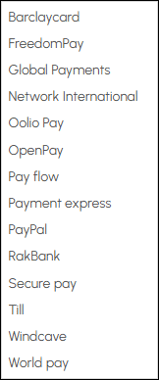
Barclaycard ▲ ▼
Tabs
General Tab ▲ ▼
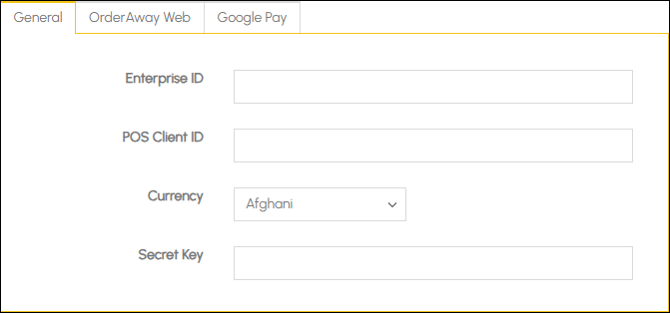
- Enterprise ID - Displays/Enter the ID as provided.
- POS CLient ID - Displays/Enter the ID as provided.
- Currency - Displays/Select the currency from the drop-down list.
- Secret Key - Displays/Enter the Key as provided.
Google Pay Tab ▲ ▼
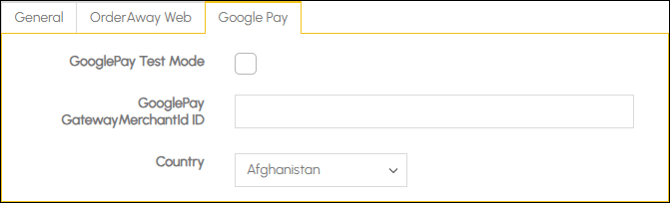
- GooglePay Test Mode - Select to enable.
- GooglePay Gateway/Merchant ID - Displays/Enter the ID as provided.
- Country - Displays/Select the country from the drop-down list.
Orderaway Web Tab ▲ ▼
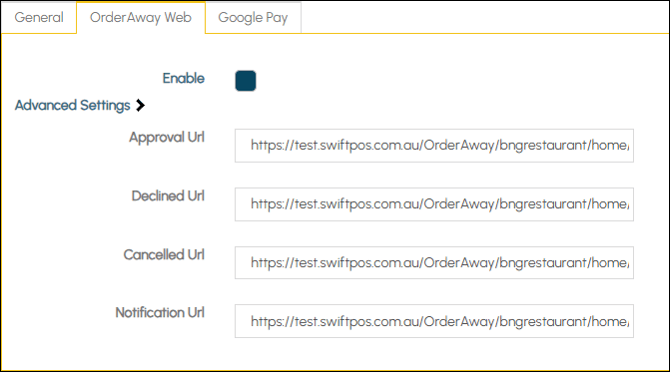
- Enable - Select to enable Barclaycard in Orderaway.
Advanced Settings
IMPORTANT
The settings displayed here are recommended to be left as they are.
DO NOT CHANGE THEM
Changes to them are ONLY recommended if knowledge of the implications of changing them are known, and the changes have been thoroughly tested.
Cyber Source ▲ ▼
Tabs
General Tab ▲ ▼
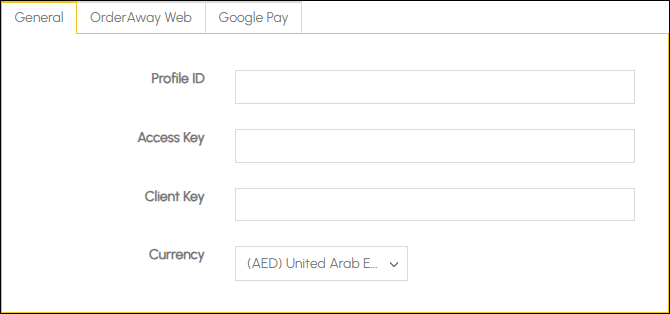
- Profile ID - Displays/Enter the ID as provided.
- Access Key - Displays/Enter the Key as provided.
- Client Key - Displays/Enter the Key as provided.
- Currency - Displays/Select the currency from the drop-down list.
Google Pay Tab ▲ ▼
- GooglePay Test Mode - Select to enable.
- GooglePay Gateway/Merchant ID - Displays/Enter the ID as provided.
- Country - Displays/Select the country from the drop-down list.
Orderaway Web Tab ▲ ▼
- Enable - Select to enable Cyber Source in Orderaway.
Advanced Settings
IMPORTANT
The settings displayed here are recommended to be left as they are.
DO NOT CHANGE THEM
Changes to them are ONLY recommended if knowledge of the implications of changing them are known, and the changes have been thoroughly tested.
FreedomPay ▲ ▼
Tabs
General Tab ▲ ▼
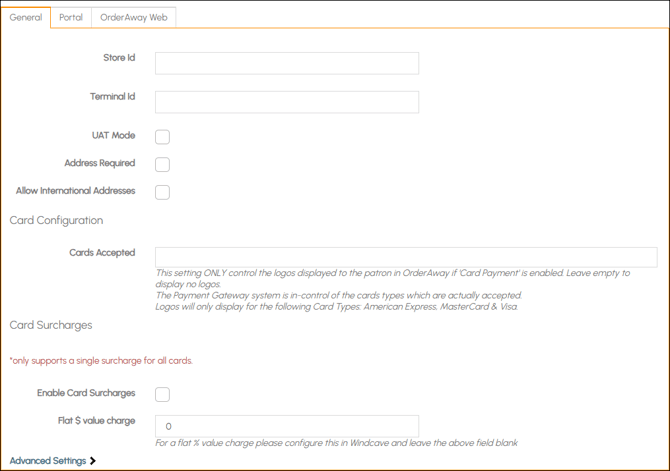
- Store ID - Displays/Enter the ID as provided.
- Terminal ID - Displays/Enter the ID as provided.
- UAT Mode - Select to enable.
- Address Required - Select to ensure the customer's billing address is collected.
- Allow International Addresses - Select to allow for the collection of international addresses.
Card Configuration Section
-
Cards Accepted - Enter the Card Types that are accepted. For example, American Express, MasterCard & Visa.
Notes ...
This setting ONLY control the logos displayed to the patron in OrderAway if 'Card Payment' is enabled. Leave empty to display no logos. The Payment Gateway system is in-control of the cards types which are actually accepted.
Card Surcharges Section
-
Enable Card Surcharge - Select to enable.
- Flat $ Value Charge - Displays/Enter the fixed dollar value that will be applied as the card surcharge.
Advanced Settings Section
- Secret Key - Displays/Enter the Key as provided.
Portal Tab ▲ ▼
-
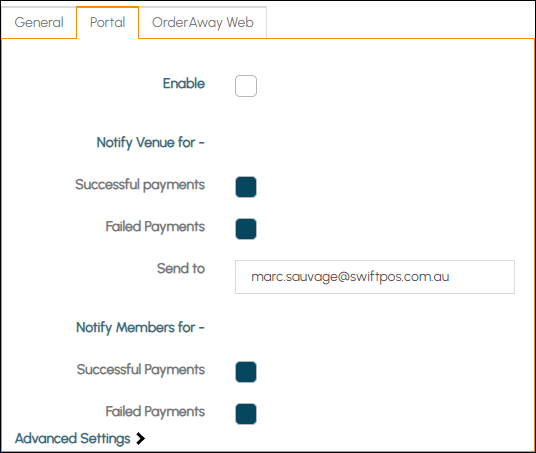
Enable - Select to enable.
Notify Venue For
- Successful Payments - Select to ensure notifications will be sent to the email address when order/sale payments succeed.
- Failed Payments - Select to ensure notifications will be sent to the email address when order/sale payments fail.
- Send To - Displays/Enter the email address to which the above notification will be sent.
Notify Members For
- Successful Payments - Select to ensure notifications will be sent to the email address when order/sale payments succeed.
- Failed Payments - Select to ensure notifications will be sent to the email address when order/sale payments fail.
Advanced Settings
IMPORTANT
The settings displayed here are recommended to be left as they are.
DO NOT CHANGE THEM
Changes to them are ONLY recommended if knowledge of the implications of changing them are known, and the changes have been thoroughly tested.
Orderaway Web Tab ▲ ▼
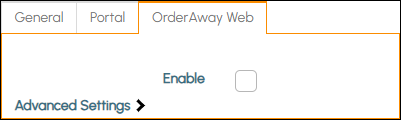
- Enable - Select to enable FreedmPay in Orderaway.
Advanced Settings
IMPORTANT
The settings displayed here are recommended to be left as they are.
DO NOT CHANGE THEM
Changes to them are ONLY recommended if knowledge of the implications of changing them are known, and the changes have been thoroughly tested.
Network International ▲ ▼
To access, select the Network International option from the Payment Options drop-down list.
Tabs
General Tab ▲ ▼
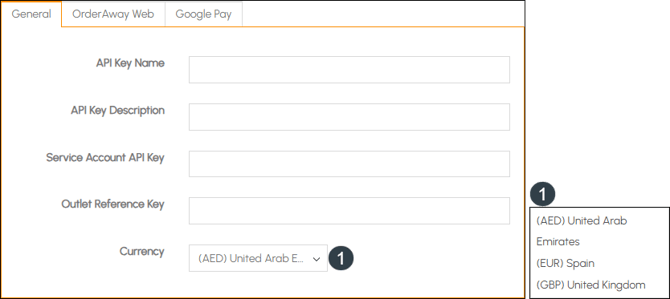
- API Key Name - Displays/Enter the API Key Name provided by Network International.
- API Description - Displays/Enter the API Description provided by Network International.
- Service Account API Key - Displays/Enter the Service Account API Key provided by Network International.
- Outlet Reference Key - Displays/Enter the Outlet Reference Key provided by Network International.
- Country/Currency - Select from the drop-down list the appropriate Currency.
Google Pay Tab ▲ ▼
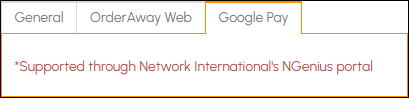
Orderaway Web Tab ▲ ▼
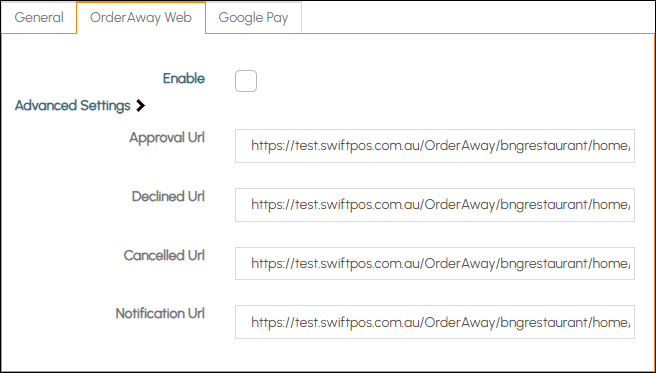
- Enable - Select to enable Network International in Orderaway.
Advanced Settings
IMPORTANT
The settings displayed here are recommended to be left as they are.
DO NOT CHANGE THEM
Changes to them are ONLY recommended if knowledge of the implications of changing them are known, and the changes have been thoroughly tested.
Oolio Pay ▲ ▼
To access, select the Oolio Pay option from the Payment Options drop-down list.
Tabs
General Tab ▲ ▼
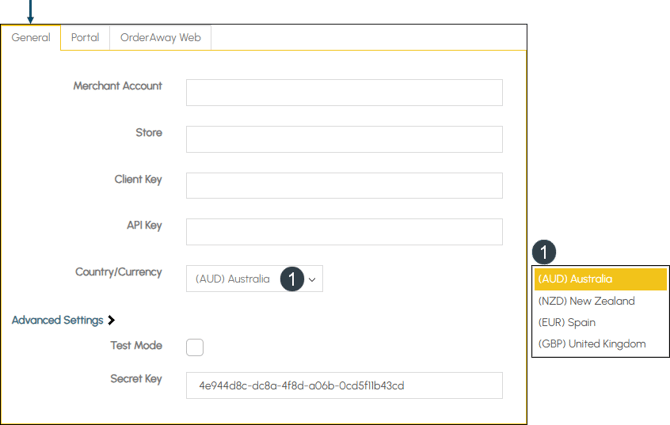
- Merchant Account - Displays/Enter the Merchant Account provided by Oolio.
- Store - Displays/Enter the Store ID provided by Oolio.
- Client Key - Displays/Enter the Client Key provided by Oolio.
- API Key - Displays/Enter the API Key provided by Oolio.
- Country/Currency - Select from the drop-down list the appropriate Currency.
Advanced Settings
- Test Mode - Select to enable.
- Secret Key - DO NOT CHANGE THIS VALUE.
Portal Tab ▲ ▼
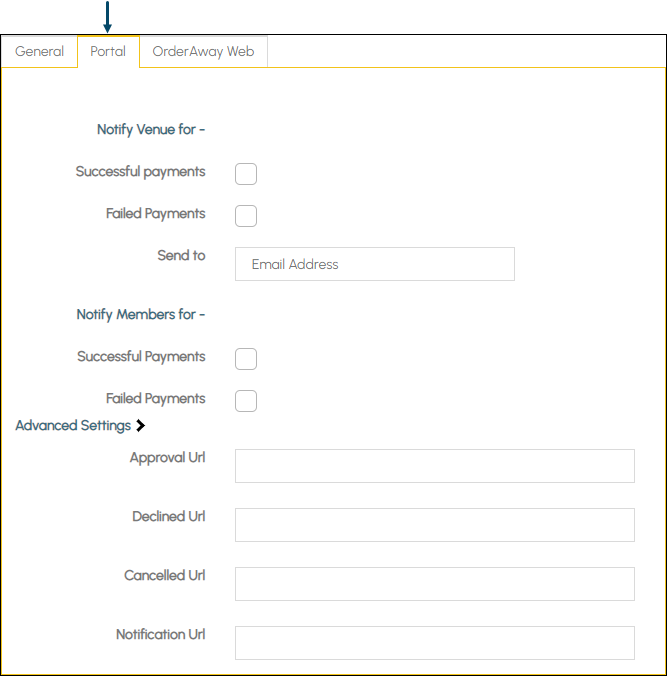
Notify Venue For
- Successful Payments - Select to ensure notifications will be sent to the email address when order/sale payments succeed.
- Failed Payments - Select to ensure notifications will be sent to the email address when order/sale payments fail.
Notify Members For
- Successful Payments - Select to ensure notifications will be sent to the email address when order/sale payments succeed.
- Failed Payments - Select to ensure notifications will be sent to the email address when order/sale payments fail.
Advanced Settings
IMPORTANT
The settings displayed here are recommended to be left as they are.
DO NOT CHANGE THEM
Changes to them are ONLY recommended if knowledge of the implications of changing them are known, and the changes have been thoroughly tested.
Orderaway Web Tab ▲ ▼
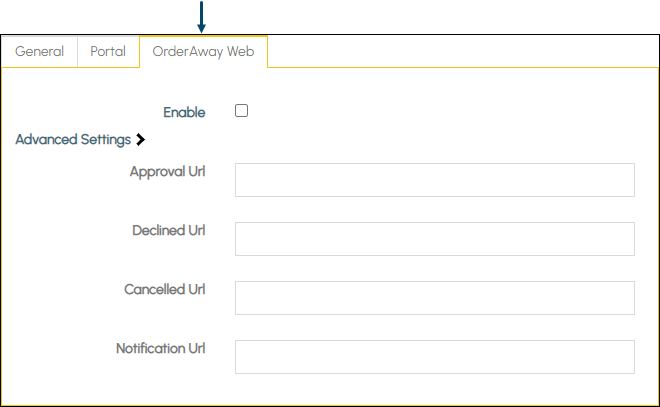
- Enable - Select to enable Oolio Pay in Orderaway.
Advanced Settings
IMPORTANT
The settings displayed here are recommended to be left as they are.
DO NOT CHANGE THEM
Changes to them are ONLY recommended if knowledge of the implications of changing them are known, and the changes have been thoroughly tested.
RakBank ▲ ▼
To access, select the Oolio Pay option from the Payment Options drop-down list.
Tabs
General Tab ▲ ▼
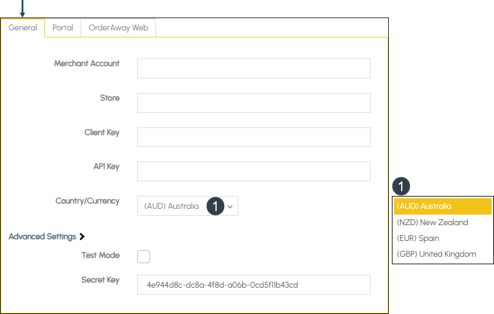
- Merchant Account - Displays/Enter the Merchant Account provided by Oolio.
- Store - Displays/Enter the Store ID provided by Oolio.
- Client Key - Displays/Enter the Client Key provided by Oolio.
- API Key - Displays/Enter the API Key provided by Oolio.
- Country/Currency - Select from the drop-down list the appropriate Currency.
Advanced Settings
- Test Mode - Select to enable.
- Secret Key - DO NOT CHANGE THIS VALUE.
Portal Tab ▲ ▼
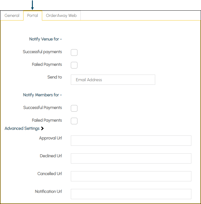
Notify Venue For
- Successful Payments - Select to ensure notifications will be sent to the email address when order/sale payments succeed.
- Failed Payments - Select to ensure notifications will be sent to the email address when order/sale payments fail.
Notify Members For
- Successful Payments - Select to ensure notifications will be sent to the email address when order/sale payments succeed.
- Failed Payments - Select to ensure notifications will be sent to the email address when order/sale payments fail.
Advanced Settings
IMPORTANT
The settings displayed here are recommended to be left as they are.
DO NOT CHANGE THEM
Changes to them are ONLY recommended if knowledge of the implications of changing them are known, and the changes have been thoroughly tested.
Orderaway Web Tab ▲ ▼
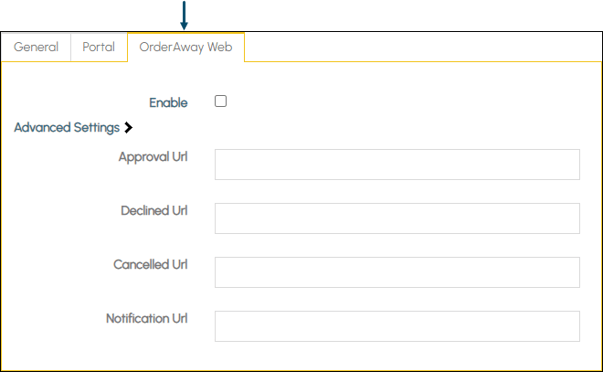
- Enable - Select to enable Oolio Pay in Orderaway.
Advanced Settings
IMPORTANT
The settings displayed here are recommended to be left as they are.
DO NOT CHANGE THEM
Changes to them are ONLY recommended if knowledge of the implications of changing them are known, and the changes have been thoroughly tested.
End of article ▲