
This outlines how to manage Wait Times in Notify.
How To? ▲ ▼
How To Configure A Wait Time Notification ▲ ▼
A Wait Time Notification can be configured in Notify to ensure patrons are made aware that they may have to wait when placing an order/sale. To do this:
- Login to Notify. Refer HERE for more information.
- Once logged in, select the Menu icon in the top left-hand corner of the Orders screen.
- Once selected, the Notify menu will be displayed.
- Select the Manage Orders menu option to open the Manage Orders screen.
- Select the most appropriate Estimated Wait Times (minutes) option that best reflects the current wait time for orders/sales, to ensure Wait Time Notifications are enabled.
- Enter the BEFORE/AFTER messages, in the Wait Time Notifications section, patrons/staff will see before/after placing their orders/sales.
Notes ...
The {WaitTime} token is available and can be imbedded into the BEFORE/AFTER messages to display the selected Estimated Wait Time. For example, for the:
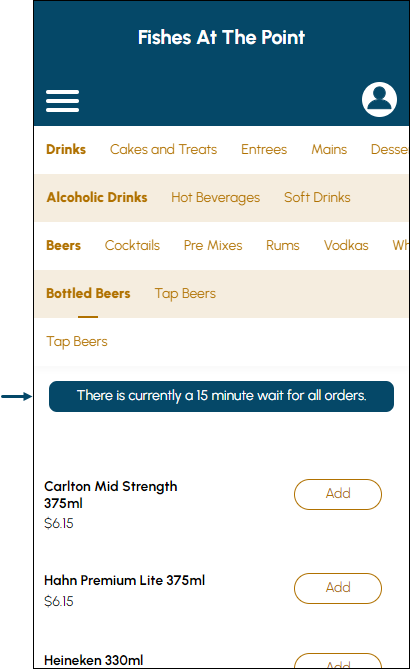
BEFORE message - There is currently a {WaitTime} minute wait for all orders
AFTER message - Your order will be ready in approximately {WaitTime} minutes
- Select the Save option to save the changes.
The BEFORE notification message will be displayed in OrderAway as follows:
How To Turn A Wait Time Notification Off ▲ ▼
A currently configured Wait Time Notification can be turned off as follows:
- Login to Notify. Refer HERE for more information.
- Once logged in, select the Menu icon in the top left-hand corner of the Orders screen.
- Once selected, the Notify menu will be displayed.
- Select the Manage Orders option to open the Manage Orders screen.
- Select the Off option from the available Wait Times listed.
- Select the Save option to save the changes.
End of article ▲