
This outlines How To Disable Ordering in Notify.
How To? ▲ ▼
The placing/submission of orders/sales by patrons and/or staff can be temporarily disabled as follows:
- Login to Notify. Refer HERE for more information.
- Once logged in, select the Menu icon in the top left-hand corner of the Orders screen.
- Once selected, the Notify menu will be displayed.
- Select the Manage Orders option to open the Manage Orders screen.
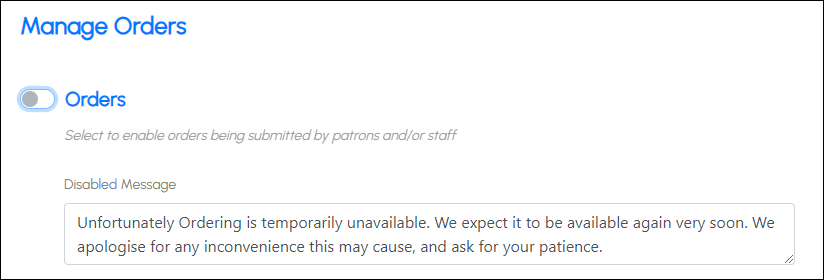
- Select the Orders option so that it is disabled.
- Once disabled a Disable Message text box will be displayed.
- Enter an appropriate message that patrons and/or staff will see.
- Select the Save option to save the changes.
Notes...
The Orders option is designed to allow Venues to be able temporarily disable ordering so that time is given for the potential back log of orders/sales to be processed, before ordering can be re-enabled.
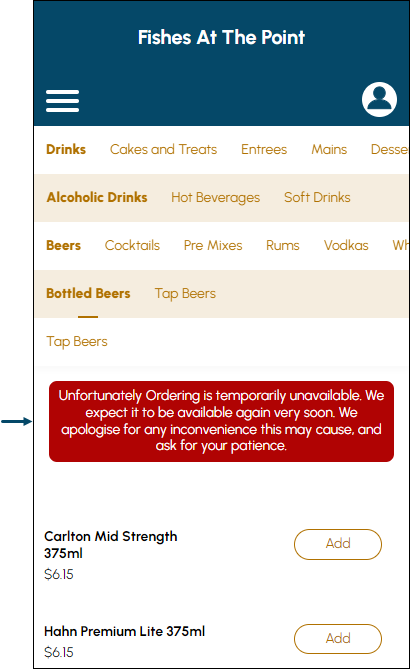
The above Disable Message will be displayed in Orderaway as follows:
End of article ▲