
Notes ...
Refer HERE for an up-to-date overview of the availability of features in relation to orders/sales placed and/or Vouchers redeemed.
Subjects ▲ ▼
About ▲ ▼
What Is Required? ▲ ▼
- If required three Families of items/products may need to be created specifically for this rule.
What To Consider? ▲ ▼
- If an item/product is assigned to both the X Family and the Y Family, then when the rule triggers at the $ value, it is possible that the discount will reduce the order/sale below the trigger value.
When Is It Used? ▲ ▼
Used when Venues want to for example, offer a promotion such as Buy a Coffee and a Muffin for $6.
Screens ▲ ▼
New Buy X and Y for Z Offer Screen ▲ ▼
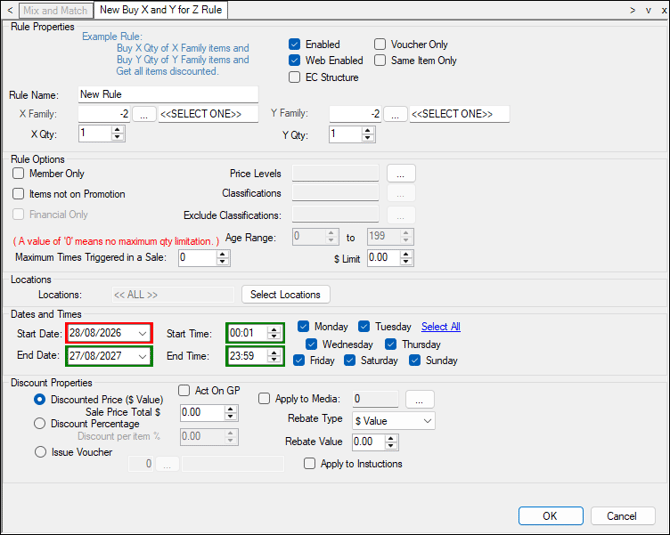
To access, select the MnM - Buy X and Y for Z Offer option from the New option's drop-down list in the footer section of the Mix and Match screen. Used when Venues want to for example, offer a promotion such as Buy a Coffee and a Muffin for $6.
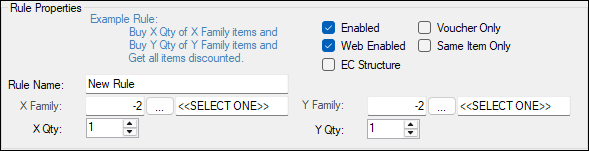
- Enabled - Select to ensure this rule is active and enabled for use.
- Voucher Only - Select to ensure this rule will only be applied when a Voucher (that has this rule setup as it's Action) is redeemed.
- Web Enabled - Select to ensure this rule is active and enabled for use via the Web API.
- Same Item Only - Selected ensures that the for the rule to be triggered the value specified in the X Qty must be met by selling the same item/product. Unselected means the X Qty must be met by selling any item/product.
- EC Structure (Entertainment Coupon) - Select to ensure the discount is only applied when an order/sale includes more than 1 cover (seats at a Table). The discount applied will be limited to the $ Limit setting and will only be applied depending on the Maximum Times Triggered in a Sale setting. Refer HERE for an example.
- Rule Name - Displays/Enter a rule name that will make it easy to identify later.
- X Family - Select from the drop-down list the Family of items/products to which the rule is to be applied. Select the select option to open the Search Families screen.
- Y Family - Select from the drop-down list the first Family of items/products to which the rule is to be applied. Select the select option to open the Search Families screen.
Notes ...
The All Family is available for selection in the drop-down list. If using this, be sure to consider what is outlined HERE.
- X Qty - Displays/Enter the quantity of B Family items/products required to be sold for the rule to be triggered.
- Y Qty - Displays/Enter the quantity of A Family items/products required to be sold for the rule to be triggered.
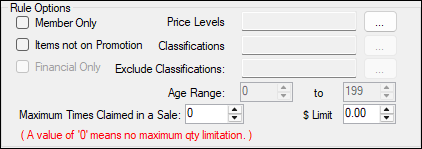
- Member Only - Selected ensures the rule is only triggered when orders/sales are made to Customer/Members.
- Price Levels - Select to restrict the rule to apply to specific Price Levels only. The default value of 0 means that all Price Levels are selected.
- Items not on Promotion - Selected ensures that the rule will NOT apply to items/products currently in a Special/Promotion.
- Classifications - Select to restrict the rule to apply to specific Member Classifications only. The default value of 0 means that all Member Classifications are selected.
- Financial Only - Select to ensure the rule is only triggered when orders/sales are made to Customer/Members that are Financial.
Notes ...
This option will only be enabled when the Member Only option is selected.
- Exclude Classifications - Select to restrict the rule to NOT apply to specific Member Classifications. The default is no Member Classifications are selected.
- Maximum Times Triggered in a Sale - Displays/Enter the maximum times the rule can be applied to a single order/sale. A value of 0 means no maximum limit will be applied.
- Age Range - Select to enable senior citizen pricing - When Customer/Members over 65 swipe their card they might get access to a Special/Promotion, Mix n Match, Price Level shifts, Discounts or Vouchers etc.
- $ Limit - Displays/Enter a dollar value to ensure that the discount applied to each item/product sold does not exceed this value.

- Locations - Select to open the Locations screen and select the Locations where the rule is to be active. By default, the rule will be active in all Locations.
-
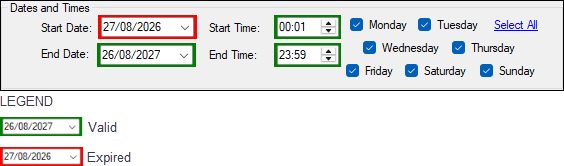
Dates and Times - Displays/Set the period in days the rule is active. This is done by selection the Start/End Dates/Times, and by selecting the days in the week the rule is to apply.
Notes ...
Time values entered will either be displayed with a red or green border, depending on the current time and the time values entered. For example, if the Start and End times entered is 12:00 and 12:30, then:
- The current time is 11:45, then the Start time will have a red border and the End time a green border.
- If the current time is 12:15, then the Start time will have a green border and the End time a green border.
- If the current time is 12:45, then the Start time will have a green border and the End time a red border.
Discount Properties Section ▲ ▼
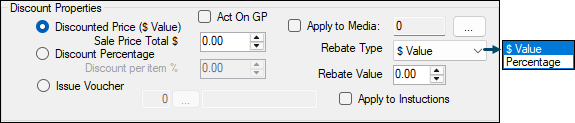
- Act on GP - Select to attribute the discount more evenly based on the GP of the items/products rather than the order/sale value. For example, if a rule is configured for a bottle of spirits and a 2L Coke then the discount is applied based on GP% instead of value.
- Discounted Price ($ Value) - Displays/Enter the value to override the Sell Price of the discounted items/products e.g. $5 each.
- If the value entered is greater than the sell price of the discounted item/product, then the Mix n Match discount will be calculated as follows:
Mix n Match discount = Discounted Price ($ Value) entered - Sell Price of the item/product. - If the value entered is less than the sell price of the discounted item/product, then the Mix n Match discount will be calculated as follows:
Mix n Match discount = Sell Price of the item/product - Discounted Price ($ Value) entered.
- If the value entered is greater than the sell price of the discounted item/product, then the Mix n Match discount will be calculated as follows:
- Apply to Media - Selected will ensure the Mix n Match discount will be allocated to the media selected.
- Discount Percentage - Displays/Enter a discount as a percentage to be applied. By default, the discount will be calculated based on the item/product in the order/sale having the smallest value.
- Rebate Type - Select the appropriate option from the drop-down list.
- Rebate Value - Displays/Enter the Rebate as $ Value or Percentage of the item/product sold depending on the Rebate Type selected. Rebates are sometimes provided by the Manufacturers to promote items/products. The rebate applicable is entered here, while the item/product is on offer during the Happy Hour. The value of the Rebate reduces the Cost of an item/product, ensuring the GP is reported correctly. Rebates applied are reported on in the Extended Specials Sales Report (SAL013) and Specials Sales Reports (SAL036).
- Issue Voucher - Select to enable the Voucher ID entry field and selection option. Once a Voucher is selected and when the Mix n Match is triggered, the Voucher will be added to the order/sale and printed when the order/sale is finalised. Likewise if the order/sale is subsequently changed (by removing items, etc) and the Mix n Match is removed, the Voucher will also be removed.
- Apply to Instructions - Select to ensure the discount is also applied to any Instructions that are associated with the items/products to which the rule is to be applied. For example, a Main meal that attracts a discount, will also mean that any Sauces or Side Dishes that accompany the Main meal and attract an extra charge, will also be discounted.
End of article ▲