![Swiftpos_White.png]](https://help.swiftpos.com.au/hs-fs/hubfs/Swiftpos_White.png?height=40&name=Swiftpos_White.png)
This outlines the How To Issue A Call Away in Touch.
Subjects ▲ ▼
How To? ▲ ▼
How To Issue A Call Away? ▲ ▼
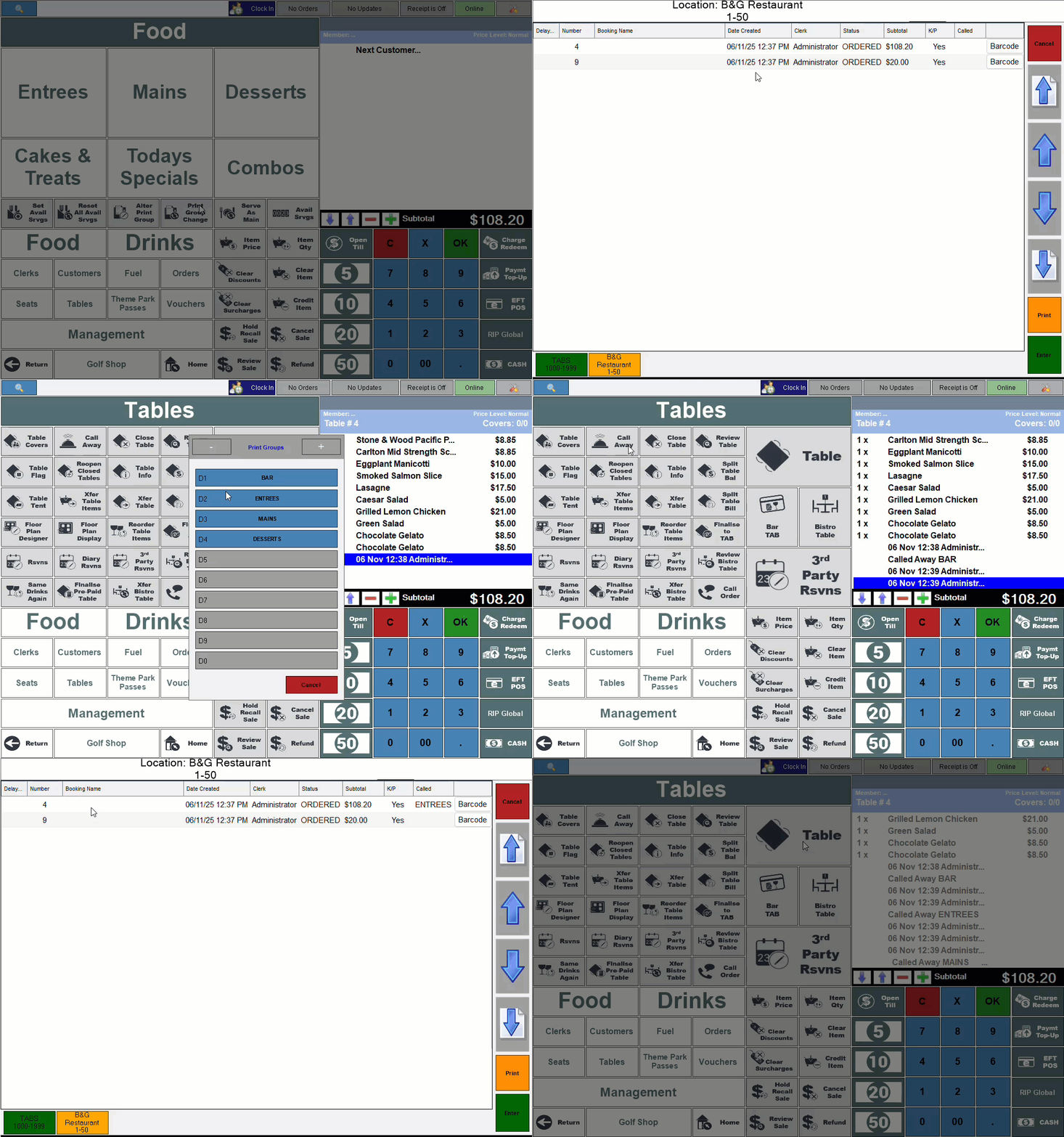
Do as follows once Items/Products have been added to a Table and the Table saved:
- Touch:
- Locate and select the Table (#30) POS Key.
- Select the Table.
- Select the Call Away (#41) POS Key.
- At the Print Group prompt, select the Print Group to be called away. For example, select BAR.
- Once a Call Away is issued, the Master Order terminal will print one or more kitchen dockets for the Items/Products called. Or if KVS has been configured correctly, then the called Item/Products will be displayed on the appropriate KVSs.
- Repeat the above steps for the remaining Call Away Print Groups until all have been called.
- The Floor Plan:
- Locate and select the Floor Plan Display (#402) POS Key.
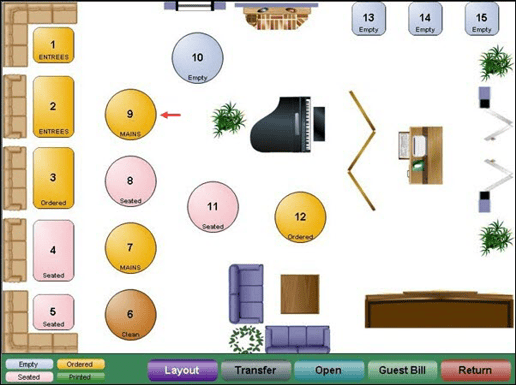
- Locate and select the Floor Plan Display (#402) POS Key.
- Continued ...
- Select the Table.
- Select the Call option.
- Select the Print Group to be called away.
- Once a Call Away is issued, the Master Order terminal will print one or more kitchen dockets for the Items/Products called. Or if KVS has been configured correctly, then the called Item/Products will be displayed on the appropriate KVSs.
- The Table's status on the Floor Plan will be updated to reflect Print Group for which the Call Away was issued.
- Repeat the above steps for the remaining Call Away Print Groups until all have been called.
End of article ▲