
- Swiftpos Help Guides
- KVS
- How To
-
Installers / Links / Releases
-
API
-
Back Office
-
Cloud Back Office
-
Events
-
Events Portal
-
How To
-
KVS
-
Member Portal
-
Notify
-
Oolio Pay
-
Orderaway
-
POS Keys
-
Self-Service Kiosk
-
Self-Service POS
-
Swiftpos
-
Touch
-
Touchmini
-
Troubleshooting
-
Venue Hub
-
Venue Manager
-
3rd Party Integrations
- Account Management
- Business Intelligence
- Cash Management
- eCommerce
- Exports / Imports
- Front Office Systems
- Fuel Systems
- Gaming
- General Ledger
- Gift Cards / Promotions / Vouchers
- Membership / Loyalty
- Middleware Applications
- Payment Integrators
- Product Level Blocking
- Reservations
- Swiftpos
- Tab Management
- Time & Attendance
- Value Added Services
-
Uncategorized
- API
- Back Office Accounts
- Back Office Administration
- Back Office - Clerks
- Back Office - Data Export
- Back Office - Inventory
- Back Office - Members
- Back Office - Menus
- Back Office - Products
- Back Office - Services
- Back Office - Suppliers
- Back Office - Swiftpos
- Back Office - Terminal Sales
- Back Office - Touch Settings
- Back Office - Vouchers / Discounts
- How To
- KVS
- OrderAway
- Venue Manager
- 3rd Party Integrations
- Touch
- Cloud Back Office
-
Touchmini v1 (End Of Life)
Configure A Wait Time
KVS - How To
This outlines the How To Configure A Wait Time for KVS.
Subjects? ▲ ▼
About ▲ ▼
When Is It Used? ▲ ▼
A Wait time is normally determined and set by the head chef and is set to be displayed in Touch to ensure Touch operators are informed of the average time it takes before an order can be served. It will be displayed in Touch to right of the K status indicator in the information bar. Refer HERE for more information.
How To Configure A Wait Time? ▲ ▼
- In Touch
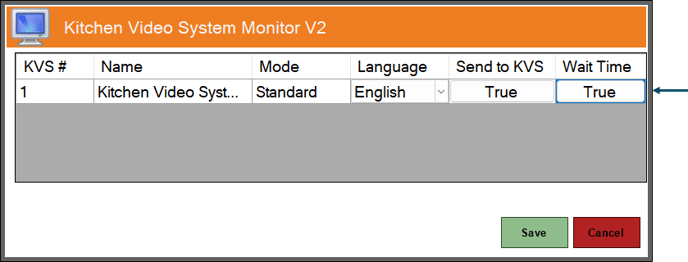
- Ensure the Wait Time option is set to True against the KVS Peripheral that will be used to set wait times.
Notes ...
It is recommended that only one KVS is identified and has the Wait Time option set to True.
- In KVS
- Select the Wait Time option to display the Wait Times prompt.
- Select one of the Wait Time options displayed in the prompt.
- Select OK to save the selection and close the prompt.
- Once set, the Wait Time will be displayed in Touch to right of the K status indicator in the Information bar. Refer HERE for more information.
Notes ...
If NO Wait Time is selected or the No Delay option is selected, then the time displayed at Touch will be K [0 mins].
End of article ▲