
- Swiftpos Help Guides
- 3rd Party Integrations
- Exports / Imports
-
Installers / Links / Releases
-
API
-
Back Office
-
Cloud Back Office
-
Events
-
Events Portal
-
How To
-
KVS
-
Member Portal
-
Notify
-
Oolio Pay
-
Orderaway
-
POS Keys
-
Self-Service Kiosk
-
Self-Service POS
-
Swiftpos
-
Touch
-
Touchmini
-
Troubleshooting
-
Venue Hub
-
Venue Manager
-
3rd Party Integrations
- Account Management
- Business Intelligence
- Cash Management
- eCommerce
- Exports / Imports
- Front Office Systems
- Fuel Systems
- Gaming
- General Ledger
- Gift Cards / Promotions / Vouchers
- Membership / Loyalty
- Middleware Applications
- Payment Integrators
- Product Level Blocking
- Reservations
- Swiftpos
- Tab Management
- Time & Attendance
- Value Added Services
-
Uncategorized
- API
- Back Office Accounts
- Back Office Administration
- Back Office - Clerks
- Back Office - Data Export
- Back Office - Inventory
- Back Office - Members
- Back Office - Menus
- Back Office - Products
- Back Office - Services
- Back Office - Suppliers
- Back Office - Swiftpos
- Back Office - Terminal Sales
- Back Office - Touch Settings
- Back Office - Vouchers / Discounts
- How To
- KVS
- OrderAway
- Venue Manager
- 3rd Party Integrations
- Touch
- Cloud Back Office
-
Touchmini v1 (End Of Life)
Triple Jump
3rd Party Integration with swiftpos NetPOS
This outlines the information and the steps that are needed to familiarise oneself with the NetPOS Triple Jump interface.
Subjects ▲ ▼
About ▲ ▼
What Is It? ▲ ▼
Used for sending sales transaction data to the Triple Jump (TJ) message queue provided on Azure (Service Bus Topic).
What Is Required? ▲ ▼
- swiftpos v10.74.10+
- A NetPOS Registration that includes the Triple Jump interface.
How To? ▲ ▼
How To GET STARTED? ▲ ▼
Do as follows:
- Review About and ensure the steps outlined HERE are addressed.
- In Back Office
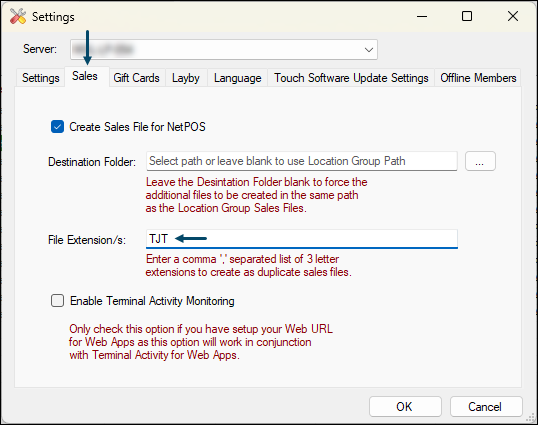
- Ensure a TJT file extension is added to the File Extension/s field in the Sales tab in Touch Settings > Touch POS Terminals > Tools > Options > Settings screen.
- In NetPOS
- Obtain the Venue's specific connections string from Triple Jump. Once received, enter it into the Connection String field in the NetPOS Triple Jump Settings screen.
- Select the Extract button, to retrieve the Venue's configuration. Once selected, the Triple Jump Settings screen will be populated with the configuration values retrieved.
- Configure the remaining settings as is appropriate for the Venue.
- Save the changes.
- Restart the NetPOS service.
How To Use It? ▲ ▼
Once configured, it is pretty much set and forget. Going forward all sale transaction data will automatically be sent to Triple Jump.
Screens ▲ ▼
Triple Jump Settings Screen ▲ ▼
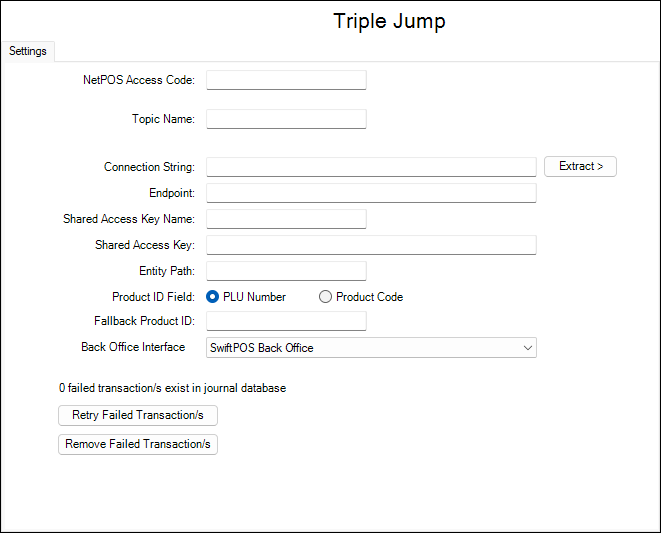
This screen is accessed from HERE and is used to configure the NetPOS Triple Jump interface.
End of article ▲