
Back Office - Suppliers
Subjects ▲ ▼
About ▲ ▼
What Is It? ▲ ▼
It is used to configure and manage the automatic generation of Purchase Orders in Swiftpos Back Office.
What Is Required? ▲ ▼
- The Enable Automatic Orders from this PC option must be selected in order for Purchase Orders to be automatically generated. This option is located when the Automatic Orders option is selected in the Service Monitor Options and Settings.
Notes ...
Any changes to the settings in the Service Monitor will require it to be restarted.
- Ensure the Service Monitor service is running.
What To Consider? ▲ ▼
- The calculation of the quantity to be ordered differs from that of the Purchase Order's Order Wizard. It is specifically designed to meet the requirements of sites registered for the Fuel module. Also, the calculation now takes into account the values set for the Supplier Min Cases and Min Units. Unlike the Order Wizard, the calculation of the quantity to be ordered only uses the Min Qty, and does not make use of the Max Qty.
- Notifications of Automatic Orders will be emailed if valid email settings are configured. These settings need to be configured as follows:
Screens ▲ ▼
Automatic Orders Screen ▲ ▼
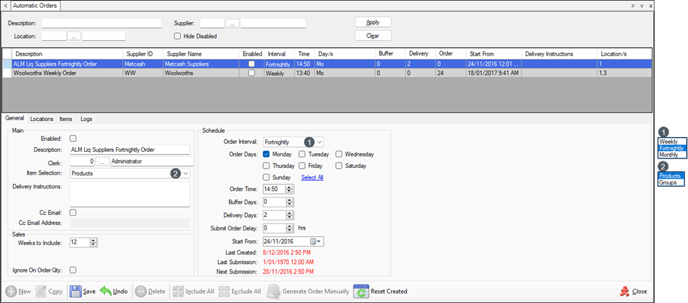
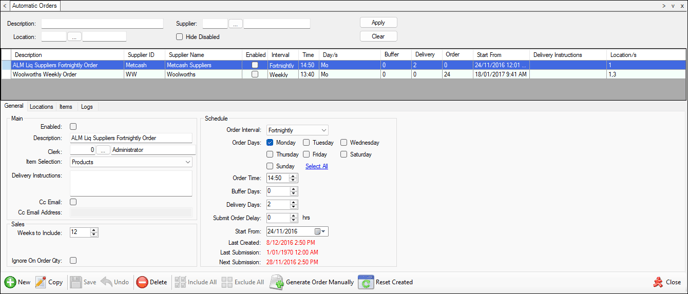
To access, select the Automatic Orders option in the Suppliers menu in Back Office. Used to configure and manage the automatic generation of Purchase Orders in Swiftpos Back Office.
Header Section

Provides filters to limit the number of Automatic Orders listed in the grid. The filters available are Description, Location, Supplier and Hide Disabled. Once all filters have been selected, select the Apply option to apply them. Otherwise, select the Clear option to clear all filter selections.
Grid Section

Lists the Automatic Orders returned as a result of the filters selected in the header, along with their Description, Supplier ID, Supplier Name, Enabled, Interval, Time, Day/s, Buffer, Delivery, Order, Start From, Delivery Instructions and Location/s.
Notes ...
Rows displayed in the grid can be sorted by toggle selecting the column headings.
Grid Footer Section
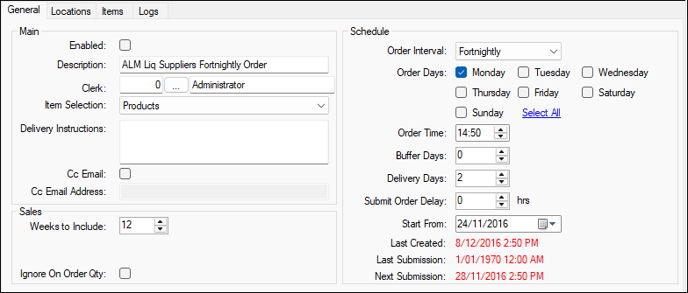
Used to configure the settings for the generation of the Automatic Order.
Main Section
- Enabled - Select to ensure Automatic Ordering is enabled for the selected Order.
- Description - Displays/Enter the name for the selected Order.
- Clerk - Select the Clerk/Staff Member to be considered the person placing the order.
- Item Selection - Select from the drop-down list one of the following:
- Products - When selected, the Products assigned to the selected Supplier will be displayed in the Items tab.
- Groups - When selected the Product Groups will be displayed in the Items tab.
- Delivery Instructions - Displays/Enter instructions relating to the delivery of Products ordered.
Notes ...
The Delivery Details recorded against the Location will be applied first. If none exist, then the instructions entered here will be applied. If none are entered here, then the Location's address details will be applied.
- Cc Email - Select to enable the emailing of the Cc Email Address entered below.
- Cc Email Address - Displays/Enter the email address that will be Cc'd.
Notes ...
If more than one email address is required to be entered, then enter each with a comma separating the email addresses. A limit of 100 characters can be entered.
Sales Section
- Weeks to Include - Displays/Enter the number of weeks to include when calculating the Average Sales. The number set here will be used to calculate the quantity ordered for individual items.
- Ignore On Order Qty - Select to ensure that ONLY the Min/Max Qty of a Product is considered when determining the Qty to order. If NOT selected, it will also include all Qty's currently On Order for a Product when determining the Qty to order.
Notes ...
If NOT SELECTED (the default setting) and already have stock on order to go above the Min Qty and up to the Max Qty, then it will not generate an order.
If SELECTED, it will not take the On Order Qty into consideration and will only generate an order depending on the Min Qty and Max Qty.
Schedule Section
- Order Interval - Select from the drop-down list either a Weekly/Fortnightly or Monthly order interval.
- Order Days - Select the Day/Days of the week on which the selected Order is to be automatically generated.
- Order Time - Displays/Enter the time the Order will be generated.
Notes ...
If the Submit Order Delay (Hrs) setting is set to zero then the Order will be submitted immediately. If, however it has Delay time set to a value greater than zero, then the Order will be generated and Authorised and set to a status of Pending Submission.
- Buffer Days - Display/Enter the number of days to be considered as a buffer period to be added to the Weeks to Include setting above, when calculating the quantity ordered for individual items.
- Delivery Days - Displays/Enter the number of days after the Order has been submitted, that is required for the Order to be delivered.
Notes ...
The number of days specified here will be used to calculate the Date Required, which will appear on the Purchase Order.
- Submit Order Delay (Hrs) - Displays/Enter the number of hours that must pass after the Order is generated before it will be submitted. This allows for a delay time so that Orders can be edited while in a status of Pending Submission. Orders Pending Submission can be edited via the Purchase Order List.
- Start From - Displays/Select from the drop-down calendar the date from which the selected Automatic Order will become activated. The Enabled option will need to be selected for this date to be effective.
- Last Created - Displays the Date/Time of the last time a Purchase Order was created by the selected Automatic Order.
- Last Submission - Displays the Date/Time of the last time a Purchase Order was submitted by the selected Automatic Order.
- Next Submission - Displays the Date/Time the next time the selected Order will be submitted. This can be adjusted by changing the Order Interval, Days, Time and the Submit Order Delay above.
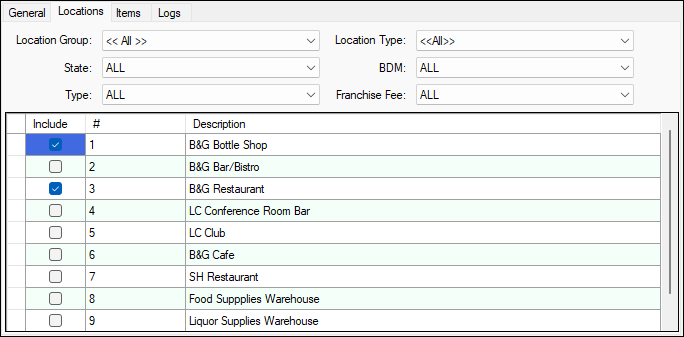
Used to select the Locations that are to be included when generating Automatic Orders.
Header Section
Provides filters to be able to quickly search for Locations. The search filters available are Location Group, Location Type and Location Sub Filters (for example, State, BDM, Type and Franchise Fee).
Grid Section
Lists the Locations returned as a result of the filters currently configured, along with their Number and Name.
- Include - Select to ensure the Location is included when generating Automatic Orders.
Notes ...
Rows displayed in the grid can be sorted by toggle selecting the column headings.
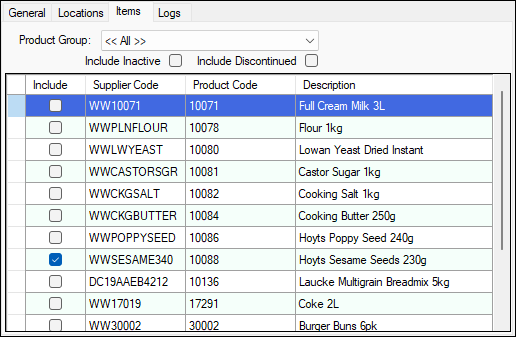
Used to select the Products that are to potentially be included when generating Automatic Orders.
Header Section
Provides filters to be able to quickly search for Products. The search filters available are Product Group, Include Inactive and Include Discontinued.
Grid Section
Lists the Products returned as a result of the filters currently configured, along with their Supplier Code, Product Code and Description.
- Include - Select to ensure the Product is included when generating Automatic Orders.
Notes ...
Rows displayed in the grid can be sorted by toggle selecting the column headings.
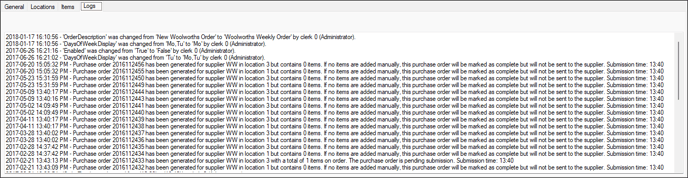
Used to display log information associated with the selected Automatic Order. The information logged will track any changes made to the configuration of the Order, as well as tracking the Orders generated.
Footer Section
- New - Select to add an Automatic Order. Once created it will appear in the grid above.
Notes ...
By default, new Automatic Orders will be enabled when created.
- Save - Select to save the changes.
- Undo - Select to undo changes made.
- Delete - Select to remove the selected Automatic Order from the grid.
- Include All - Select to ensure that all the checkboxes in the Include column are selected.
Notes ...
This button will only be enabled when the Locations and Items tabs are selected.
- Exclude All - Select to ensure that all the checkboxes in the Include column are unselected.
Notes ...
This button will only be enabled when the Locations and Items tabs are selected.
- Close - Select to exit.
End of article ▲