
Subjects ▲ ▼
About ▲ ▼
What To Consider? ▲ ▼
- The appropriate Clerk Security Group permissions are required to access Voucher Ledger, Voucher Mapping end Edit Vouchers.
- Vouchers can be deleted using the Clear Transaction History feature.
Notes ...
Once Vouchers have been deleted, they cannot be restored without doing a restore, so always ensure that backups have been made before invoking this feature.
-
To import Mapping and Stored Values, refer HERE.
When Is It Used? ▲ ▼
Used to view a list of Vouchers that have been issued, as well as be able to edit Vouchers and gain access to Voucher Mapping.
Screens ▲ ▼
Ledger Edit Screen ▲ ▼
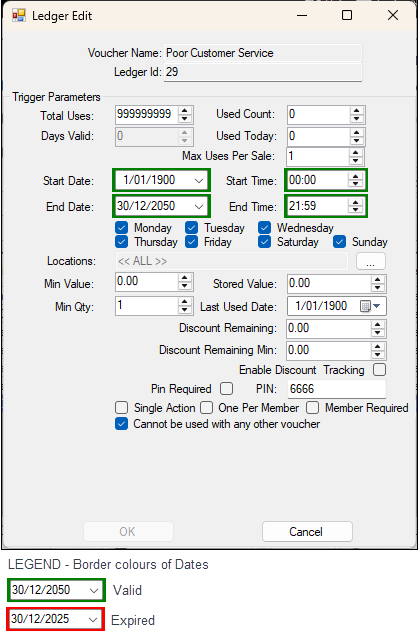
To access, select the Edit Selected option in the footer section of the Voucher Ledger screen.
Voucher Ledger Screen ▲ ▼
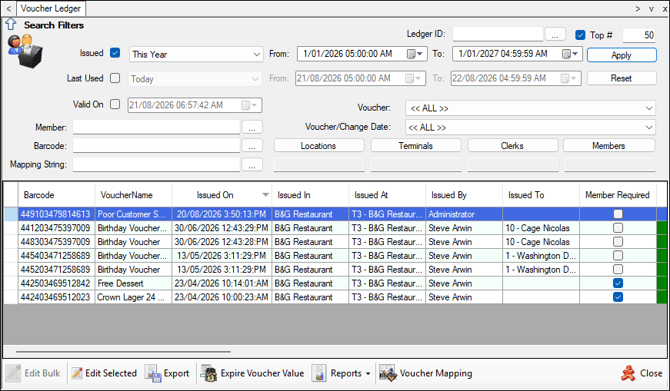
To access, select the Voucher Ledger option in Vouchers/Discounts menu.
Sections ▲ ▼
Header Section ▲ ▼
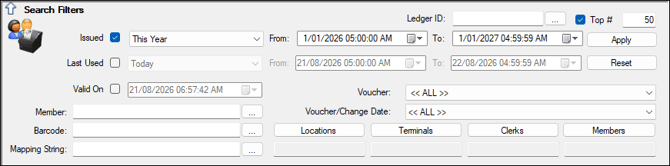
Used to limit the number of rows displayed in the grid section. Once all filters have been selected, select the Apply option to apply them. Otherwise, select the Reset option to clear all filter selections.
Noteworthy
- Top # - Select the checkbox and enter if necessary, the maximum number of Vouchers to be displayed.
- Issued - Select to filter the Vouchers displayed by the Voucher Date Issued.
- Last Used - Select to filter the Vouchers displayed by the Voucher Date Last Used.
- Valid On - Select to filter the Vouchers displayed based on the Voucher Valid From/To dates. The date can be entered manually or via the use of the Popup Calendar. Vouchers will only be displayed if the Valid On date entered/selected falls within the Voucher's Valid From/To date range.
- Voucher - Select from the drop-down list a Voucher.
- Voucher/Change date - Select from the drop-down list a Voucher/Change date combination to then be able to view the Vouchers issued for the selected combination. Each time Voucher Parameters are changed and Vouchers are issued after the change has been saved, then a new entry will appear in this drop-down list for the Voucher/Change Date combination.
Notes ...
It is recommended to ensure the Issue Date has <<ALL>> selected. Each time a Voucher is saved a new Distinct entry is created. This will allow you to filter on Vouchers issued at different stages if Voucher parameters are modified.
Grid Section ▲ ▼
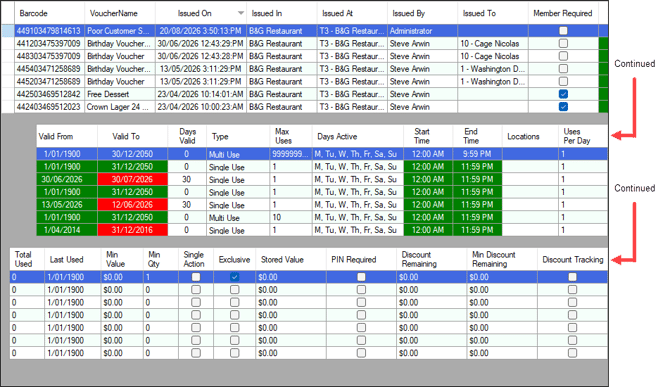
Lists the Vouchers returned as a result of the filters selected in the header section, along with their Barcode, Voucher Name, Issued On, Issued At, Issued By, Issued To, Valid From/To, Days Valid, Type, Max Uses, Start/End Time, Locations, Uses Per Day, Total Used, Last Used. Min Value, Min Qty, Single Action, Exclusive, Stored Value, PIN Required, Discount Remaining and Min Discount Remaining.
Notes ...
To edit an entry in the grid, double click a row. Rows displayed in the grid can be sorted by toggle selecting the column headings. Also "Ctrl + Double Click" will copy the selected Barcode to the Clipboard.
Noteworthy
- Valid From/To - Displays the date range within which the Voucher can be redeemed.
- Total Uses - Displays the number of times the Voucher can be redeemed.
- Used Count - Displays the number of times the Voucher has been redeemed.
- Discount Remaining - Displays the Member's Discount Voucher value that is still outstanding and which is still redeemable.
- Min Discount Remaining - The value displayed here is set HERE.
- Discount Tracking - Displays whether the Enable Discount Tracking option has been selected or not.
Footer Section ▲ ▼

-
Edit Bulk - Select to edit a multiple numbers of Vouchers that have similar parameters. Use the Distinct Voucher/Change date search filter above to select multiple Vouchers. Once selected a version of the Ledger Edit screen below will be displayed.
-
Edit Selected - Select to open the Ledger Edit screen below to edit the selected Voucher.
-
Export - Select to export the Voucher information displayed in the grid to an Excel file in the form of a Pivot table.
-
Expire Voucher value - Select to clear the Stored Value (reset it to zero) for all expired Stored Value Vouchers.
-
Reports - Select from the drop-down list one of the following reports:
- Voucher Mapping - Select to open the Voucher Mapping screen.
- Close - Select to exit.
End of article ▲