
This provides an overview of the Kitchen Alert (#385) POS Key.
Subjects ▲ ▼
About ▲ ▼
What Is Not Supported? ▲ ▼
- It is NOT supported when used in conjunction with the Consolidate Similar Lines option is selected in the KVS Appearance tab.
What Is Required? ▲ ▼
- Swiftpos v10+
- Ensure this POS Key is added to the appropriate Keyboard Layout using the Designer. Refer HERE for more information.
What To Consider? ▲ ▼
- If required, access to this POS Key can be restricted by the Clerk Security feature.
When Is It Used? ▲ ▼
This POS Key is used to ensure Kitchen Staff are alerted (via the Kitchen Docket and/or KVS) to special requirements when an Order is placed. For example, an Order for 3 Pizzas is placed but for only 1 of the Pizzas, Kitchen Staff need to be alerted to the fact that one of the Pizzas must exclude the inclusion of eggs, due to an egg allergen.
Notes...
Using the Allergens feature, potentially all 3 Pizzas would have been flagged with the egg Allergen, as opposed to only 1 needing to be flagged in the Order.
How To? ▲ ▼
GET STARTED? ▲ ▼
- Review About and ensure the steps outlined HERE are addressed.
- In Keyboard Designer, ensure the Kitchen Alert (#385) POS Key is added to a Layout.
- Ensure it is given an appropriate Caption. For example, Alert Kitchen.
- Select the More Settings option to display the Settings screen and configure the POS Key as required.
- Once configured, ensure a Full Update is sent to all the Touch devices that will be using the POS Key. Refer HERE for more information.
Screens ▲ ▼
Settings Screen ▲ ▼
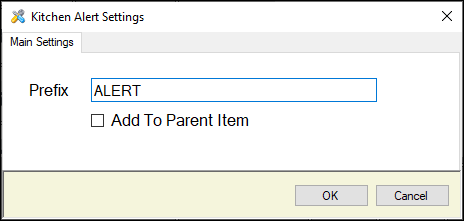
To access, select the More Settings option in Keyboard Designer. Used to configure the settings for this POS Key.
- Prefix - Displays/Enter the prefix (if any) that will appear before the text entered by Clerks/Staff in Touch when the Kitchen Alert POS Key is selected.
- Add To Parent Item - Select to ensure the text entered when the POS Key is selected, will be added to the parent Item, and not the selected Item.
End of article ▲