
IMPORTANT
From Swiftpos v10.79.18+ this feature has been improved and renamed to IGT EZ Insights and has been moved HERE.
Subjects ▲ ▼
About ▲ ▼
What Is Required? ▲ ▼
- Swiftpos v10+
- Venues must have a current Software Enhancement Licence to use this feature.
What Is Supported? ▲ ▼
- Exporting of sales data for IGT BI as part of the End of Day process is an available option.
What To Consider? ▲ ▼
- Cancelled orders/sales related data will NOT be exported.
When Is It Used? ▲ ▼
Used to Export sales data for IGT BI. Exporting can also be included as part of the End of Day process.
Sales data can be exported as either Comma Separated Variable (.CSV) files or Text (.TXT) files. Either way, for each trading date of sales data retrieved, the following 3 files will be created with their respective file extension (depending on the File Type selected):
IGTItemExtract_YYYYMMDD File Format ▲ ▼
| Field Name | Field Description | Field Type |
| POSTransactionNumber | Transaction Number | Numeric |
| POSCheckNumber | Receipt Number | Numeric |
| ItemNumber | PLU Number |
Numeric |
| Description | Product Description | Alphanumeric |
| ItemCategory | Category Description | Alphanumeric |
| ItemType | Master Group | Alphanumeric |
| SaleAmount | Sales Price (Incl.) | Numeric |
| Quantity | Quantity Sold | Numeric |
IGTTenderExtract_YYYYMMDD File Format ▲ ▼
| Field Name | Field Description | Field Type |
| POSTransactionNumber | Transaction Number | Numeric |
| POSCheckNumber | Receipt Number | Numeric |
| TenderType | Media Name | Alphanumeric |
| SaleAmount | Sales Amount (Incl.) | Numeric |
| DiscountAmount | Discount Amount | Numeric |
IGTTransactionExtract_YYYYMMDD File Format ▲ ▼
| Field Name | Field Description | Field Type |
| POSTransactionNumber | Transaction Number | Numeric |
| POSCheckNumber | Receipt Number | Numeric |
| PatronCardNumber | Member ID |
Numeric |
| CashierNumber | Clerk ID | Numeric |
| CashierName | Clerk Name | Alphanumeric |
| WorkstationCostCentreName | Location Name | Alphanumeric |
| WorkstationID | Terminal ID | Numeric |
| SaleAmount | Sales Amount (Incl.) | Numeric |
| DiscountAmount | Discount Amount | Numeric |
| PointsRedeemed | Points Redeemed | Numeric |
| PointsAccrued | Points Awarded | Numeric |
| TransactionDate | Transaction Date | Date |
| TransactionTime | Transaction Time | Time |
How To? ▲ ▼
- Export Sales Data Manually?
- Flag All Sales Transactions As Exported?
- GET STARTED?
- Include The Export In The End Of Day?
- Reset Sales Transactions And Flag As Not Exported?
How To GET STARTED? ▲ ▼
It is recommended that initially when first implementing the IGT BI Data export, the export of data is first manually done to ensure that all is exported as expected. Once a number of manual exports have been successfully completed, the Venue can consider including the export as part of the End of Day process. In light of this, follow the steps outlined below to achieve both outcomes.- Review About and ensure the steps outlined HERE are addressed.
- Navigate to the Export IGT BI Data screen in the Data Export menu in Back Office.
- Flag all sales transactions as EXPORTED - Before commencing with exporting it is recommended to flag all sales data that is currently available as exported. This is to ensure that the first export will not unnecessarily include past transactions that ARE NOT required for exporting. To achieve this follow the steps outlined HERE.
- Reset sales transactions and flag as NOT EXPORTED - Once all sales transactions have been flagged as EXPORTED, it is then necessary that for selected Trading dates the sales transactions are reset and flagged as NOT EXPORTED, to ensure that the first export will only include those past transactions that ARE required for exporting. To achieve this follow the steps outlined HERE.
- Export the reset transactions manually - To achieve this follow the steps outlined HERE.
- Include the exporting of IGT BI Sales Data in the End of Day (EOD) process - This is to ensure that on an ongoing basis, the export of sales data is handled automatically by the EOD process. To achieve this follow the steps outlined HERE.
How To Export Sales Data Manually? ▲ ▼
Do as follows:
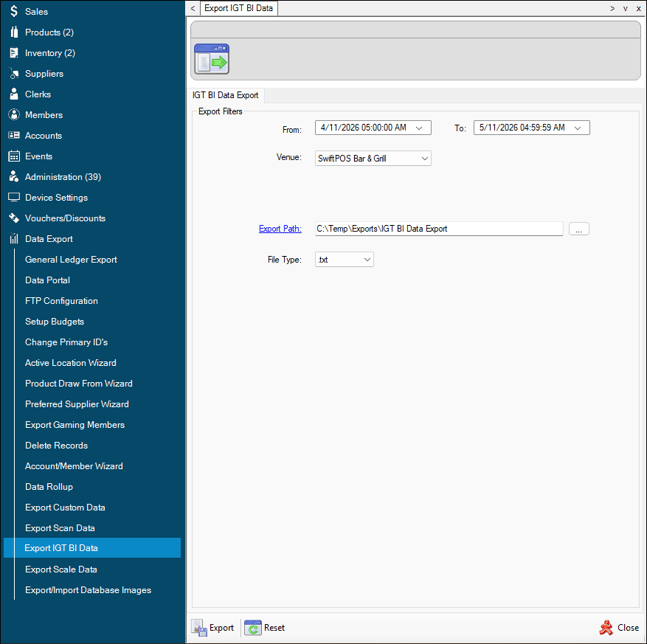
- Select the Venue from the Venue drop-down list or select the << All >> option to select all Venues.
- Select the folder in the Export Path option into which the exported sales data files will be written to.
- Select the type of export file to be created from the File Type drop-down list.
- To be continued ...
How To Flag All Sales Transactions As Exported? ▲ ▼
Do as follows:
- Navigate to the Export IGT BI Data screen in the Data Export menu in Back Office.
- Select the Reset option in the footer section to open the Reset Sales Export Flag screen.
- Select a date range that would encompass all historical sales transactions. For example:
How To Include The Export In The End Of Day? ▲ ▼
Do as follows:
- To be continued ...
How To Reset Sales Transactions And Flag As Not Exported? ▲ ▼
Do as follows:
- To be continued ...
Screens ▲ ▼
Export IGT BI Data Screen ▲ ▼
To access, select the Export IGT BI Data option in the Data Export menu in Back Office. Used to Export sales data for IGT BI.
Sections ▲ ▼
Export Filters Section ▲ ▼
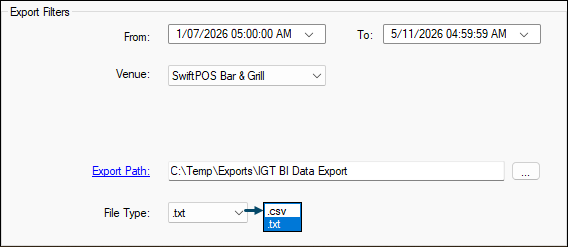
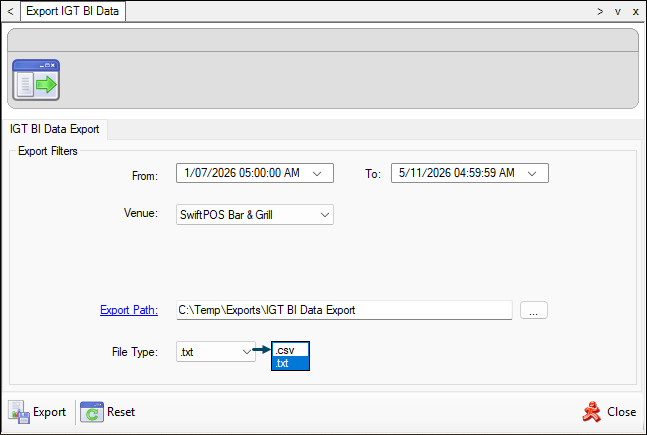
Used to select/set the options that are available when manually exporting sales data.
-
Date/Time From/To - Enter/Select the date/time range within which sales data will be exported.
-
Venue - Select from the drop-down list the Venue for which sales data will be exported. Select the << ALL >> option to select all Venues.
- Export Path - Select the select option to the right of the Export Path field to locate and select the folder in which the exported sales data will be written to. Refer HERE for more information.
- File Type - Select from the drop-down list the required format in which the exported sales data will be written. Refer HERE for more information.
Footer Section ▲ ▼

- Export - Select to create multiple daily CSV or TXT type files in the Export Path selected. Refer HERE for more information.
- Reset - Select to open the Reset Sales Export Flag screen to reset the export flag for a selected Trading date.
- Close - Select to exit.
Reset Sales Export Flag Screen ▲ ▼
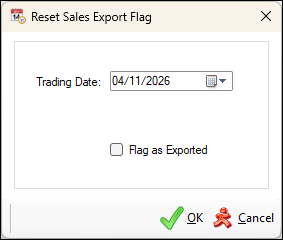
To access, select the Reset option in the footer section of the Export IGT BI Data screen. Used to either flag all sales data related transactions for a selected trading date as NOT exported (reset), or to flag as exported.
- Trading Date - Select/Set the date for which transactions are to be flagged as exported or reset and flagged as NOT exported.
- Flag as Exported - Select to ensure all sales data related transactions are flagged as exported.
End of article ▲