
This outlines How To Subtotal An Order/Sale using the Subtotal (#300) POS Key in Touch.
Subjects ▲ ▼
Notes ...
When selected the Subtotal (#300) POS Key will remove any existing Sale Discounts from the order/sale. Individual Item discounts will remain NOT be removed. Also, it is important to note that, without selecting the Subtotal (#300) POS Key, any Discount or Surcharge applied will be applied to the currently selected or last item/product in the order/sale.
When Is It Used? ▲ ▼
An order/sale can be subtotalled when there is a need to apply a:
Alternate Currency ▲ ▼
There is a requirement to display the total of an order/sale in an Alternate Currency. Refer HERE for more information.
Discounts ▲ ▼
A Discount is to be applied to the whole order/sale. Refer HERE for more information.
Member Pricing ▲ ▼
There is a need to apply Member Pricing to all items/products to a Table order when a Member is added at the end of the Table order.
Notes ...
This will require the Apply “Mix n Match” and Price Level to Sale option to be selected against the Subtotal (#300) POS Key.
Surcharges ▲ ▼
A Surcharge is to be applied to the whole order/sale. Refer HERE for more information.
How To Subtotal An Order / Sale? ▲ ▼
An order/sale can be subtotalled in Touch as follows:
- Add multiple items/products to an order/sale.
- Select the Subtotal (#300) POS Key.
- A Subtotal line will appear in the sales grid displaying the total of the order/sale to date.
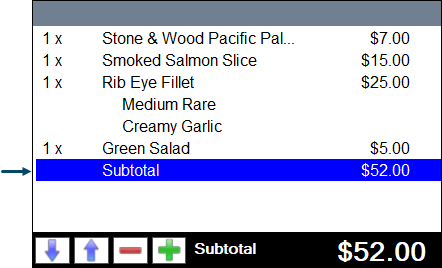
- Once selected further operations can be undertaken, namely, applying a Discount or Surcharge to the Subtotal value displayed. Refer HERE for more information.
End of article ▲