
Subjects ▲ ▼
About ▲ ▼
What Is Required? ▲ ▼
- For Happy Hours pricing to automatically be activated and then deactivated at the configured Start/End times in Touch, the Service Monitor service will need to be running.
When Is It Used? ▲ ▼
It is used to create/design/maintain Keyboards for use in conjunction with Touch. This includes Keyboards, Layouts and POS Keys
FAQs? ▲ ▼
| Question | Answer | |
| What happens when you have 2 Locations with the same price level but only one Location has Happy Hours? |
|
|
| Is it possible to increase prices for late night trade? | If live bands are playing late at night and therefore increased staff and security costs are required for late night trade, the Happy Hour feature can be used to automatically apply a surcharge on Products for the late-night hours. The next day the prices will revert back to normal. | |
| How do I restrict the sale of Products for certain periods of the day?
www.olgr.nsw.gov.au/pdfs/intox_guidelines.pdf The following drinks are not sold or supplied between midnight and 5am:
|
 |
|
|
|
Yes, ensure the Date From/To and Time From/To are set appropriately. For example:
|

Screens ▲ ▼
Happy Hour Set-up Screen ▲ ▼
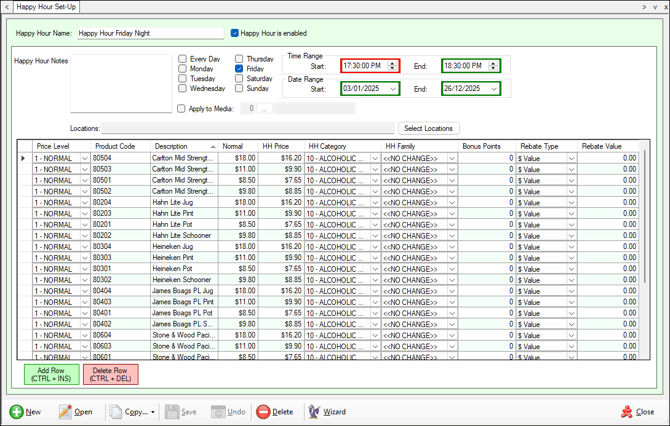
To access, select the Happy Hour Set-Up option in the Products menu in Back Office. Used to create and maintain Happy Hour promotions.
Sections ▲ ▼
Header Section ▲ ▼

- Happy Hour Name - Enter an appropriate name for the Happy Hour.
- Happy Hour is enabled - Select to ensure the Happy Hour is active.
Grid Header Section ▲ ▼

- Happy Hour Notes - Enter a short description/explanation of the Happy Hour.
- Day(s) of Week - Select to select the day(s) of the week that the Happy Hour will be active. Select Every Day for all days to be selected.
- Start/End Time - Select the up/down arrows to set the Start/End times of the Happy Hour.
Notes ...
Set this to start at least 2 minutes prior to the Happy Hour period to allow for updates to reach the Touch terminals.
- Start/End Date - Select the up/down arrows to set the Start/End dates of the Happy Hour.
- Apply to Media - Select to enable the selection of a Media to apply the Happy Hour discount to, for the purposes of reporting. Refer to the Sales Media reports.
- Locations - Select the Select Locations button to open the Locations screen to select those Locations at which this Happy Hour is to be active.
Notes ...
Only the required Locations should be selected to ensure the size of the updates to each Touch terminal is kept to a minimum.
Grid Section ▲ ▼
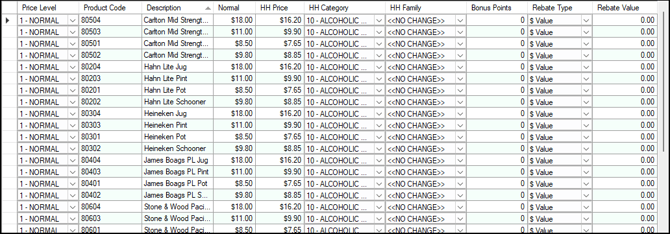
- Price Level - Select from the drop down list the Price Level to which the Happy Hour price is to be applied.
- Product Code - Displays the Product Code of the Product. When using the Add Row option place the cursor in this field and hit the Enter key to open the Search Products screen to select a Product.
- Description - Displays the Product Description of the Product.
- Normal - Displays the current selling price of the Product.
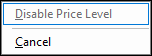
- HH Price - Displays the Happy Hour price of the Product when the Happy Hour is running. Right click a HH Price cell to either:
- HH Price continued ...
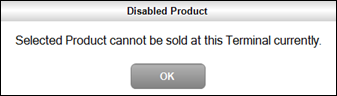
- Disable Price Level - Select to ensure the HH Price is disabled. A value if $1M will be entered into the HH Price field. Once set, and when the Item/Product is sold at the Touch terminal, the message below will be displayed.
- HH Price continued ...
- Cancel - Exit without disabling.
- HH Category - Select from the drop down list the Category the Product will be assigned to while the Happy Hour is running.
- HH Family - Select from the drop down list the Family the Product will be assigned to while the Happy Hour is running.
- Bonus Points - Enter how many bonus points (in addition to the normal points, they do not replace the normal points) will be awarded to the customer for buying the Product while the Happy Hour is running.
Notes ...
The points multiplier in Categories and Member Classifications is ignored for the bonus points. It is a net points value added to the sale, in addition to the current points calculation.
- Rebate Type - Select from the drop-down list one of the following:
- $ Value
- Percentage
- Rebate Value - Displays/Enter the Rebate as $ Value or Percentage of the item sold depending on the Rebate Type selected. Rebates are sometimes provided by the Manufacturers to promote Products. The rebate applicable is entered here, while the Product is on offer during the Happy Hour. The value of the Rebate reduces the Cost of a Product, ensuring the GP is reported correctly. Rebates applied are reported on in the Extended Specials Sales Report and Specials Sales Reports.
Grid Footer Section ▲ ▼
- Add Row - Adds a new entry into the grid.
- Delete Row - Removes the selected entry from the grid.
Footer Section ▲ ▼
- New - Select to add a new Happy Hour.
- Open - Select to open the Search Promotions screen and select an existing Happy Hour.
- Copy - Select to copy the selected Happy Hour.
- Save - Select to save changes.
- Undo - Select to undo changes made.
- Delete - Delete the selected Happy Hour.
Notes ...
Deleting a Happy Hour will affect reporting on Happy Hour related sales that occurred in the past.
- Wizard - Select to open the Wizard screen to add Items/Products in bulk, to a Happy Hour.
- Close - Select to exit.
Wizard Screen ▲ ▼
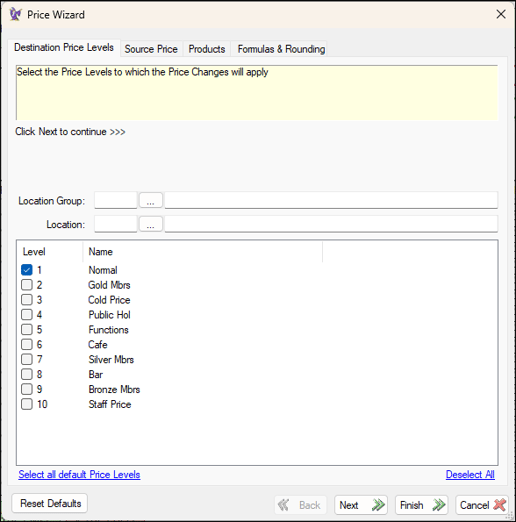
To access select the Wizard option in the footer section of the Happy Hour Set-Up screen.
Tabs ▲ ▼
Destination Price Levels Tab ▲ ▼
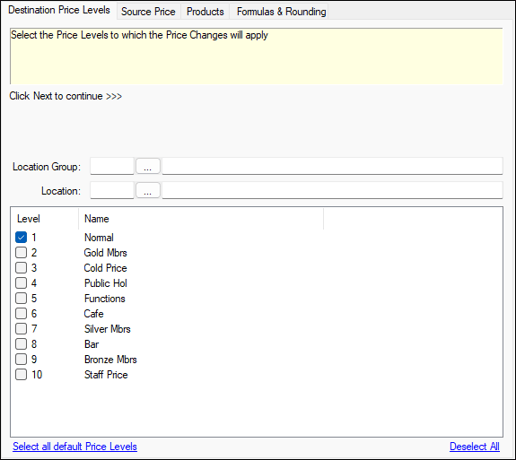
Select one or more Price Levels listed to which the Happy Hour pricing will be applied.
- Location Group - Select a open the Search Location Groups screen to select a Location Group (Venue) and ensure all the Price Levels assigned to that Location Group (Venue) are automatically selected.
- Location - Select a open the Search Locations screen to select a Location and ensure all the Price Levels assigned to the selected Location are automatically selected.
- Price Level - Select the individual Price Levels to which the Happy Hour is to apply.
- Select all Default Price Levels - Select to check all Price Levels.
- Deselect All - Select to uncheck all Price Levels.
Source Price Tab ▲ ▼
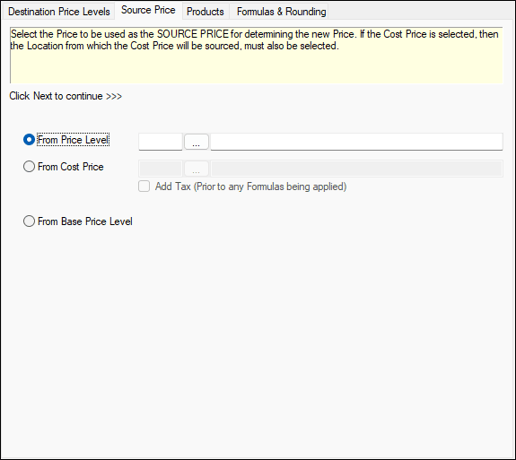
Select from one of the following options, on which the Happy Hour price calculation is to be based:
- From Price Level - Select to open the Search Price Levels screen to select the Price Level based on which the new price will be calculated. For example: To set a Staff Price of 30% less than the normal retail price. To accomplish this select the Price Level that reflects the normal retail price. The 30% calculation is done later in the wizard.
- From Cost Price - Select to open the Locations screen to select the Location from which the Cost Price is to be retrieved and used as the basis for the new price calculation. This is particularly useful for setting up new Products that have just been purchased from Suppliers. Once a profit margin has been decided on. The prices can easily be updated.
- Add Tax - Select to add Tax prior to any calculations being done.
- From Base Price Level - Select to ensure that the new price calculation is based on the Price Level prices themselves.
Products Tab ▲ ▼
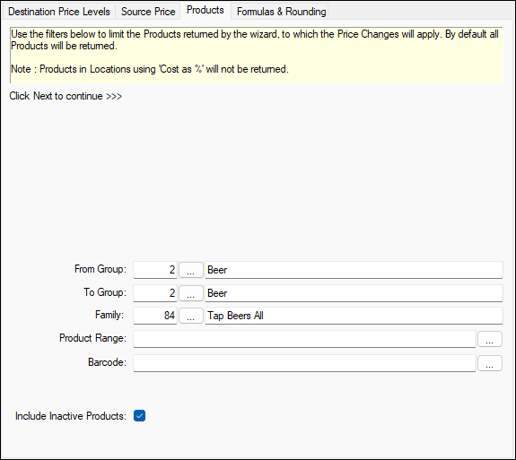
Select the Items/Products to which the Happy Hour price is to be applied.
- From Group/To Group - Select to open the Search Product Groups screen to return the Items/Products in the From/To Product Group range selected.
- Family - Select to open the Search Families screen to return the Items/Products in the selected Family.
- Product Range - Select to open the Search Product Range screen to return the Items/Products in the selected Product Range.
- Barcode - Enter/Scan a Barcode or select to open the Search Barcode screen to return the Items/Products with the selected Barcode.
- Include Inactive Products - Select to ensure inactive Items/Products are returned.
Formulas & Rounding Tab ▲ ▼
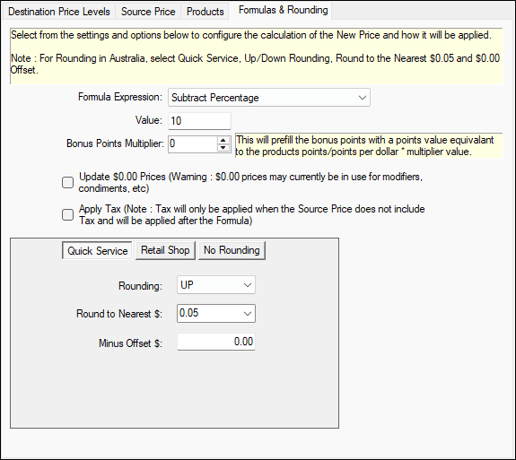
Select the Formula and Rounding required to determine the Happy Hour price.
- Formula Expression - Select from the drop-down list one of the following mathematical expressions required to calculate the new price:
- Multiply by Value
- Divide by Value
- Add Percentage
- Subtract Percentage
- Add Value
- Subtract Value
- Equals
- None
- Value - Enter the value to be used in conjunction with the expression selected above. For example: a value of 0.9 used with the 'Multiply by Value' expression will result in a 10% reduction in price.
- Bonus Points Multiplier - Select to set the Bonus Points Multiplier.
- Update $0.00 Prices - Select to ensure prices currently set at $0.00 will be updated as well. This is only applied when the expressions Add, Subtract or Equals are selected.
Notes ...
Modifiers, cooking instructions and condiments may all have $0.00 prices and may need to remain at that price, so be sure to review the Products displayed in the grid before saving the Happy Hour.
- Apply Tax - Select to apply tax after the Formulas have been applied and when the Source Price does not include tax.
- Rounding - Select one of the following options and configure where required:
- Quick Service

- Rounding - Select from the drop-down list.
- Round to Nearest $ - Select from the drop-down list. For example: If a new price was calculated to be $2.93 and rounding was set to the nearest $0.05, then the resultant new price would be set to $2.95.
- Minus Offset $ - Enter a value to be subtracted from new calculated price. For example: If a value of $0.01 is entered and rounding is set to the nearest $1.00 then the new price will be 1 cent less the nearest dollar, resulting in a price ending in 99c (i.e. $14.99).
- Retail Shop
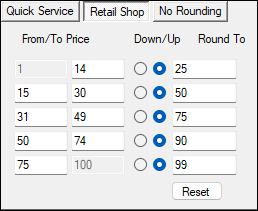
- From/To Price - Set the From/To prices for each of the five sets. This will determine which values will be rounded into each set.
- Down/Up - Specify whether to round up or down for each set.
- Round To - Specify a pre-set value that all prices within the From/To Price range will be rounded to.
- No Rounding - Select to NOT apply rounding.
- Quick Service
End of article ▲