
This provides information regarding the EFT08 - Tyro Payments peripheral in Touch.
Refer HERE for Reseller & Support information
Subjects ▲ ▼
About ▲ ▼
What Is Required? ▲ ▼
- Swiftpos v10+
What Is Supported? ▲ ▼
- Surcharging
- Tipping
What To Consider? ▲ ▼
- Sites must have a current Software Enhancement Licence to use this feature.
- If a printer is connected, then ensure an actual printer is selected. Do NOT use the <<Default Printer>> option because the device cannot see it.
When Is It Used? ▲ ▼
When a Venue wants to make use of a Tyro provided EFTPOS device.
Screens ▲ ▼
EFTPOS Settings Screen ▲ ▼
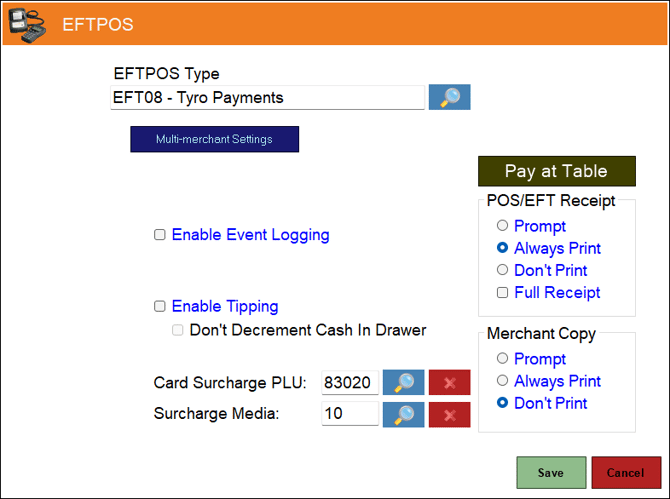
- EFTPOS Type - Select from the drop-down list the EFT08 - Tyro Payments option. Refer HERE for more information.
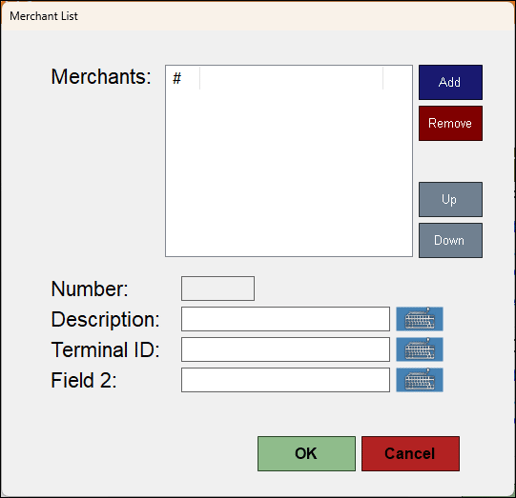
- Multi-merchant Settings - Select to open the Merchant List screen to manage merchants.
- Pay at Table - Select to open the EFTPOS Pay at Table Settings screen.
Notes ...
This option is not visible from a Touch Lite POS terminal.
- POS/EFT Receipt - Select from one of the Print options available. Also, if a full receipt option is required, select the Full Receipt option.
- Enable Event Logging - Select to enable. It is recommended that this is enabled when testing or when troubleshooting an issue.
- Enable Tipping - Select to enable.
- Don't Decrement Cash In Drawer - Select to ensure that Cash received as a Tip is held in a Tip jar or some other Tip vessel and is NOT added to the Cash Drawer. If unselected, it is assumed that the Cash received as a Tip is added to the Cash Drawer until distribution at a later date. Refer HERE for more information.
- Merchant Copy - Select from one of the Print options available. This option is used to control whether the merchant receipt generated by the PIN Pad needs to be printed at the end of the payment process. This is not stored/written back into a Touch order/sale, so it is only available end of the payment process.
-
- Prompt – Select to show the transaction result and prompt to confirm the printing of the merchant's copy.
- Always Print – Select to print the merchant's receipt automatically.
- Don’t Print – Select to never print the merchant's receipt.
-
- Card Surcharge PLU - Displays/Select the PLU to be assigned to the returned surcharge amount.
Notes ...
Surcharges are configured through the device, payment provider or the acquiring bank as is appropriate. Also, when EFT Card Media Links are configured, a matching card prefix or card type can override the Card Surcharge PLU configured here.
- Surcharge Media - Display/Select the Media to be assigned to the returned surcharge amount.
Notes ...
When EFT Card Media Links are configured, a matching card prefix or card type can override the Surcharge Media configured here.
IMPORTANT
If the Surcharge options above are configured, ensure the Surcharge PLU IS NOT INCLUDED in any Discount, Mix n Match, etc. If the Surcharge PLU IS INCLUDED then this will cause the Table to be over tendered.
Merchant List Screen ▲ ▼
End of article ▲