
This outlines how to manage Questions in Events in Back Office, tailored for the Events Portal.
Subjects ▼
How To Create A Question Set ▲ ▼
A Question Set can be created using the Back Office Event Questions menu option. To do this:
- In the Questions Set section of the Event Questions screen, select the New button in the Footer to add a new Question Set.
- Give the new Question Set an appropriate name. For example, Wiggles Concert.
- To add Questions to the newly created Question Set, do as follows:
- To create new Questions, refer to How To Create A Question for more information.
- To copy from existing Questions, select the Copy Questions button to view the list of existing Questions and select one or more to add to the new Question Set.
- Once copied, ensure that for each of the Questions copied, they are configured appropriately for the new Question Set. For example, ensure the Optional settings is correctly configured.
- If required and appropriate, create further Questions. Refer to How To Create A Question for more information.
- Lastly, and if applicable, assign the newly created Question Set to the applicable Area Types. Refer to the subject below for more information.
How To Assign Area Types ▲ ▼
One or more Area Types can be assigned to a specific Question Set. Doing this will ensure that when a Session is being configured a Question Set can be selected ... To do this:
- Ensure Area Types have been configured and are listed here.
- In the Questions section of the Event Questions screen, select the Area Types button to show the Area Types Section.
- Once visible, the Area Types Section will list the Area Types available. Select/Unselect these as required.
How To Delete A Question Set ▲ ▼
A Question Set can be deleted using the Back Office Event Questions menu option. To do this:
- In the Questions Set section of the Event Questions screen, select the Question Set to be deleted.
- Select the Delete button in the footer. If a prompt is displayed, respond appropriately.
- The Question Set will be removed from the grid.
- Select the Save button to save the changes.
How To Create A Question ▲ ▼
A Question can be created and maintained using the Back Office Event Questions menu option. To do this:
- One or more Question Sets will need to have been created in order to be able to create a Question. Refer to the How To Create A Question Set subject for more information.
- In the Questions Set section of the Event Questions screen, select Question Set to which the new Question is to be added.
- In the Questions section of the Event Questions screen, select the New button to add a new Question.
- The Question Builder screen will be displayed.
- Select from the Question Type drop down list either one of the Preconfigured Question types or select the Custom option to configure a customised Question.
- Give the new Question an appropriate Name.
- Enter the Phrase that the patron will see when registering their attendance to an Event.
- Select from the Answer drop down list the type most appropriate for the Response that is required from the patron.
- Select the Optional option if the Question to be asked of patron is NOT mandatory.
- Select the Accept button to save the new Question.
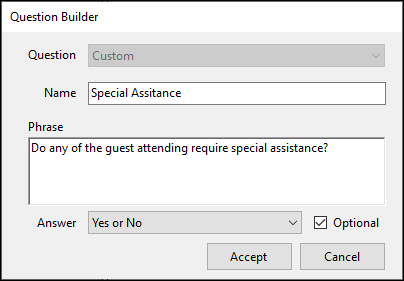
Example of a new Question
How To Edit A Question ▲ ▼
A Question can be edited using the Back Office Event Questions menu option. To do this:
- In the Questions Set section of the Event Questions screen, select the Question Set that contains the Question to be edited.
- In Questions section of the screen, select the Question to be edited.
- Select the Edit button in the footer to open the Question Builder screen.
- Make the changes that are required and then select the Accept button to accept the changes and close the screen.
- Select the Save button to save the changes.
How To Delete A Question ▲ ▼
A Question can be deleted using the Back Office Event Questions menu option. To do this:
- In the Questions Set section of the Event Questions screen, select the Question Set to be deleted.
- In Questions section of the screen, select the Question to be deleted.
- Select the Delete button in the footer. If a prompt is displayed, respond appropriately.
- The Question will be removed from the grid.
- Select the Save button to save the changes.
End of article. ▲