
This outlines the How To Sign In to Cloud Back Office.
Subjects ▲ ▼
About ▲ ▼
What Is Required? ▲ ▼
- The Clerk/Staff Member wanting to access Cloud Back Office must be registered as a user. Refer HERE for more information.
When Is It Used? ▲ ▼
Used when a Clerk/Staff Member wants to gain access to Swiftpos Cloud Back Office.
How To? ▲ ▼
How To Sign In? ▲ ▼
- Access Cloud Back Office to display the Cloud Back Office Sign In screen to sign in. Refer HERE for more information.
- Enter the Clerk's/Staff Member's Email address into the Email field.
- Enter the Clerk's/Staff Member's password used when registering for an Account, into the Password field.
Notes ...
If the wrong credentials have been entered, an Authentication failed message will be displayed. Enter the correct credentials and try again.
If the password has been forgotten, select the Forgot password? option and follow the instructions HERE.
- Select the SIGN IN option to display the Enter code prompt:
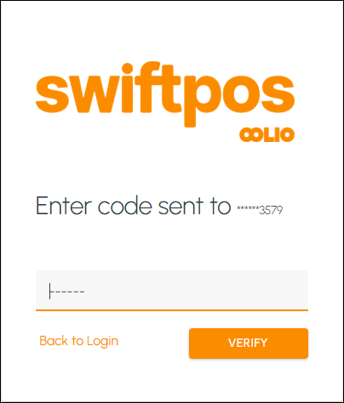
- Enter the code sent to the Clerk's/Staff Member's phone into the field provided.
- Select the VERIFY option to verify and sign in.
Notes ...
If the wrong code is entered, an Authentication failed message will be displayed. Enter the correct code and try again.
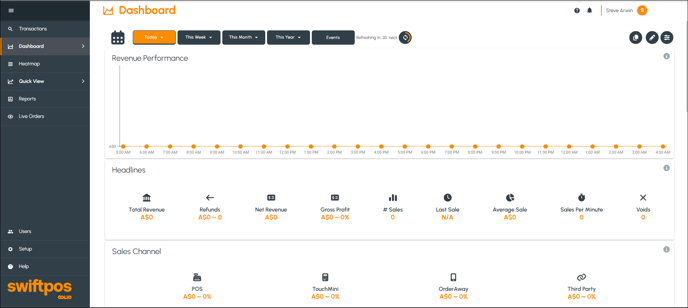
- If successful, the Cloud Back Office Dashboard will be displayed and will look something like the following screenshot:
End of article ▲