
This outlines the How To Reset A Password for Swiftpos HQ.
Subjects ▲ ▼
About ▲ ▼
What Is Required? ▲ ▼
- The Clerk/Staff Member wanting to access Swiftpos HQ must be registered as a user. Refer HERE for more information.
When Is It Used? ▲ ▼
Used when a Clerk/Staff Member wants to gain access to Swiftpos HQ and has forgotten their password.
How To? ▲ ▼
How To Reset A Password? ▲ ▼
- Access Swiftpos HQ to display the Swiftpos HQ Sign In screen to Reset A Password. Refer HERE for more information.
- Select the Forgot password? option to display the Reset Password screen:
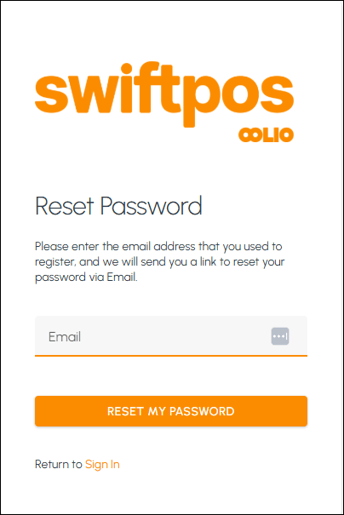
- Enter the Clerk's/Staff Member's Email address used when registering for an Account, into the Email field.
Notes ...
If the wrong email address has been entered, a Failed to recover password message will be displayed and the Swiftpos HQ Sign In screen will be displayed.
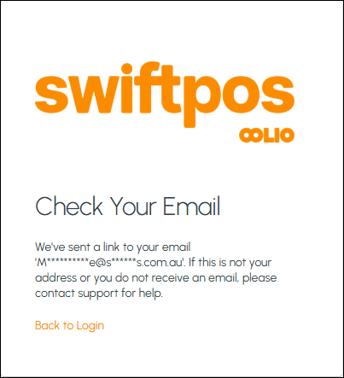
- Select the RESET MY PASSWORD option to display the Check Your Email prompt:
- Open the email and click on the Reset Password link to display the Reset Your Password screen in Swiftpos HQ:
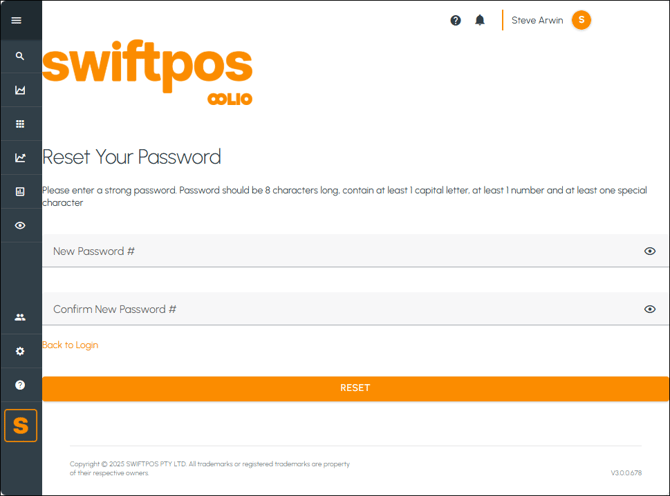
- Enter a new Password in the New Password # field.
- Re-enter the same Password in the Confirm New Password # field.
- Select the Reset option to reset the password.
- Once complete, a Password Reset Complete screen will be displayed:
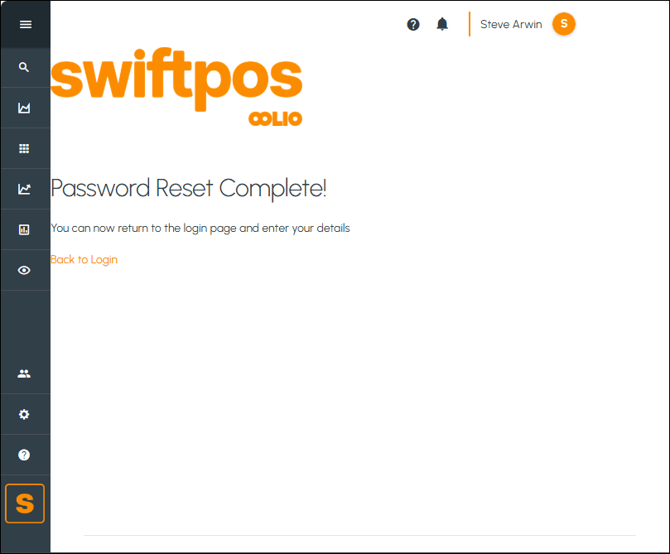
- Select the Back to login option to sign in with the new password. Refer HERE for more information.
End of article ▲