
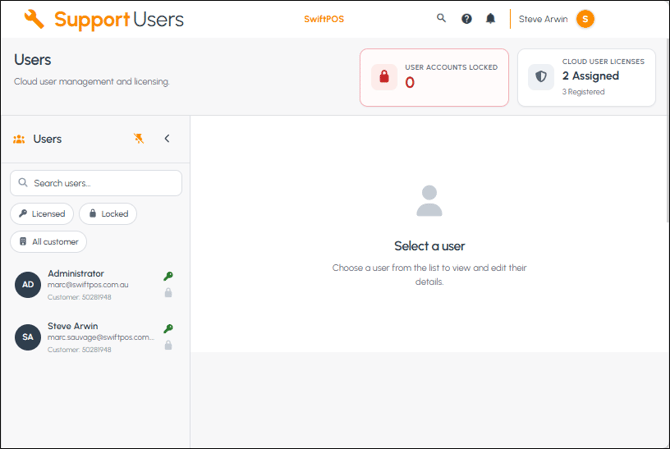
To access, select the Users option from the Support menu.
Subjects ▲ ▼
About ▲ ▼
When Is It Used? ▲ ▼
Used to manage Swiftpos HQ user accounts, licensing, security roles, login status, and basic contact details. It is intended for support/admin-level user management and is separate from Clerks in Back Office, although some user status values are linked to Clerks.
Screens ▲ ▼
Add Setting Prompt Screen ▲ ▼
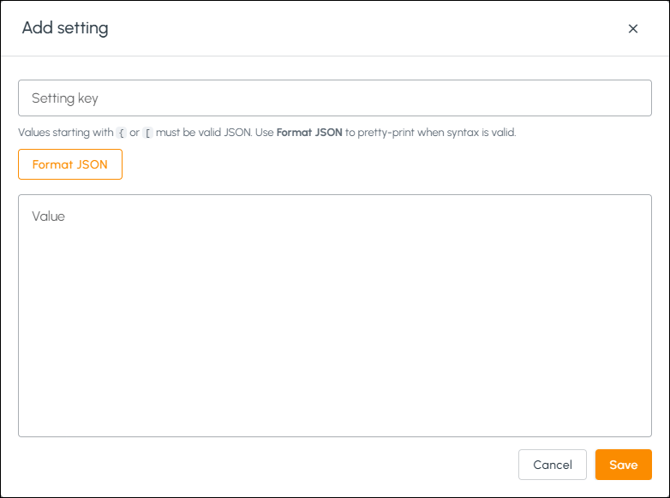
- Setting Key - To be continued ...
- Format Json - Select to format.
- Value - To be continued ...
Users Screen ▲ ▼
Sections ▲ ▼
Header Section ▲ ▼

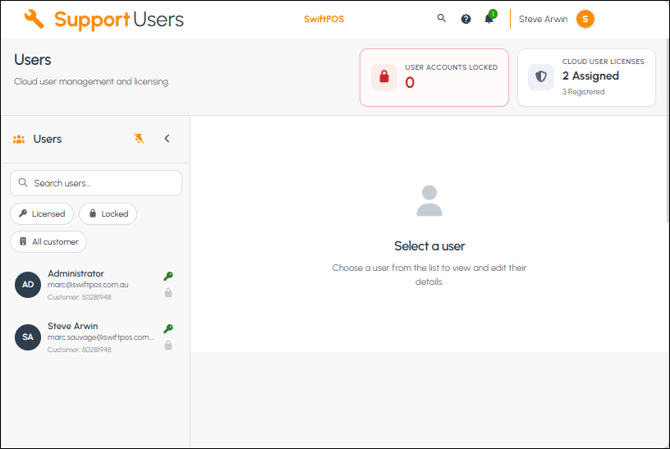
- User Accounts Locked - Displays the number of locked user accounts.
- Cloud User Licences - Displays the number of user licences assigned and the number of licenses remaining.
Users Section ▲ ▼
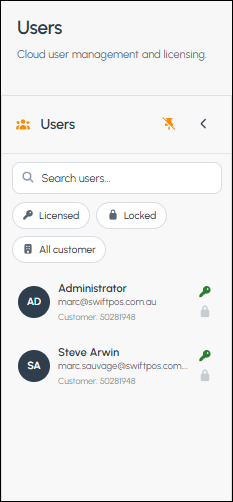
- Search - Enter the name of a user.
- Filters - Select from the following options:
- Licensed - Select to return only licensed users.
- Locked - Select to return only those users that have a locked account.
- All Customers - Select to return all customers.
- Users - Displays the users returned along with their:
- Initials/Avatar icon
- Name
- Email address
- Customer number
- Key icon - License indicator
- Lock icon - Locked indicator
User Section ▲ ▼
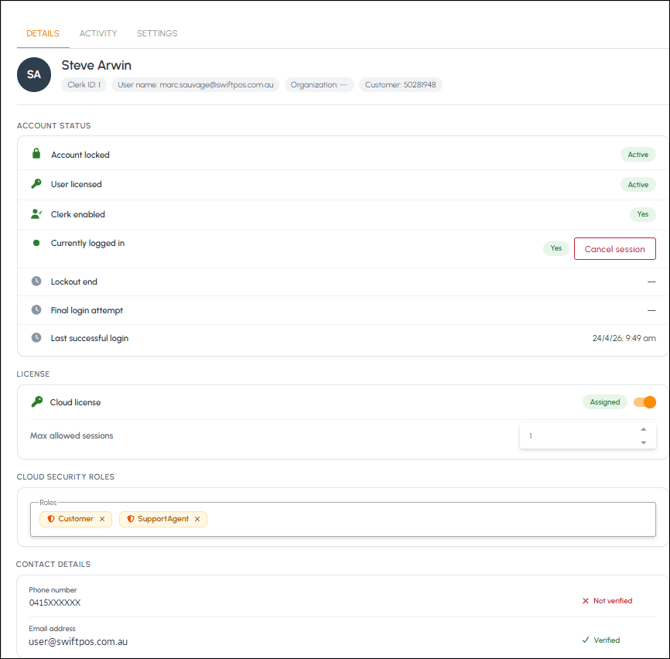
Used to view user account information and management options.

Displays the selected user's name, ID, email, organisation and Customer number.
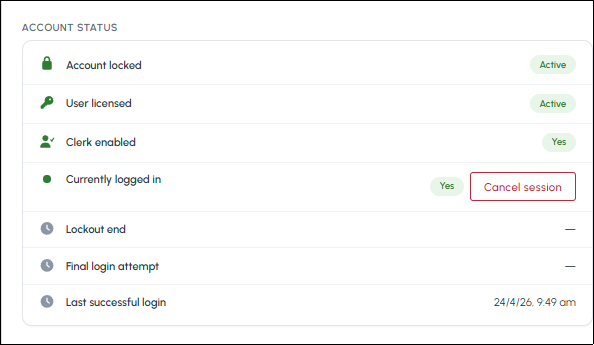
Used to view the user’s current access and login status. That includes:
- Account Status - Displays Account locked - Shows whether the account is currently locked. The lockout duration is always 5 minutes.
-
User licensed - Shows whether the user has a Cloud User license assigned. To unassign a user's license, select the Assigned option in the License section. Changes are pushed down immediately server-side.
-
Clerk enabled - Shows whether the linked local Swiftpos Clerk is active. If the Clerk is inactive in Back Office, the user will not be able to register or log in.
-
Currently logged in - Shows whether the user currently has an active browser session. If the user is logged in, a Cancel Session option is available.
-
Lockout end - Shows when the current lockout period ends, where applicable.
-
Final login attempt - Shows the final failed login attempt timestamp, where applicable. Accounts are locked out after 5 unsuccessful attempts.
-
Last successful login -Shows the user’s last successful login timestamp.
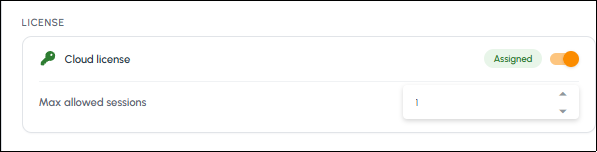
Controls the Cloud User license assignment.
-
Cloud license - The license is now controlled by a switch. When the switch is changed, the license state is pushed down immediately to the server side.
- Assigned - Toggle select to assign/unassign the user's Swiftpos HQ license.
-
Max allowed sessions - Controls the number of concurrent browser login sessions allowed for the user. For example, if this is set to 5, the user can have up to five concurrent browser sessions.
Cloud Security Roles Section ▲ ▼
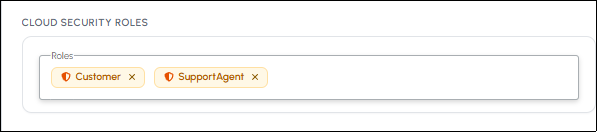
Displays the security roles assigned to the user. Forexample:
-
Customer – Provides access to a single customer database. This is the standard role for regular customer users.
-
Caterer – Provides access to multiple customer databases through an assigned Organisation. The customers available to the user are configured against that Organisation.
-
Support Agent – For Swiftpos/Oolio staff only. Provides access to view all customer accounts.
Notes ...
The SupportAgent role can no longer be assigned to non-Swiftpos or non-Oolio users.
This role should only be available for internal users, such as users with Swiftpos or Oolio email addresses.
This restriction helps prevent general customer users from being assigned broader support-level access.
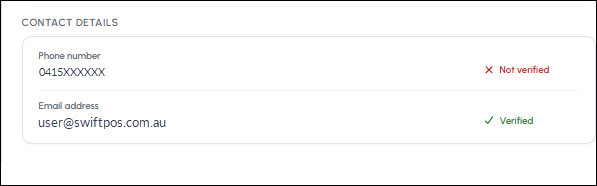
Displays user contact information and 2FA verification status. Verified means 2FA has been completed. Not verified means 2FA has not been completed.
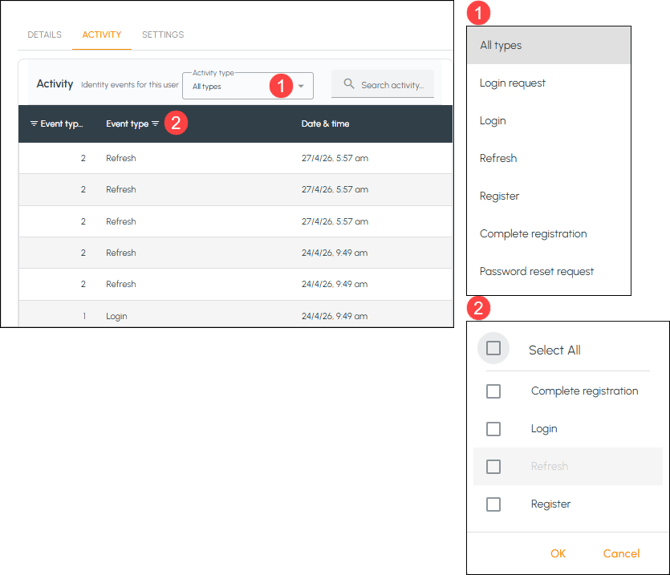
Used to review recent authentication-related events for a user.
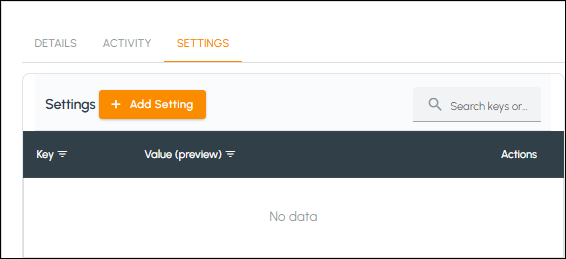
To be continued ...

- Search - Enter the key to search for..
- Add - Select to open the Add setting prompt to add a setting.
To be continued ...
To be continued ...
End of article ▲