
Subjects ▲ ▼
About ▲ ▼
What To Consider? ▲ ▼
- It is STRONGLY RECOMMENDED that backups are configured and scheduled for all Swiftpos installations, so that these can then be stored off site to mitigate risk in the event of fire, flooding, etc.
- It is not essential to close down the Back Office application prior to performing a backup. Use of the software is allowed while a backup is in progress.
- A recommended option is to use the Data Roll-up as part of the End of Day process.
-
New Installations
If for example transactions have been recorded while doing training at a new site, then to clear those transactions set the How Many Months History to Keep setting to zero and select Run Selected to remove all transactions.
If on the other hand a stocktake is about to be done then it is recommended to do a Stocktake to zero off stock on hand before running this process.
When Is It Used? ▲ ▼
Used to quickly and easily erase data from the Swiftpos database and ensures a specified previous number of months of data are kept. This feature is useful when available SQL Server database space becomes an issue.
Example ▲ ▼
if the Electronic Journal and Open Item Debtor entry is selected in the Select Data to Clear column and a value of 6 is entered in the How Many Months History to Keep column for the same entry, then once run, all data from the Electronic Journal/Transaction (EJ Table) prior to 6 Months ago will be removed.
How To? ▲ ▼
How To Clear All Files and their Data? ▲ ▼
- Backup your data first.
- Right click anywhere in the grid to display the prompt and then select to confirm deleting data.
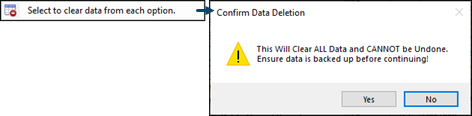
- Select Yes to ensure all data files are selected and a -1 is entered (in the How Many Months History to Keep value) against each entry in the grid.
- Select the Run Selected option to clear all data.
How To Clear Vouchers? ▲ ▼
Use to clear issued Vouchers from the Voucher Ledger older than the specified How Many Months History to Keep value or any Vouchers where the Used Count >= Total Uses and the Valid To used date is older than the specified retention period defined by the How Many Months History to Keep value.
Notes ...
Stored Value Vouchers must have a zero balance before they will be cleared.
Any order/sales items associated to the Vouchers removed are un-associated. No sales transactions are deleted from the Electronic Journal/Transaction (EJ Table).
Screens ▲ ▼
Clear Transaction History Screen ▲ ▼
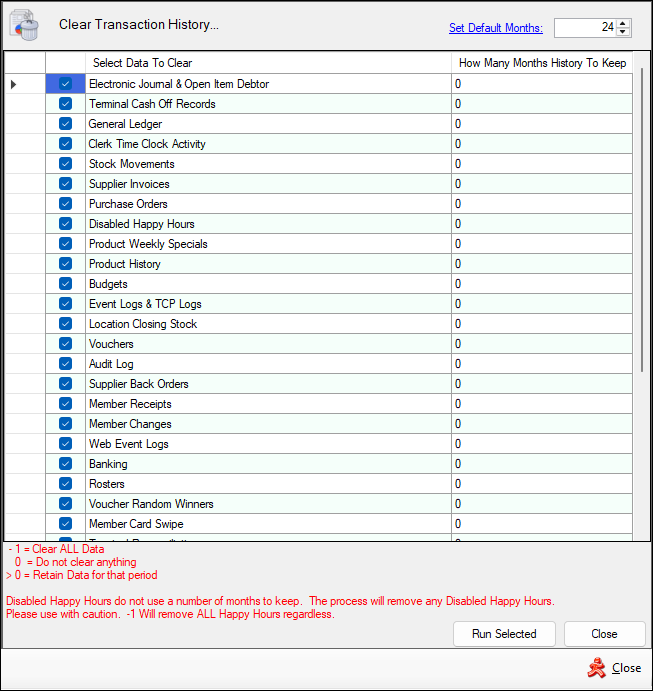
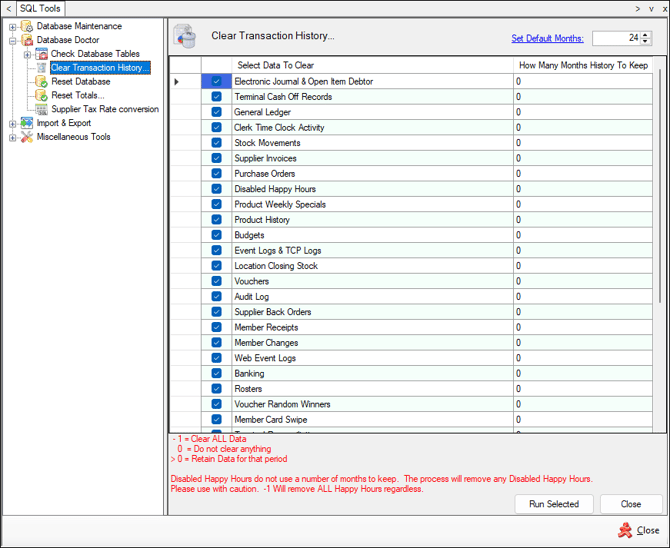
To access, select the Clear Transaction History option in the Database Doctor menu of the SQL Tools menu. Used to quickly and easily erase data from the Swiftpos database and ensures a specified previous number of months of data are kept.

-
Set Default Months - To be continued ...
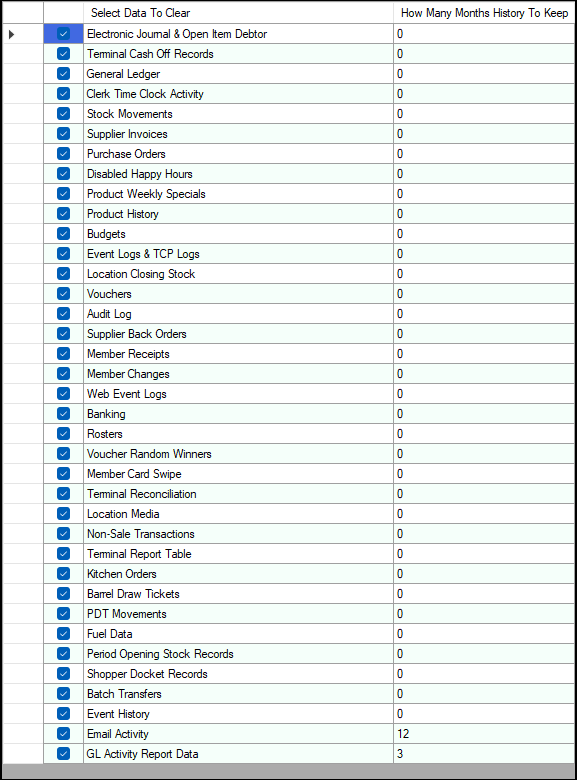
- Select Data to Clear - Select from the data options available the files that require clearing. Refer HERE for more information.
- How Many Months History to Keep - Displays/Enter the number of months of data that is to be kept. The following values apply:
- -1 = Clear all data.
- 0 = Do not clear any data
- >0 = Retain data for the number of months specified.
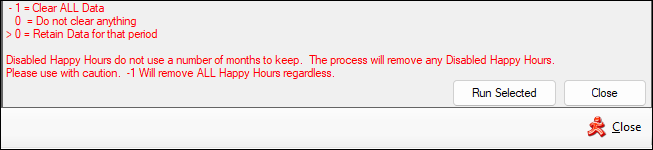
- Run Selected - Select to clear data.
- Close - Select to exit.
End of article ▲