
Subjects ▲ ▼
About ▲ ▼
When Is It Used? ▲ ▼
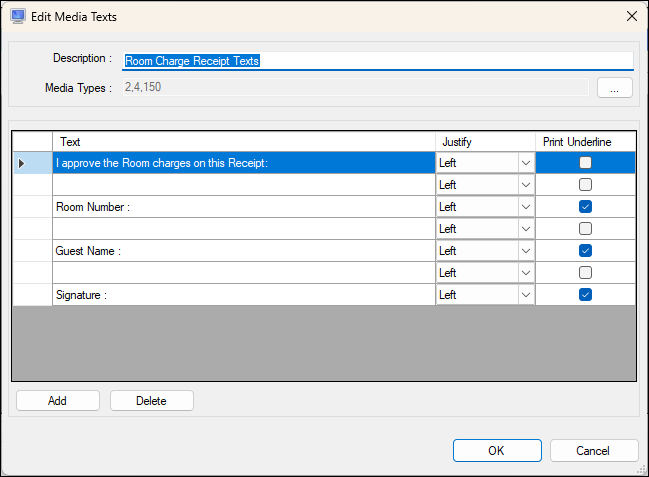
Used to assign Medias to Custom Media Texts and to configure the custom texts that will be printed on the receipt when the assigned Media is used in the finalisation of an order/sale.
Example ▲ ▼
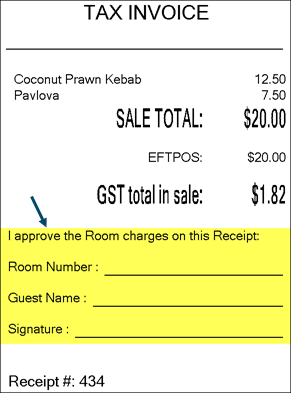
Example of a receipt showing Custom Media Texts. The receipt was printed as a result of a sale finalised to a Media that has Custom Media Texts assigned to it.
Screens ▲ ▼
Add Media Texts Screen ▲ ▼
To access, select the Add option in the footer section of the Custom Media Texts tab. Refer to the Edit screen for more information.
Edit Media Texts Screen ▲ ▼
To access, select the Edit option in the footer section of the Custom Media Texts tab.

- Description - Displays/Enter an appropriate Description of the Media Text. For example, Room Charge Receipt Texts.
- Media Numbers - Displays/Select the Medias that are/will be assigned to the Custom Media Texts. When the assigned Medias are used in the finalisation of a sale, the Texts configured in the grid below will be printed on the receipt.
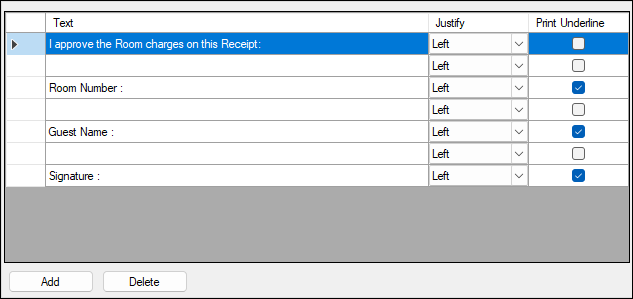
- Text - Displays/Enter the Custom Text that will be displayed on the receipt.
- Justify - Select from the drop-down list either Left, Centre or Right to justify the printing of the Text as required on the receipt.
- Print Underline - Select to print an underline as a guide for completion by the customer. For example, the customer is required to sign the receipt above the underline.
Footer
- Add - Select to add a Text.
- Delete - Select to delete the selected Text.
End of article ▲