
This feature allows for the scheduling of stocktakes for specific Locations to ensure the Locations are locked on time prior to the stocktake commencing.
How To? ▲ ▼
To schedule a stocktake, do as follows:
- Ensure the Lock Locations for Scheduled Stocktakes option is selected in the End of Day Options screen.
- Ensure the End of Day service is running.
- Navigate to the Stocktake & Period End screen in Back Office.
- If necessary, select the Venue from the Venue drop-down list in the Header section to limit the number of Locations to a single Venue. Only useful when Venues have multiple Swiftpos Venues and large numbers of Locations.
- Select the Schedule Stocktakes option in the footer section to open the Location Scheduled Stocktakes screen.
- Select the Add option to open the Locations screen.
- Select one or more Locations.
-
Set a future date/time in the Schedule For option displayed in the footer section of the Locations screen. For example:

- Select OK.
- The following prompt will be displayed:
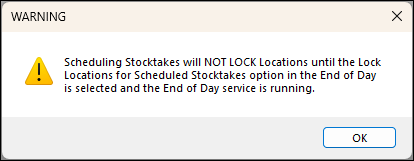
- The Locations will be added to the grid of the Location Scheduled Stocktakes screen along with the future date/times set.
- Select the Save & Close option to save and exit the Location Scheduled Stocktakes screen.
End of article ▲